Retro Game Stick Built-in 15 Emulators 20000+ Games, Gifts
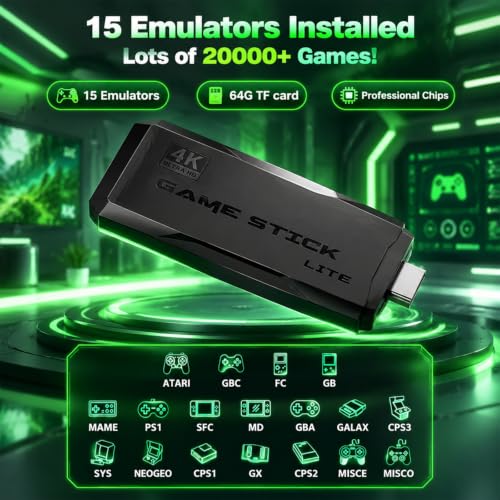
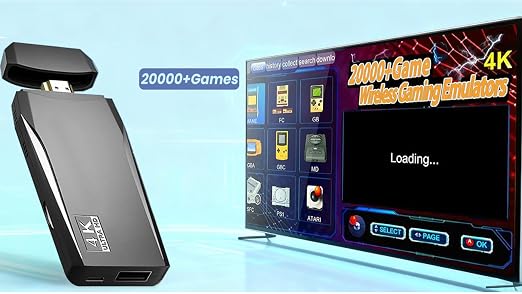
Retro Game Stick Built-in 15 Emulators 20000+ Games, Gifts for Game Lover Plug & Play Retro Game Consoles with 2 2.4GHz Wireless Controllers, 4K HD Output, Save & Load Function, Family Game Nights
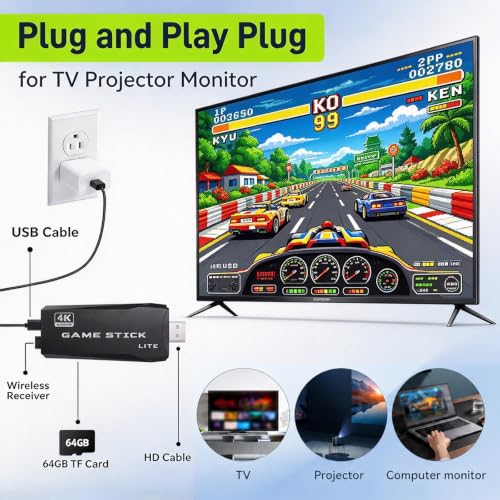
- 【Plug and Play Game Console】Connect the game pad to the power supply, then plug it into the TV, and adjust the TV power to the HD channel to display the game list screen on the TV. The steps are as follows :1. Connect the HD output of the TV 2. Insert the built-in TF game content card 3. Using the charging adapter to connect the power supply will turn on automatically. (2 PCS controllers require 4 AAA batteries, not included in the package.)
- 【Saving Game Progress】In the game, press the "Select" and "Start" buttons simultaneously to open the settings menu, where you will find options such as "Save Game", "Load Saved Game", and "Exit Game")
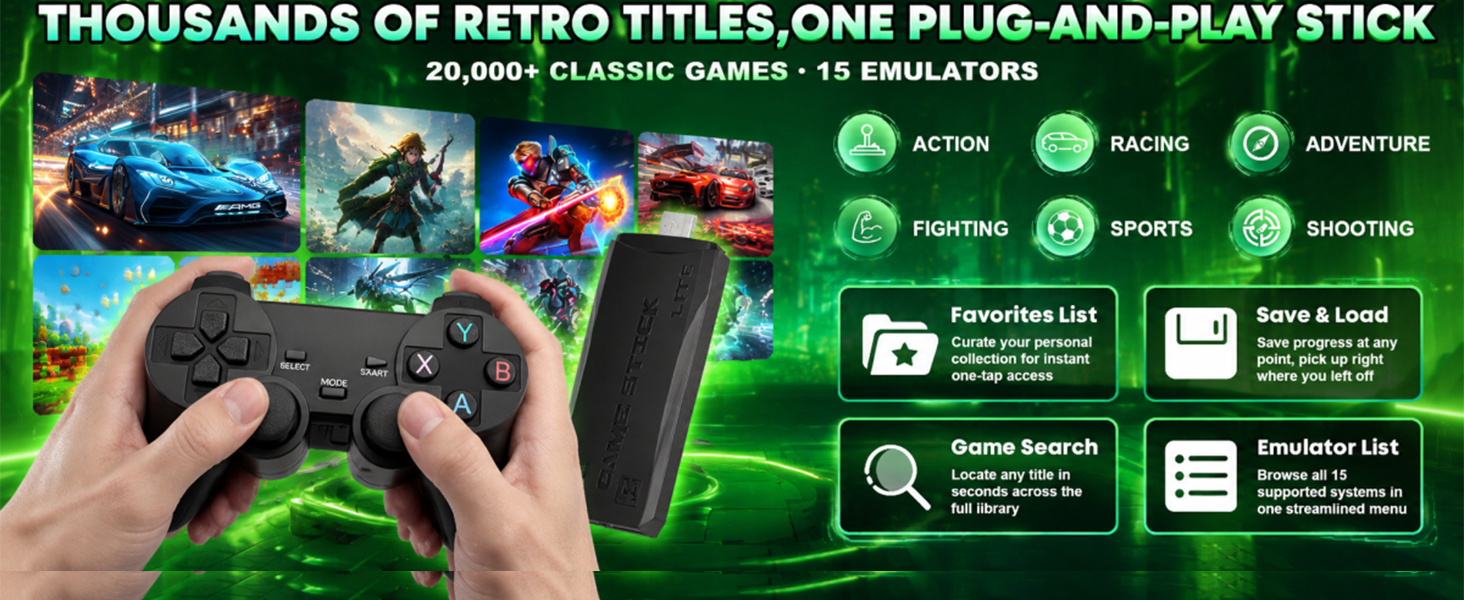
- 【Retro Mass Games Console】Relive the Classics Enjoy an incredible library of over 20,000 retro games across 23 emulator platforms. From platformers to arcade legends, experience the golden age of gaming — no downloads, no subscriptions required.
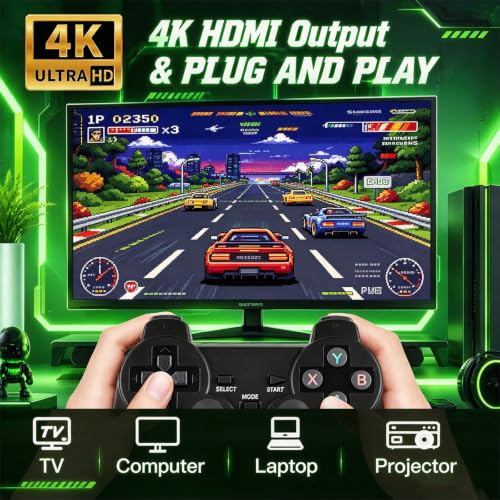
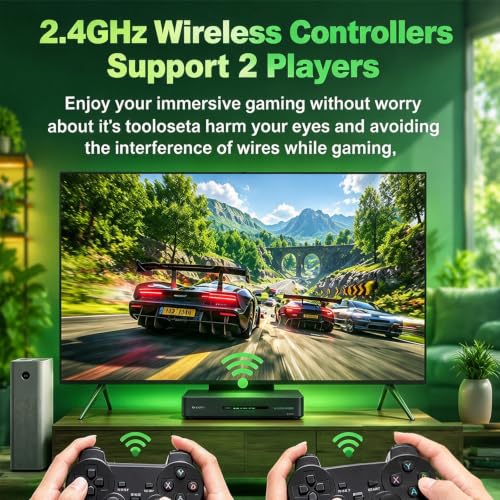
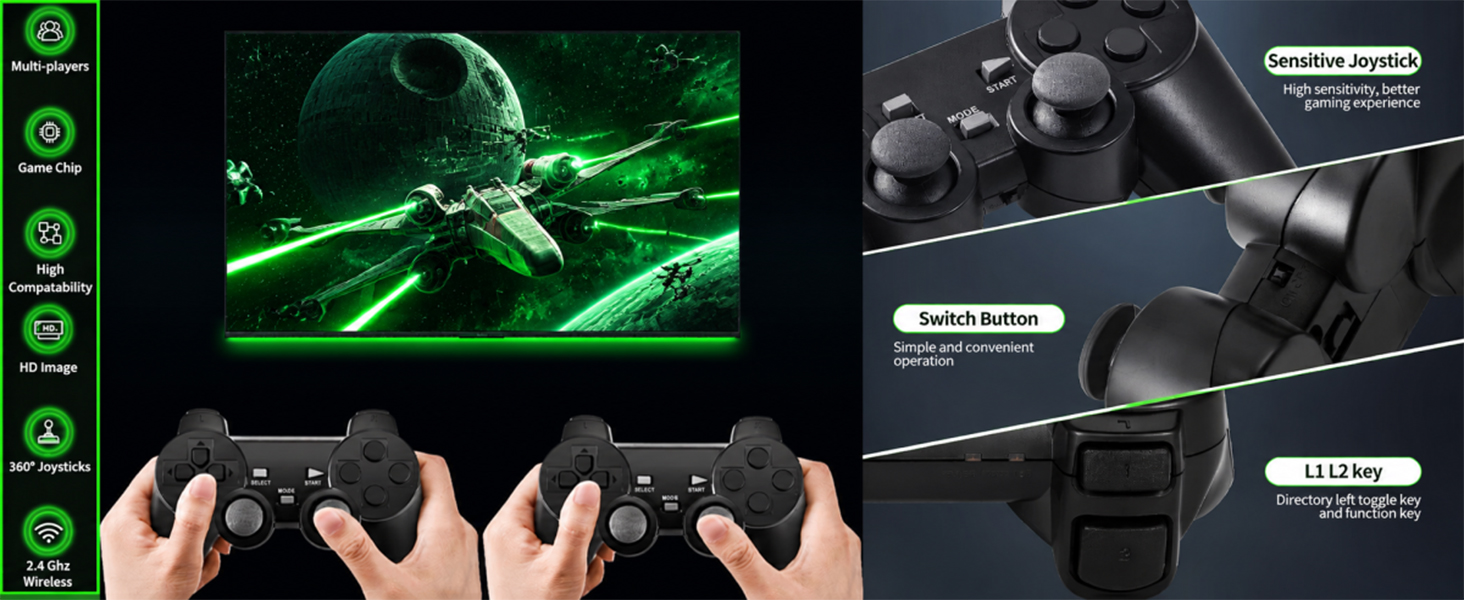
- 【4K High Output & 2.4GHz Wireless Controllers】Extended Cable Included: Immerse yourself in crystal-clear visuals with 1080P and 4K output support. The HDMI interface ensures seamless connection to TVs, projectors, PCs, and set-top boxes—bringing your favorite classics to the big screen. With 2.4G wireless handle, offering complete functions, more advanced and comfortable texture. Enjoy games with friends or family members without being tethered by wires.
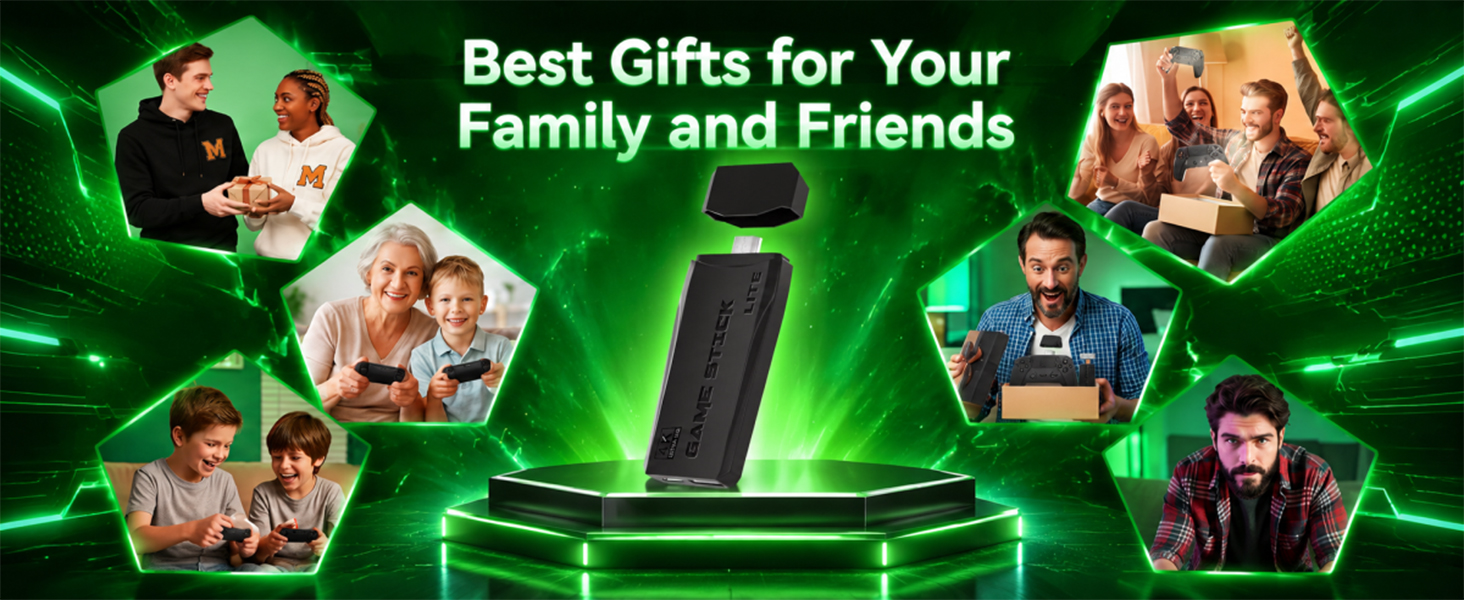
- 【Perfect Gift Choice for Everyone】Whether you're introducing classic games to a new generation or reliving childhood memories, this video game console is the ideal gift for any age.
No picture on TV after plugging in, and the game stick's power indicator does not light up?
1. Make sure the 5V power supply is connected and the game stick's indicator is on, and ensure the TF card is inserted beforehand.
2. Check that the HDMI cable is firmly plugged in, and use the TV remote to switch to the correct HDMI input source.
Black screen or boot progress gets stuck below 100%?
1. Unplug the power and plug it back in, then observe whether the progress bar completes normally.
2. If it still gets stuck, turn off the console, reinsert the TF card, and power on again. Also ensure you are using a stable power supply.
How to Save Game Progress?
Simultaneously press the "select" and "start" buttons. Then click on "Save Status". Afterwards, you can exit game.
When you want to restore your position, enter the game and select "loading status" this time. It can work even after power cycling.
Can I customize or add my own games?
Sorry, customization or adding new games is not supported. The console comes preloaded with over 20,000 free classic retro games. To ensure system stability and reliable performance, we do not support user-added games at this time.
Note:
1.Do not format the sd card,the game is stored in the card.
2.When you receive the product,the sd card has been installed in the card slot.
3.Most games can be entered normally,but some games will crash due to incompatibility.It's normal.


| SKU: | B0HMCJ3X1B |
| Brand: | BCWW |
| Model: | retro console stick |
| Colour: | Black |
| Manufacture: | DHX |
| Colour: | Black |
Product description
No picture on TV after plugging in, and the game stick’s power indicator does not light up?
1. Make sure the 5V power supply is connected and the game stick’s indicator is on, and ensure the TF card is inserted beforehand.
2. Check that the HDMI cable is firmly plugged in, and use the TV remote to switch to the correct HDMI input source.
Black screen or boot progress gets stuck below 100%?
1. Unplug the power and plug it back in, then observe whether the progress bar completes normally.
2. If it still gets stuck, turn off the console, reinsert the TF card, and power on again. Also ensure you are using a stable power supply.
How to Save Game Progress?
Simultaneously press the “select” and “start” buttons. Then click on “Save Status”. Afterwards, you can exit game.
When you want to restore your position, enter the game and select “loading status” this time. It can work even after power cycling.
Can I customize or add my own games?
Sorry, customization or adding new games is not supported. The console comes preloaded with over 20,000 free classic retro games. To ensure system stability and reliable performance, we do not support user-added games at this time.
Note:
1.Do not format the sd card,the game is stored in the card.
2.When you receive the product,the sd card has been installed in the card slot.
3.Most games can be entered normally,but some games will crash due to incompatibility.It’s normal.