KEMOVE K94 Wireless Mechanical Keyboard, QMK/VIA, LCD Screen

KEMOVE K94 Wireless Mechanical Keyboard, QMK/VIA, LCD Screen & Metal Knob Tri-Mode 2.4G/Bluetooth/USB-C, Gasket Mount, Hot-Swap, Creamy Switches, 8000mAh Battery, South-Facing RGB for Gaming & Work
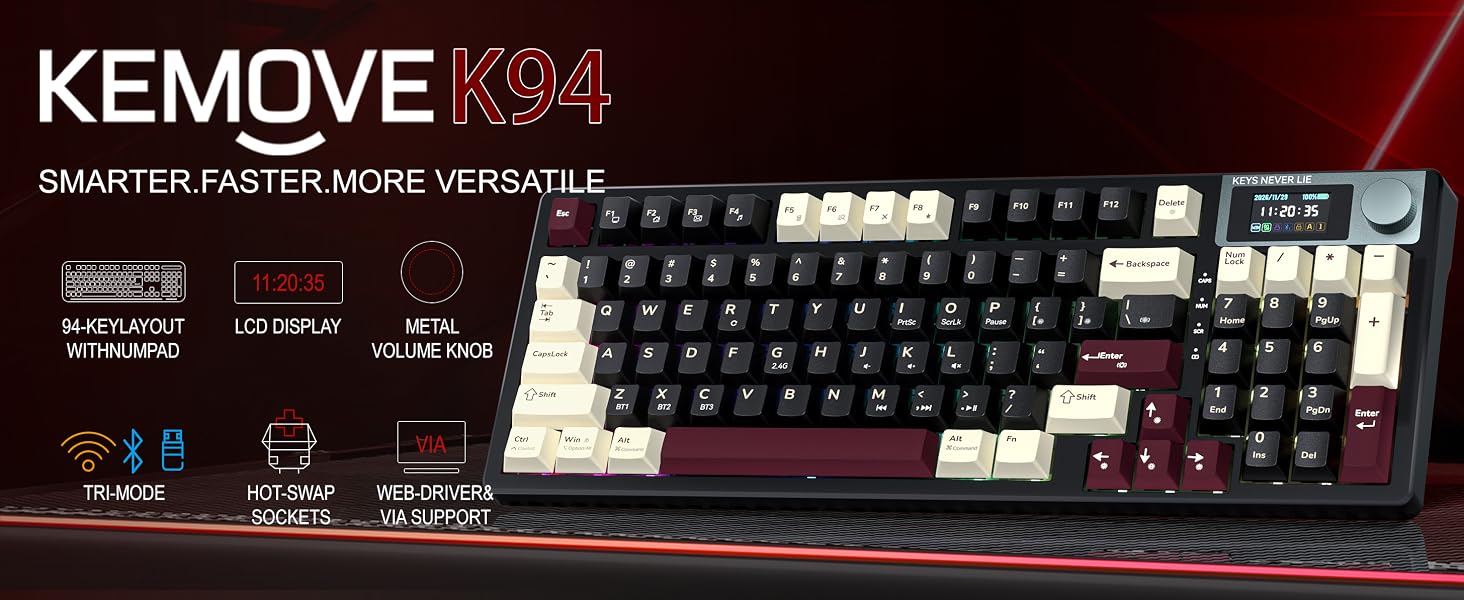
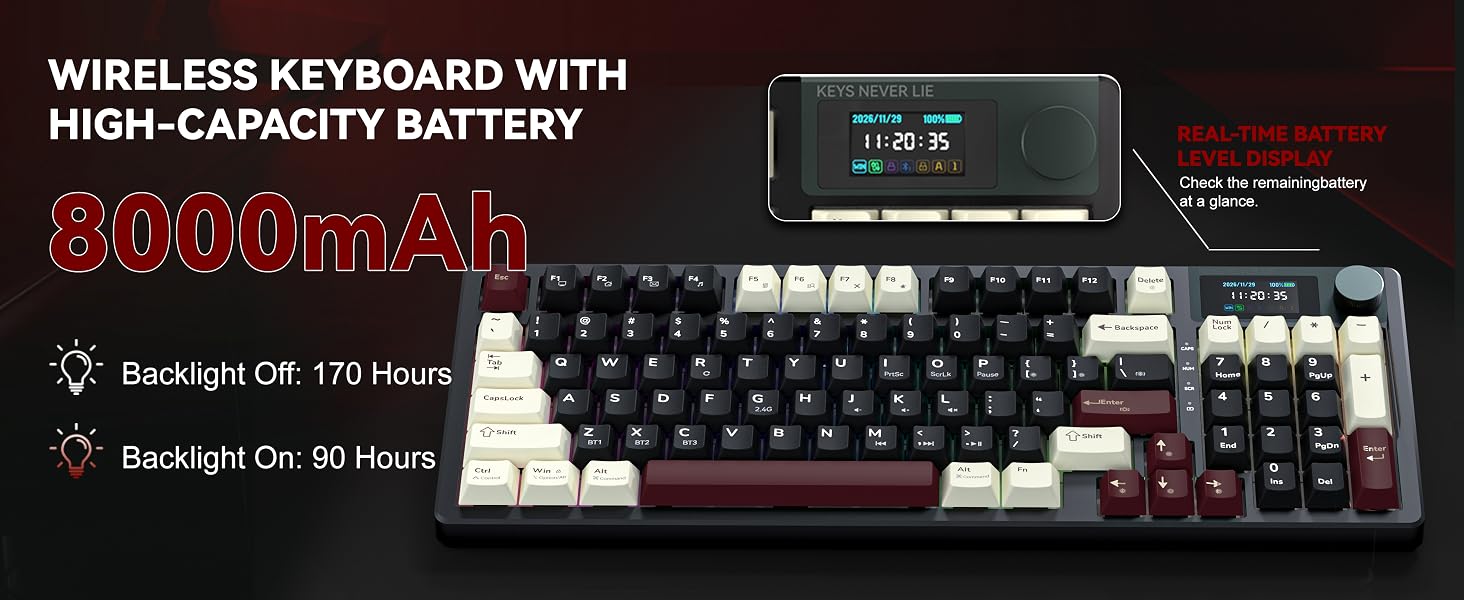
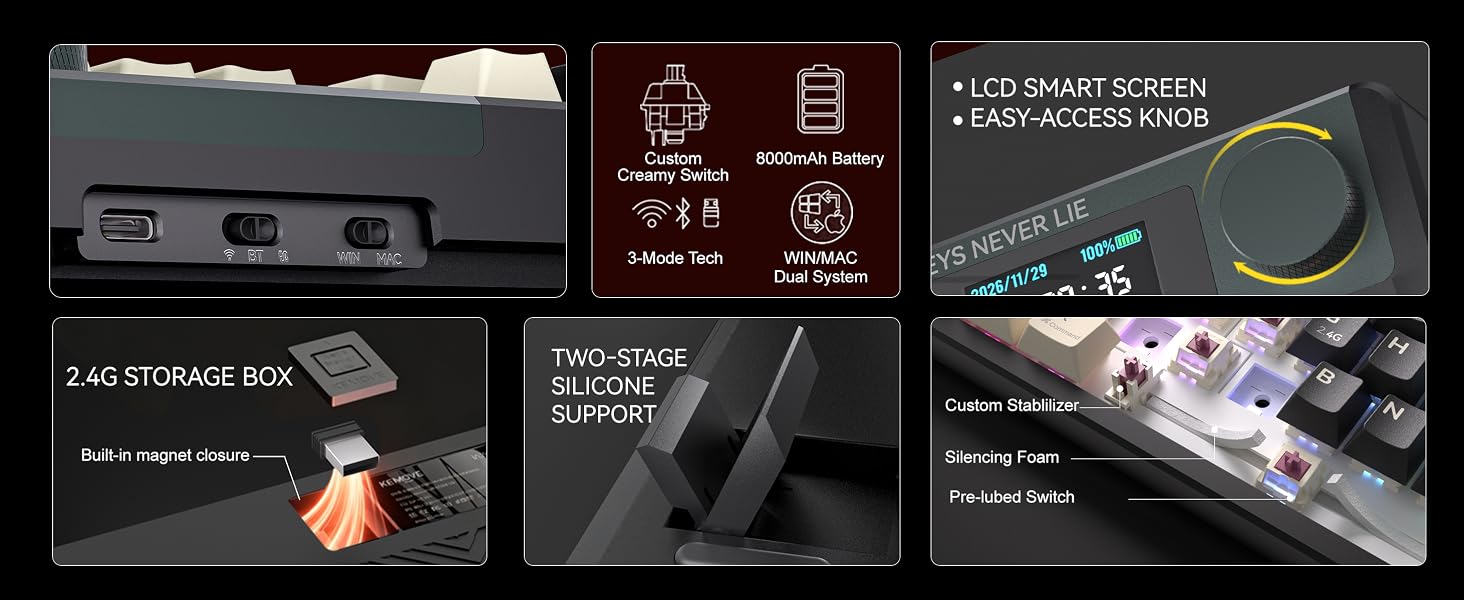
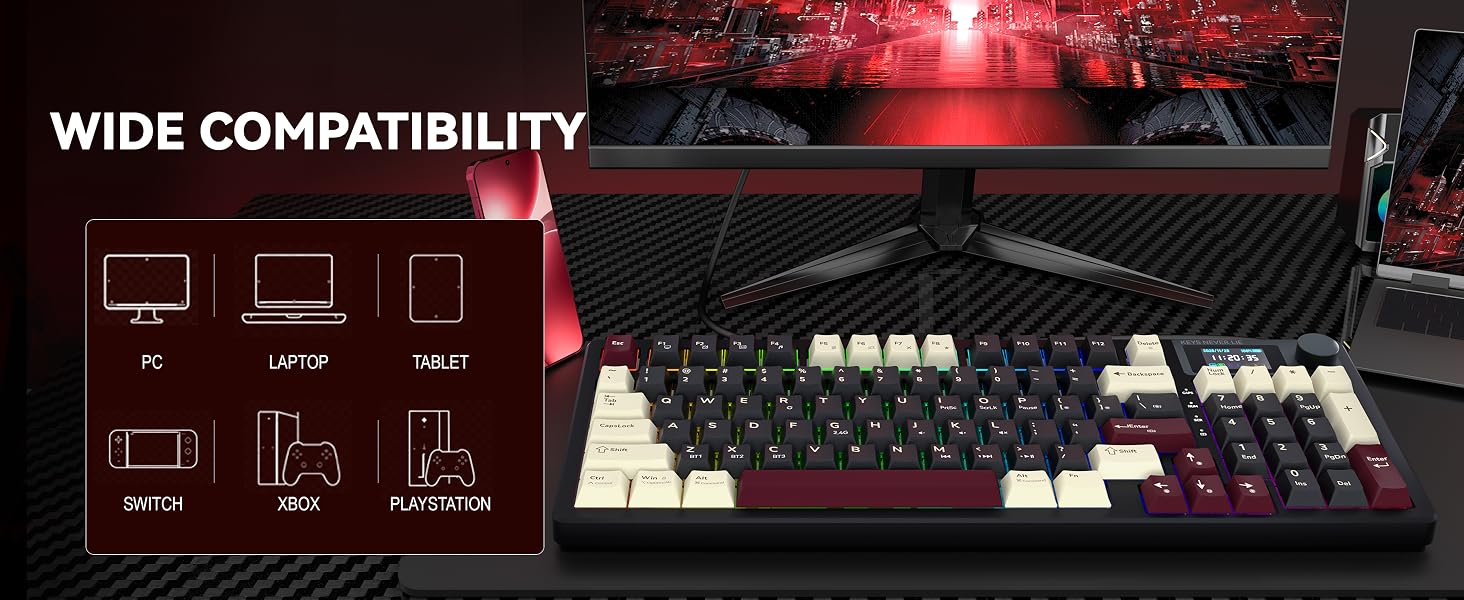
- Tri-Mode Wireless: Switch between low-latency 2.4G, Bluetooth, and USB-C wired connections for gaming, work, and everyday desktop use; the 8000mAh rechargeable battery supports extended wireless use
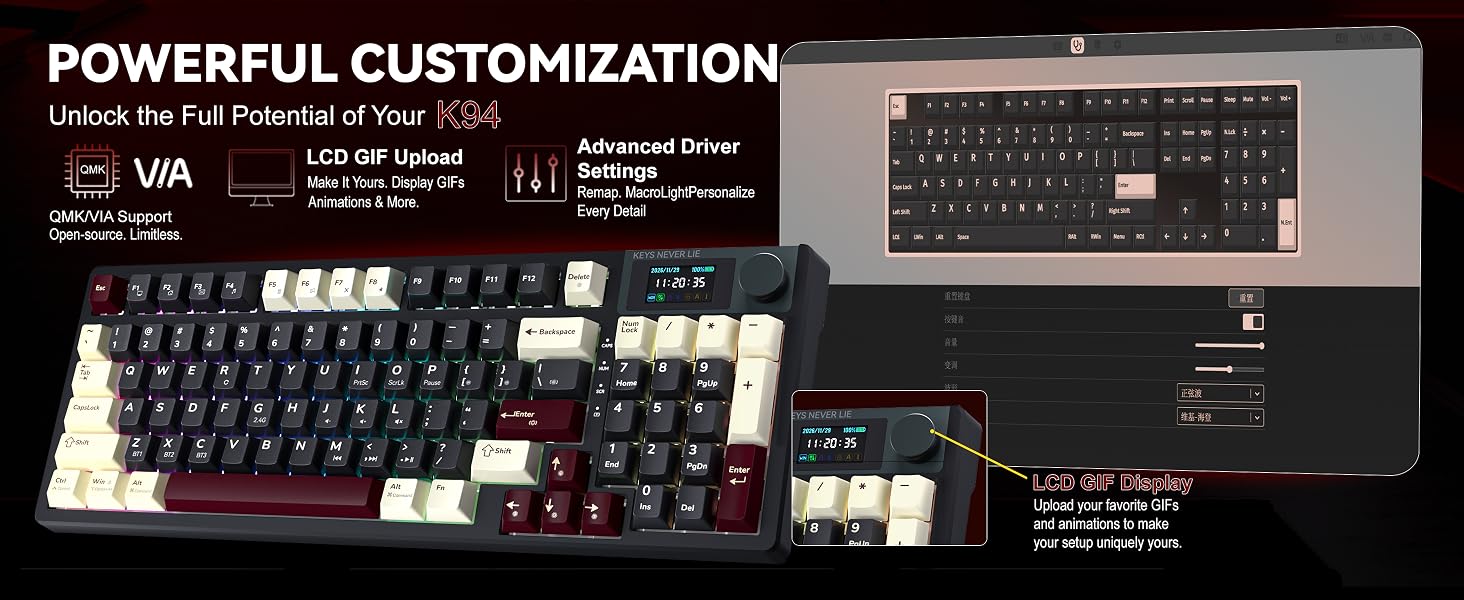
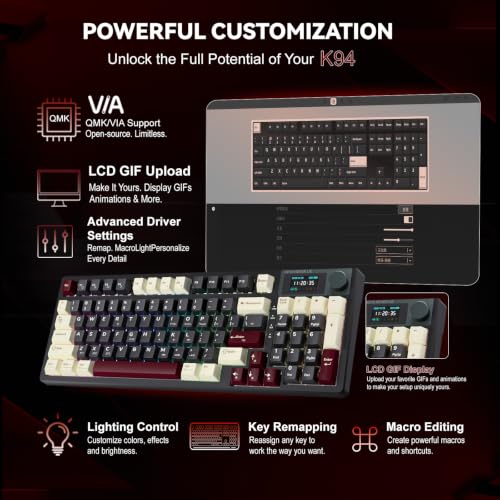
- QMK/VIA Customization: Remap keys, create macros, and build custom layers with QMK/VIA support; KEMOVE's browser-based driver makes key functions, macros, and RGB easier to personalize; VIA setup is available in USB wired mode
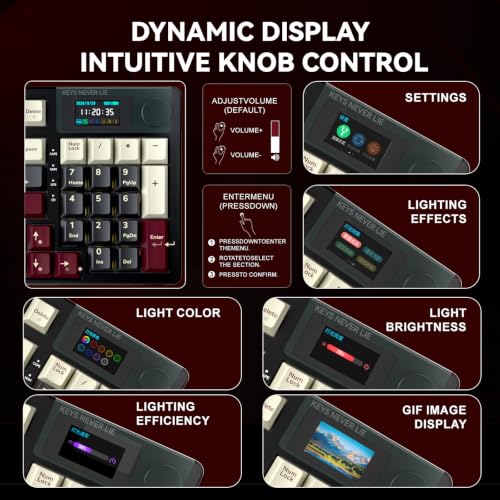
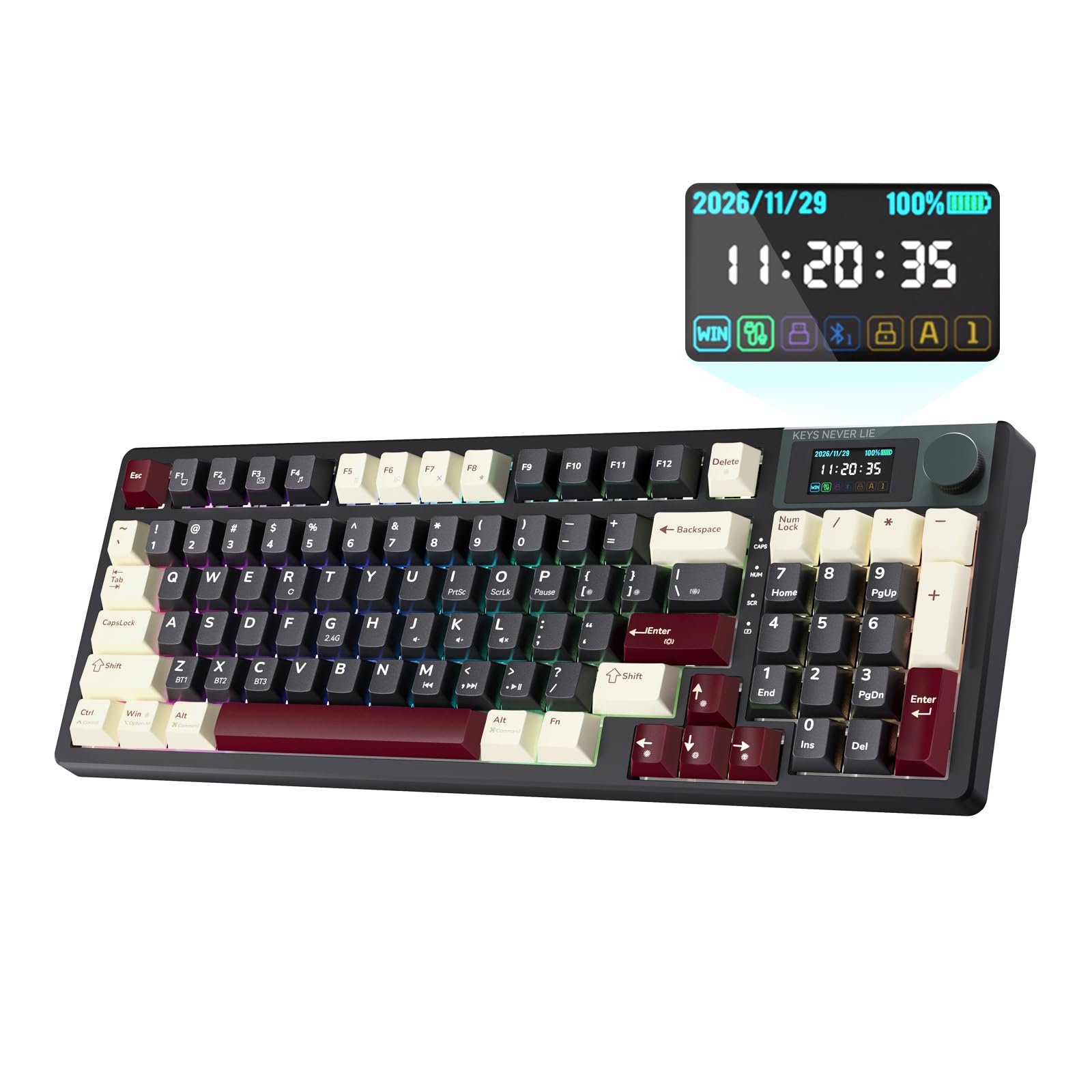
- Smart LCD and Metal Knob: View battery status and personalize the built-in screen with custom GIFs; the metal rotary knob keeps quick adjustments within easy reach and adds a clean, premium touch to your setup
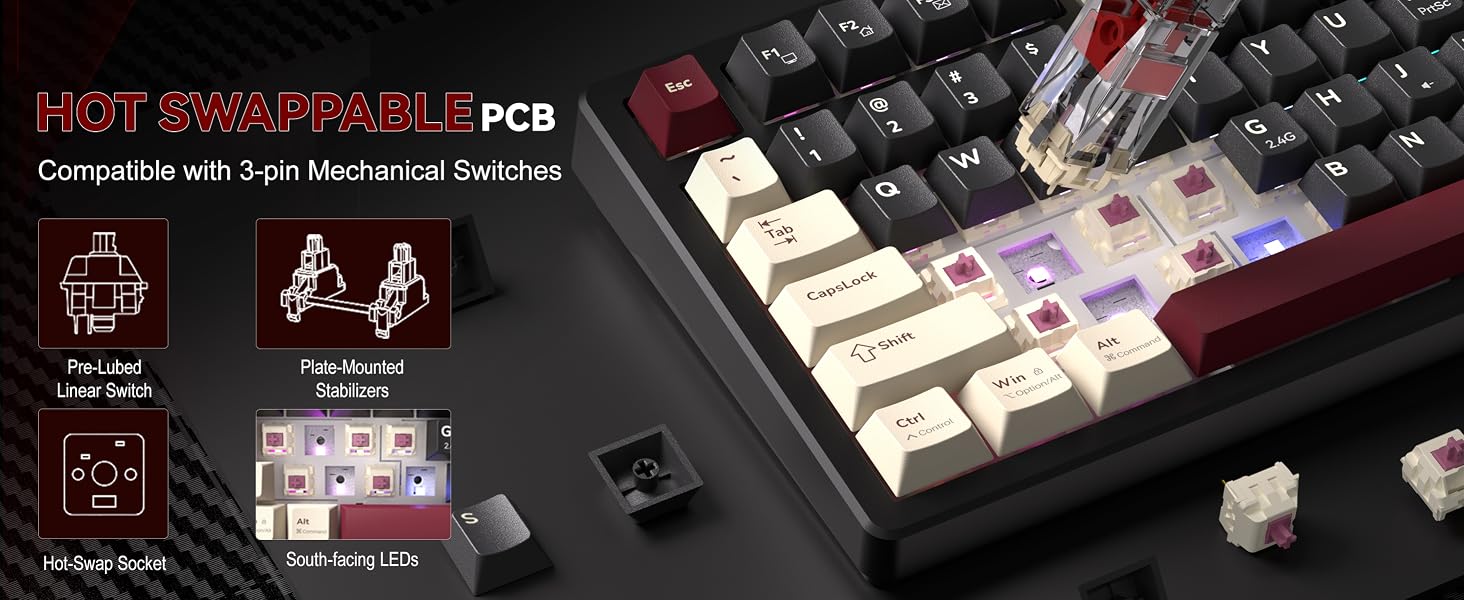
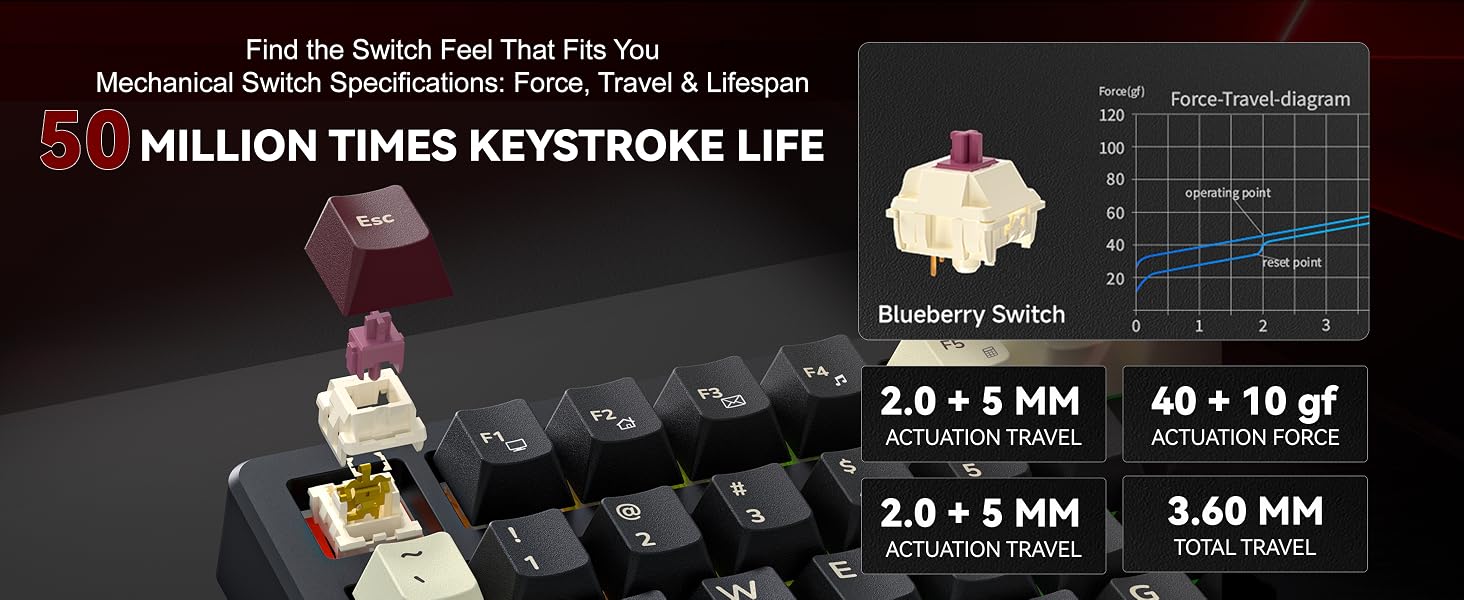
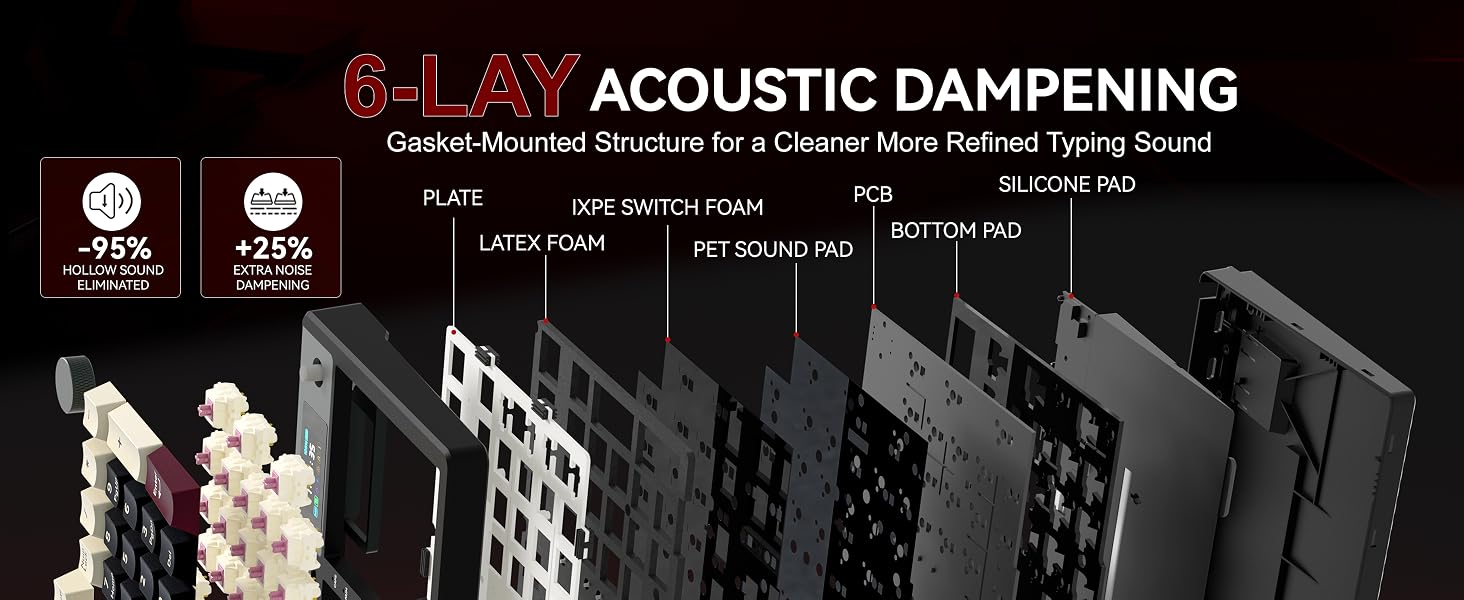
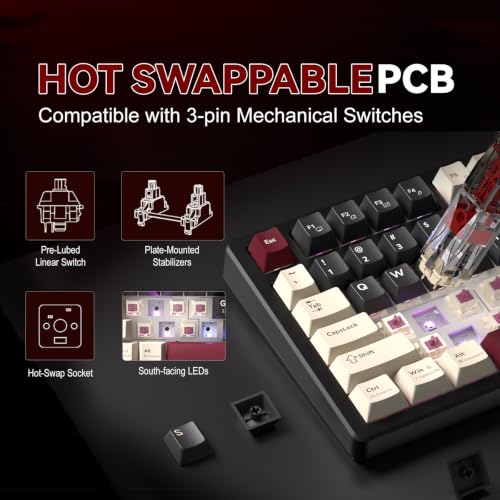
- Creamy Typing Feel: Creamy switches pair with a gasket mount and 6-layer sound dampening for a smoother, fuller sound and cushioned feel; hot-swappable sockets let you change compatible switches without soldering
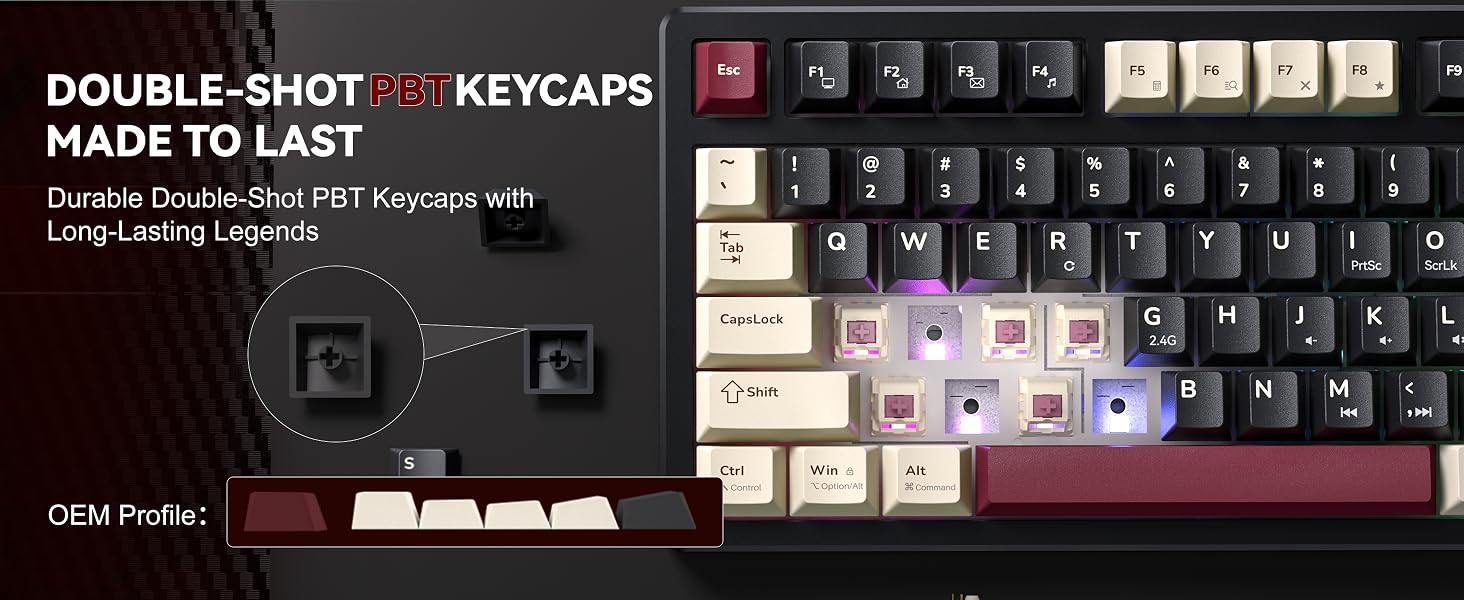
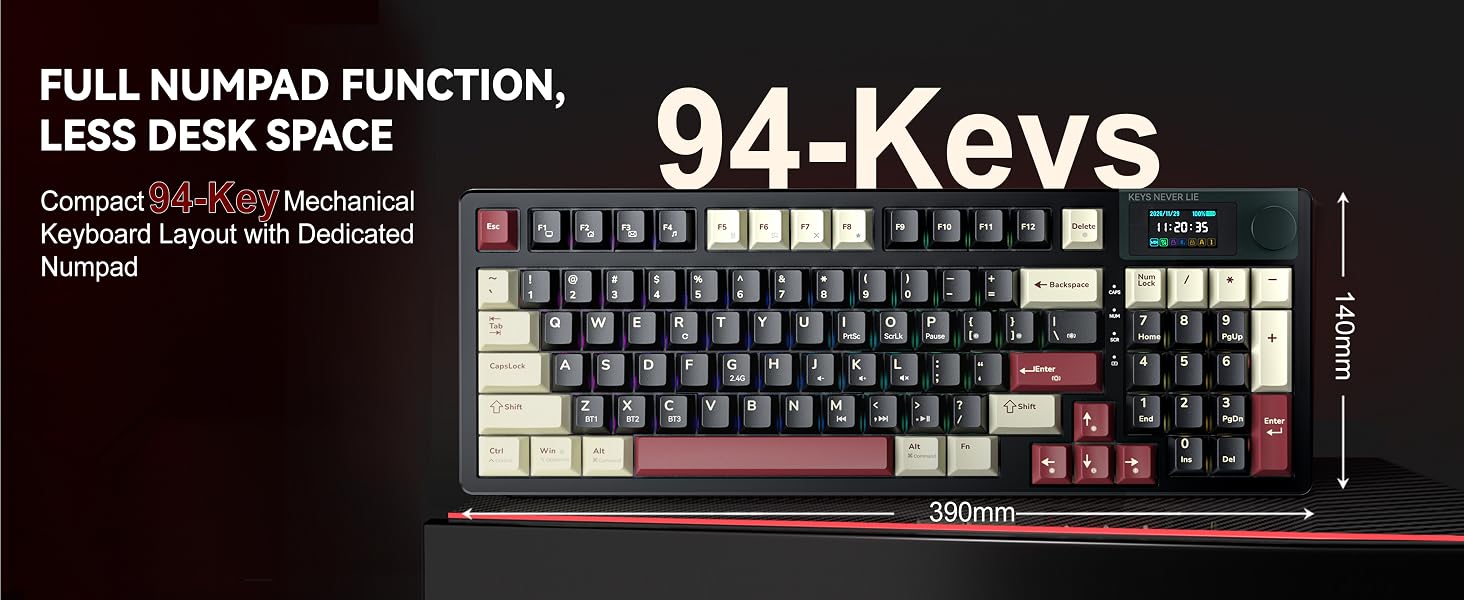
- Compact Numpad Layout: Keep a dedicated number pad, arrow keys, and essential functions in a space-saving footprint; south-facing RGB adds customizable lighting and broad compatibility with popular custom keycaps
VIA file download link
bit.ly/4z8fmXp
How do I download the files needed to use VIA with the K94?
Visit the KEMOVE official website and go to the K94 Hub to download the required VIA files. You can also contact KEMOVE AI support for help locating the correct files.
Why is the time on my K94 display incorrect, and how do I sync it?
Open the K94 Hub on the KEMOVE official website and launch the KEMOVE web driver. From there, you can sync the keyboard’s time and upload GIFs to the display.
Why isn’t my GIF showing after it was uploaded successfully?
After uploading the GIF, press Fn + Backspace to switch the display mode until the GIF appears.


| SKU: | B0H9RGNKRX |
| Dimensions: | 16.18″L x 7.13″W x 1.89″H |
| Brand: | KEMOVE |
| Model: | K94 |
| Colour: | Gilded Black |
| Manufacture: | KEMOVE |
| Colour: | Gilded Black |
Product description
VIA file download link
bit.ly/4z8fmXp
How do I download the files needed to use VIA with the K94?
Visit the KEMOVE official website and go to the K94 Hub to download the required VIA files. You can also contact KEMOVE AI support for help locating the correct files.
Why is the time on my K94 display incorrect, and how do I sync it?
Open the K94 Hub on the KEMOVE official website and launch the KEMOVE web driver. From there, you can sync the keyboard’s time and upload GIFs to the display.
Why isn’t my GIF showing after it was uploaded successfully?
After uploading the GIF, press Fn + Backspace to switch the display mode until the GIF appears.