Bluetooth Headset with Microphone, Noise Cancelling Wireless
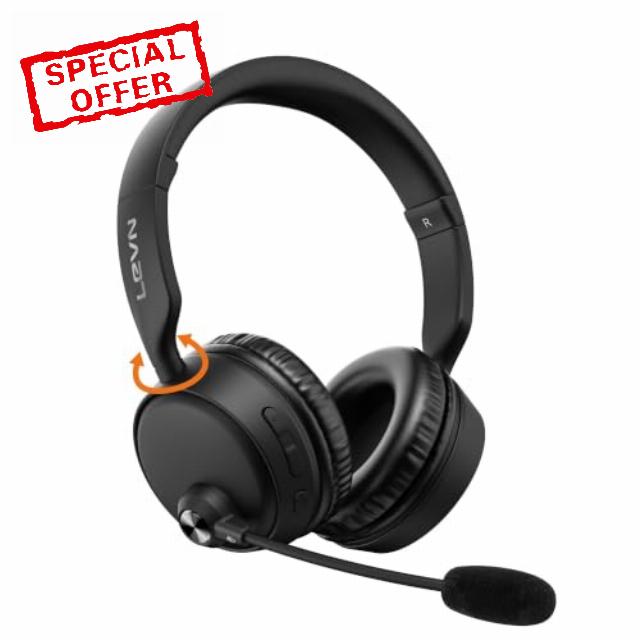
Bluetooth Headset with Microphone, Noise Cancelling Wireless Headset with Mic for Work, Bluetooth 5.3 Dual Connection, 60H Battery, Mute Button, Bluetooth Headphones with Mic for PC/Laptop/Zoom/Teams
- AI Noise Cancelling Microphone: This wireless headset with microphone uses AI-powered noise cancellation to reduce background noise and keep your voice clear when the surroundings get busy. It helps limit keyboard tapping, music, and nearby conversations, making it easier to handle customer calls from home, join online meetings, or speak clearly in an open office. This Bluetooth headset with microphone helps you stay focused without adjusting the microphone or repeating yourself on calls.
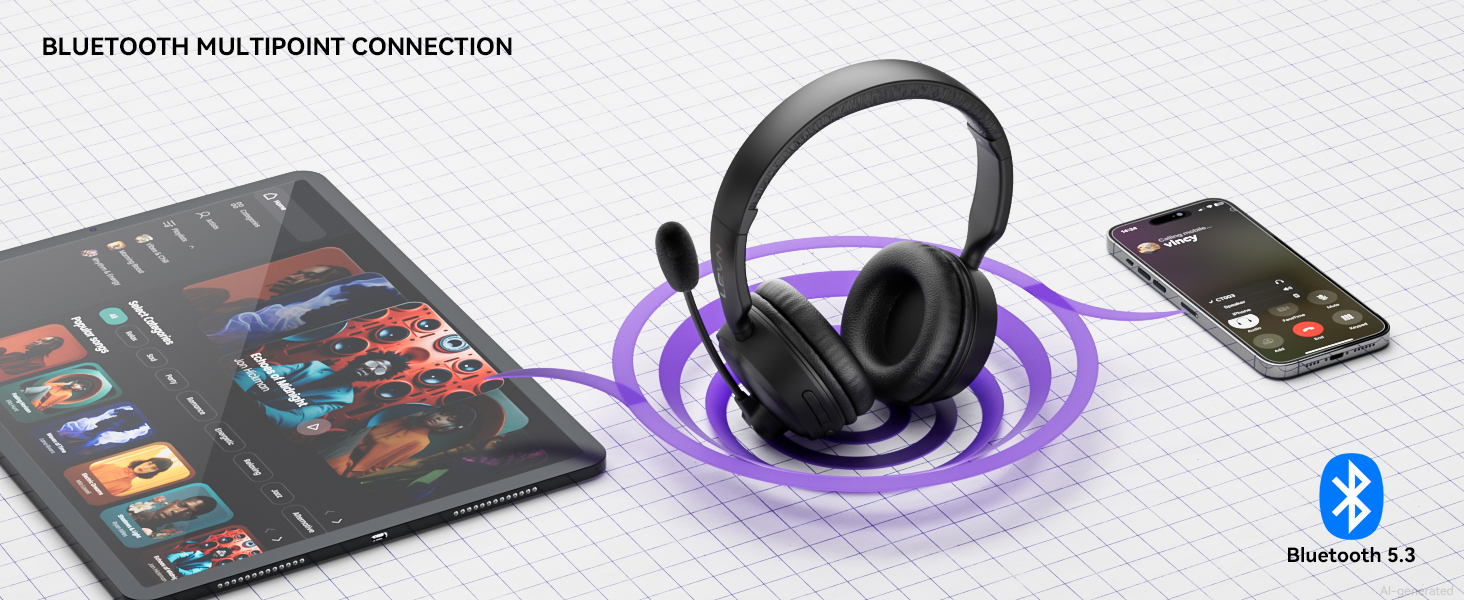
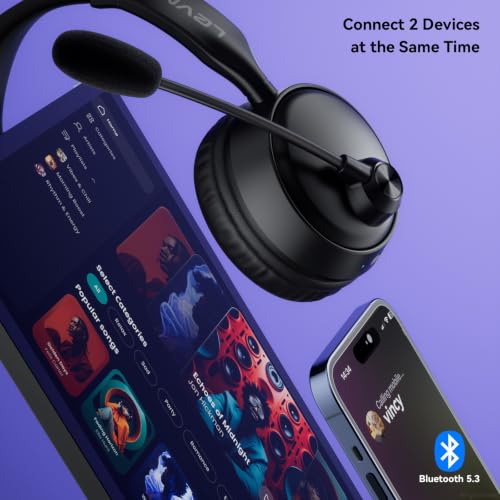
- Dual Connection & Bluetooth 5.3: Built with Bluetooth 5.3, this bluetooth headset with microphone offers fast pairing and a stable connection while keeping two devices connected simultaneously. Keep your laptop ready for a Teams meeting while staying connected to your phone, then switch over when a personal call comes in. No repeated pairing is needed, making this wireless headphones with mic convenient for moving between computer work, phone calls, and music throughout a busy day.
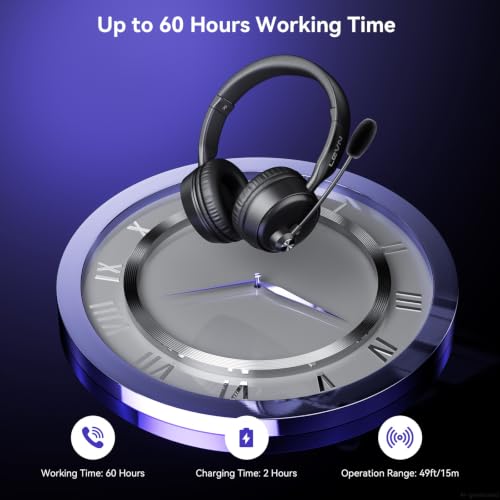
- 60-Hour Working Time & HiFi Sound: With up to 60 hours of working time and a 2-hour full charge, this wireless headset with mic for work is made for extended use without frequent charging. Start a full week of calls with fewer charging breaks, or take this Bluetooth headset with microphone on a business trip without constantly searching for a charger. When work slows down, HiFi stereo sound keeps music, podcasts, or videos clear during breaks, travel, or daily use at home throughout the day.
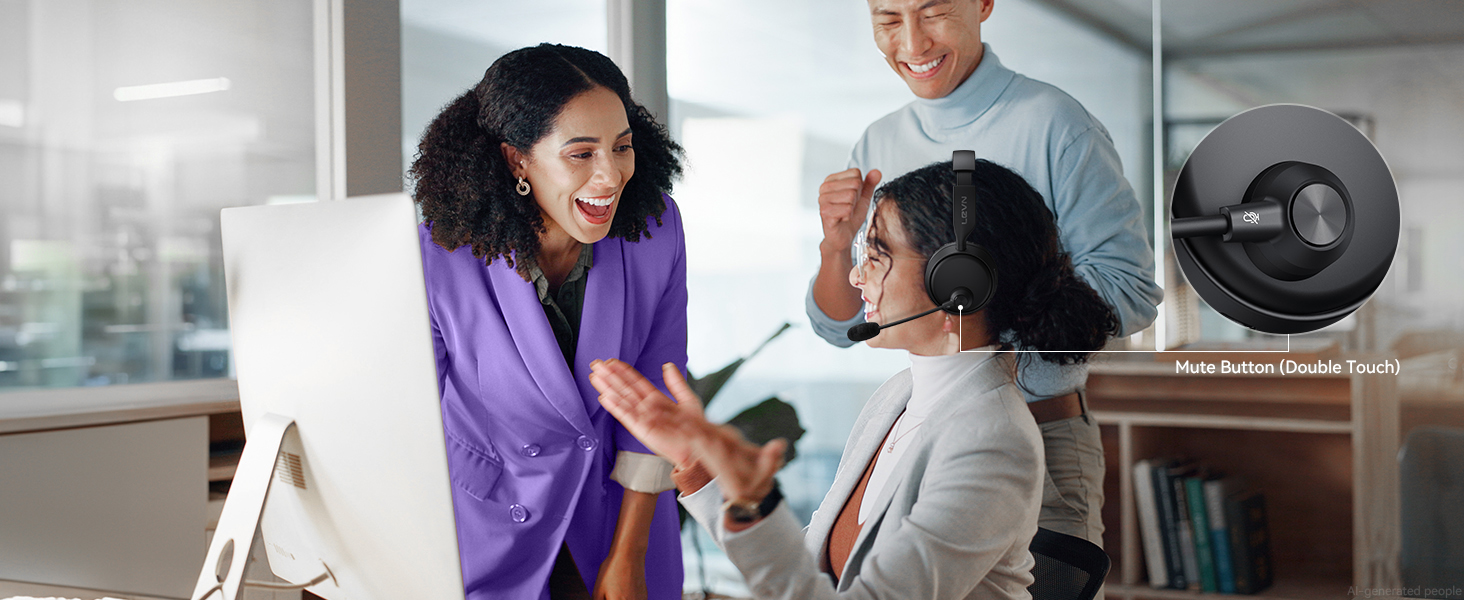
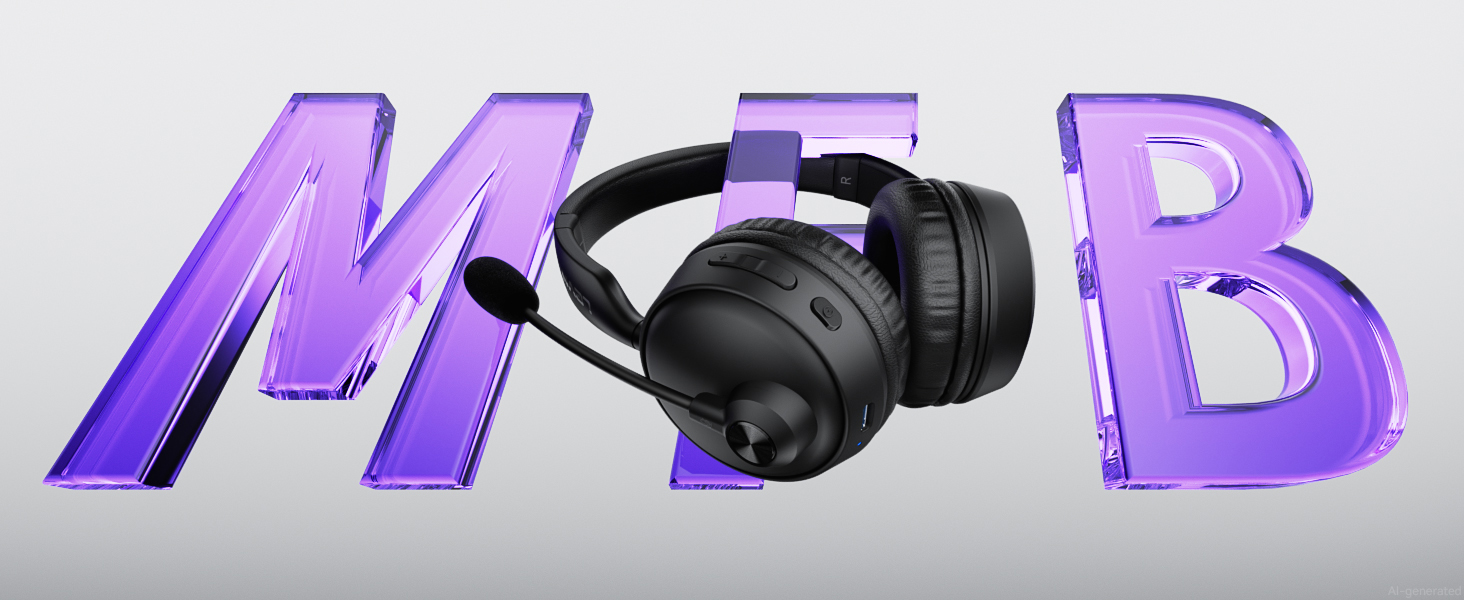
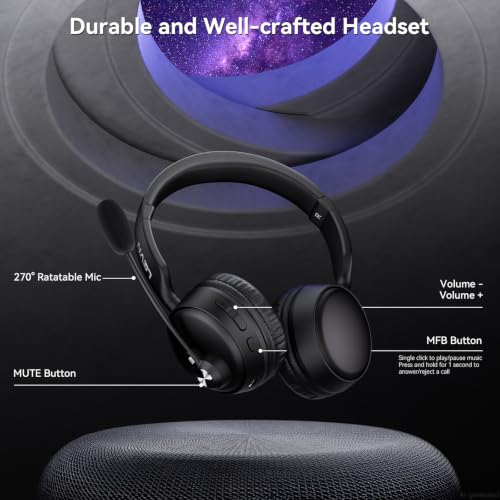
- MFB & Mute Controls: The MFB button on this headset with mic lets you answer or end mobile phone calls, power the headset on or off, and enter pairing mode with simple controls. During a video meeting, double-tap the dedicated mute button when someone walks into the room or you need to speak privately, then unmute when you are ready to speak. This bluetooth headphones with mic helps handle unexpected interruptions without leaving the meeting or creating distracting background noise for others.
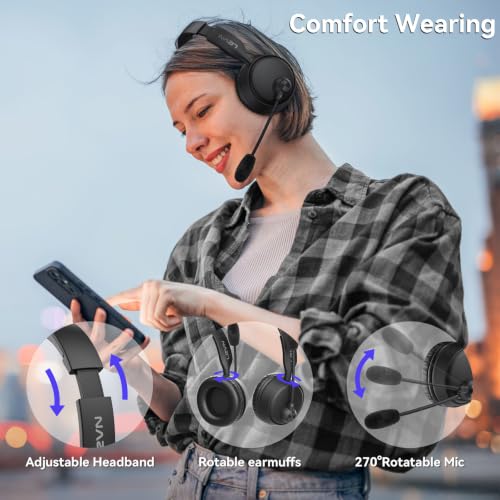
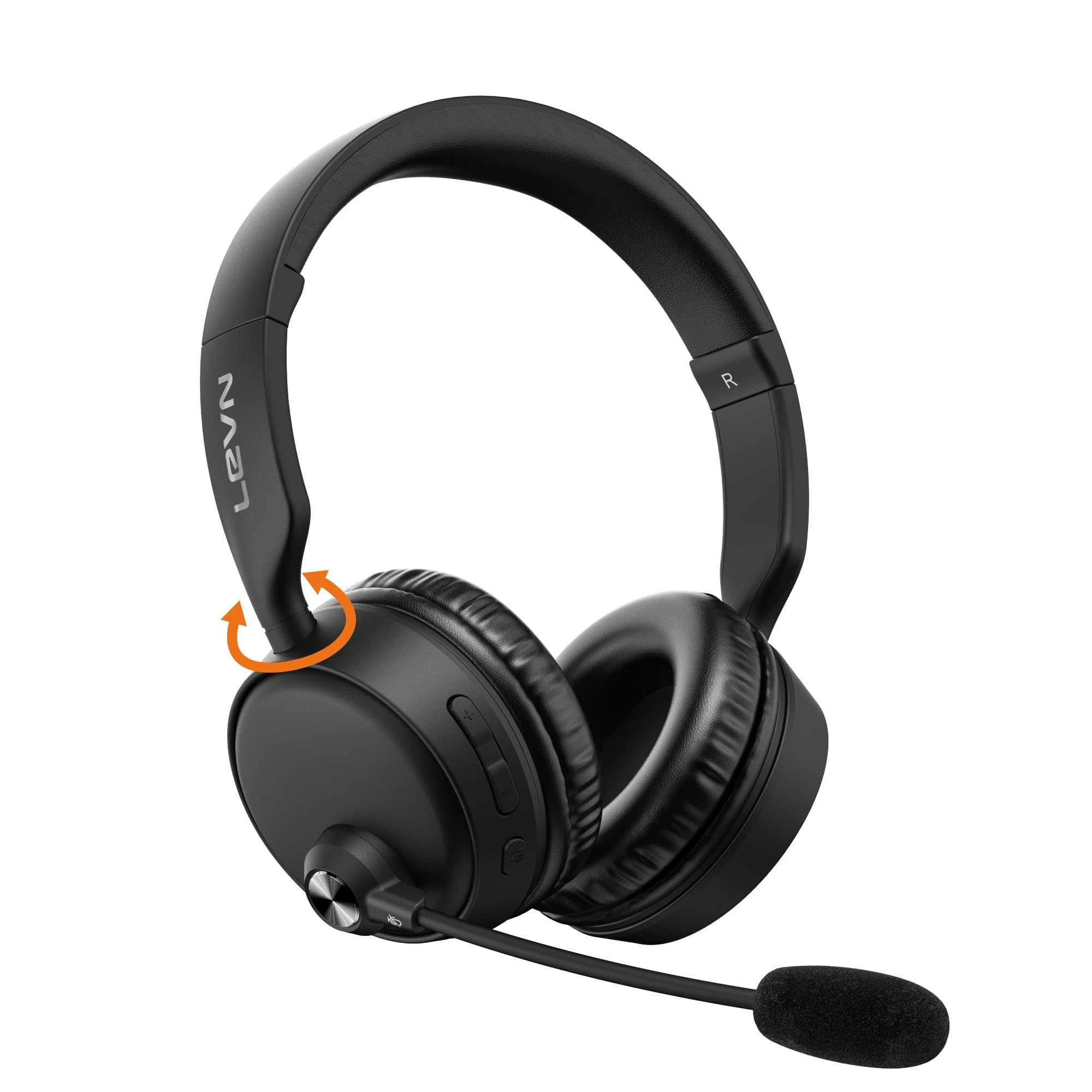
- Lightweight On-Ear Comfort: A lightweight on-ear design with cushioned ear pads and an adjustable headband gives you a softer, relaxed fit for long hours. The 270° rotatable microphone lets you find a natural speaking position without getting in the way. Wear this wireless headset for work through back-to-back calls, long training sessions, or a full afternoon at your computer, and enjoy less of the heavy, enclosed feel. This wireless headset keeps you comfortable when the workday stretches on.
LEVN Wireless Headset with Mic for Work
Clearer Calls with Noise Cancelling
Reduce distracting background noise for clearer conversations in busy environments.
HiFi Stereo Sound for Music & Media
Enjoy balanced stereo sound for music, videos and everyday entertainment.
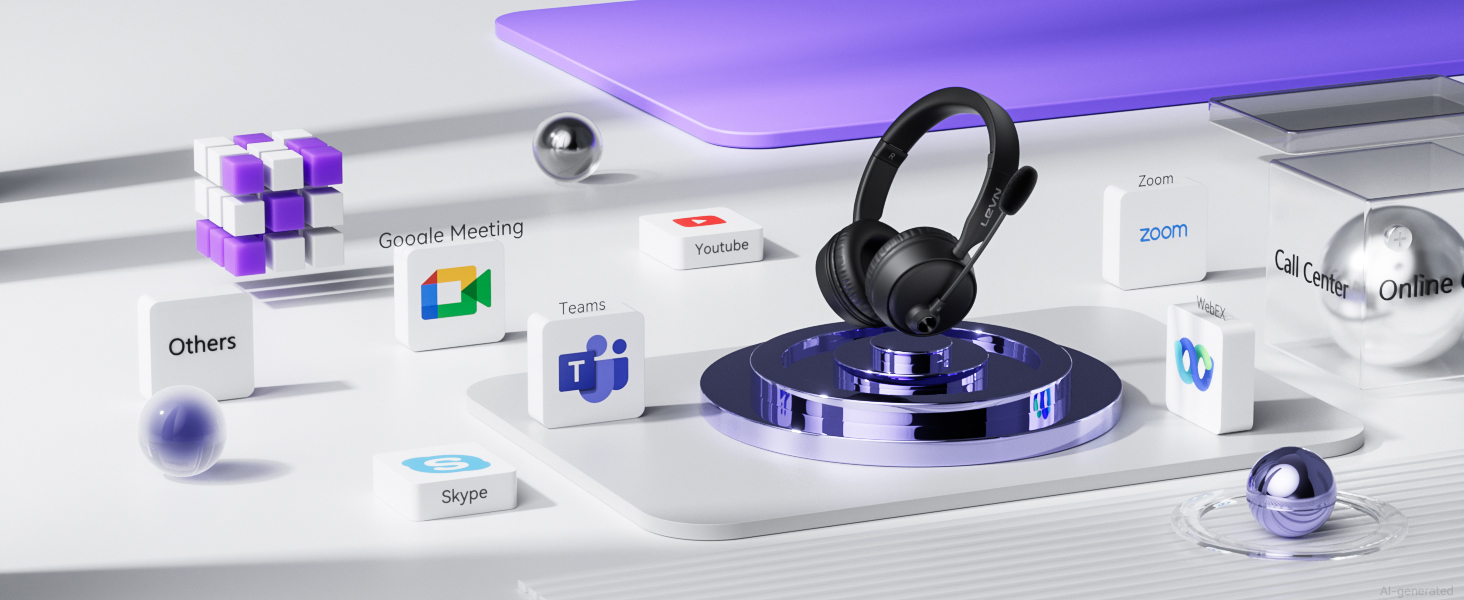
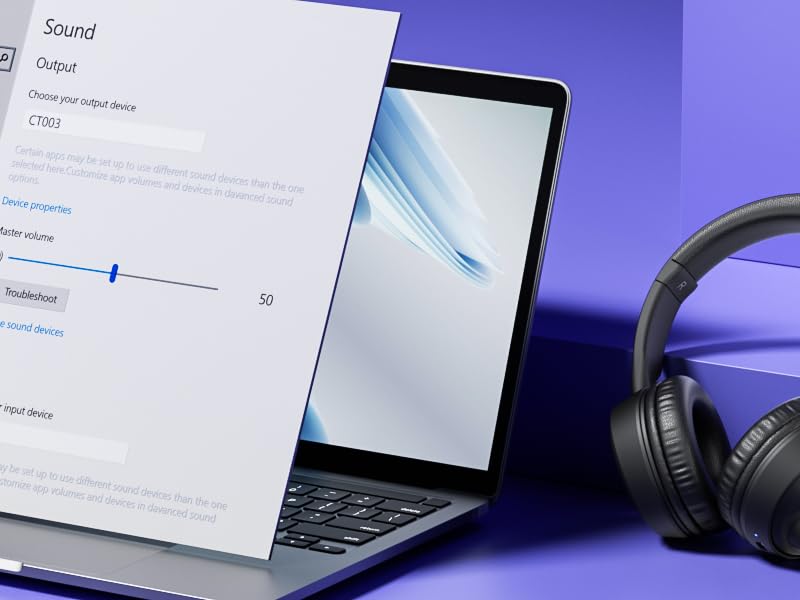
Compatible with Your Everyday Devices
Works with computers, smartphones and other compatible devices for flexible use.
Stay Connected to Your Devices
Switch between compatible devices with a stable wireless connection for work and everyday use.
Up to 49 ft Wireless Range
Move freely while staying connected within a wireless range of up to 49 ft.
One-Touch Mute for Calls
Quickly mute the microphone when needed for convenient, distraction-free calls and meetings.
MFB for Quick Control
Manage calls, music and other audio functions with the MFB for quick and convenient control.
How to pair LEVN CT003 with 2 devices simultaneously via Bluetooth?
1. Hold MFB 3-5s until the LED flashes blue/red and “Pairing” is heard. 2. Turn on Bluetooth on Device A and connect [CT003]. “Connected” confirms connection. 3. Turn off Device A Bluetooth. After “Disconnected,” [CT003] enters pairing mode. 4. Turn on Device B Bluetooth and connect [CT003]. 5. Turn Bluetooth on Device A and reconnect [CT003]. “Connected” confirms both devices are connected.
Note: Press MFB to answer a call on Device B while music plays on Device A.
My Bluetooth headset is connected to my cell phone and table at the same time, how do I switch devices?
When your Bluetooth headset is successfully connected to your cellphone and tablet via Bluetooth, please click the MFB button to switch to your calling device or music device.
It's always noisy when I work from home. Can others still hear the sounds around me using this Bluetooth headset?
Please don't worry, this bluetooth headset with noise canceling microphone can accurately filter your background noise, so callers can only hear your clear voice. Bring you a better call experience.
Can I use the headset to answer or hang up calls?
If the headset is connected to a mobile phone, you can click the MFB to answer/end calls on the headset; If the headset is connected to a computer, you need to answer calls on the computer. Reminder: MFB does not work with desk phones and landlines
How do I use the headset's mute function during a call or online meeting?
You only need to double touch it to quickly mute the microphone, avoiding disturbance or revealing privacy during calls or meetings.
How to clear the pairing records?
Press and hold the MFB power button and Volume"-" button at the same time for 5-7 seconds. Seeing that the LED indicator light is purple, the headset has cleared the pairing record and restored the factory settings.




| SKU: | B0HCVZ4WKY |
| Brand: | LEVN |
| Model: | CT003 Black |
| Colour: | Black |
| Manufacture: | LEVN |
| Colour: | Black |
Product description
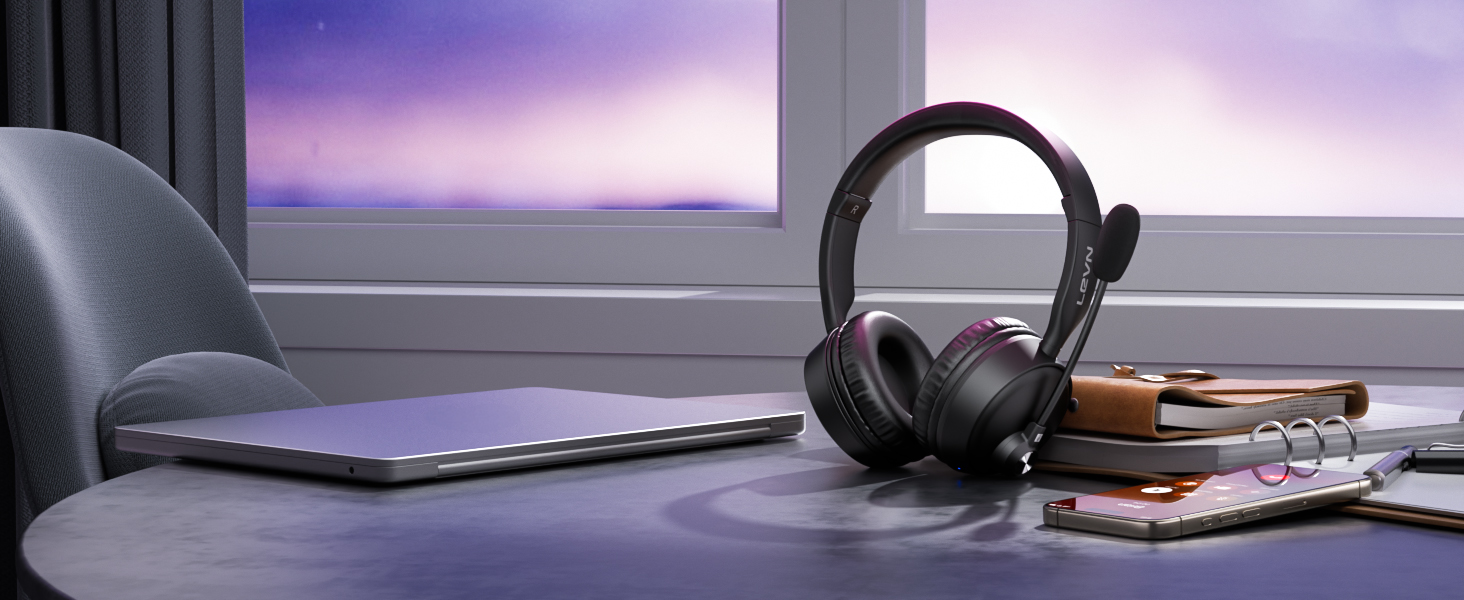
LEVN Wireless Headset with Mic for Work

Clearer Calls with Noise Cancelling
Reduce distracting background noise for clearer conversations in busy environments.
HiFi Stereo Sound for Music & Media
Enjoy balanced stereo sound for music, videos and everyday entertainment.
Compatible with Your Everyday Devices
Works with computers, smartphones and other compatible devices for flexible use.
Stay Connected to Your Devices
Switch between compatible devices with a stable wireless connection for work and everyday use.
Up to 49 ft Wireless Range
Move freely while staying connected within a wireless range of up to 49 ft.
One-Touch Mute for Calls
Quickly mute the microphone when needed for convenient, distraction-free calls and meetings.
MFB for Quick Control
Manage calls, music and other audio functions with the MFB for quick and convenient control.
How to pair LEVN CT003 with 2 devices simultaneously via Bluetooth?
1. Hold MFB 3-5s until the LED flashes blue/red and “Pairing” is heard. 2. Turn on Bluetooth on Device A and connect [CT003]. “Connected” confirms connection. 3. Turn off Device A Bluetooth. After “Disconnected,” [CT003] enters pairing mode. 4. Turn on Device B Bluetooth and connect [CT003]. 5. Turn Bluetooth on Device A and reconnect [CT003]. “Connected” confirms both devices are connected.
Note: Press MFB to answer a call on Device B while music plays on Device A.
My Bluetooth headset is connected to my cell phone and table at the same time, how do I switch devices?
When your Bluetooth headset is successfully connected to your cellphone and tablet via Bluetooth, please click the MFB button to switch to your calling device or music device.
It’s always noisy when I work from home. Can others still hear the sounds around me using this Bluetooth headset?
Please don’t worry, this bluetooth headset with noise canceling microphone can accurately filter your background noise, so callers can only hear your clear voice. Bring you a better call experience.
Can I use the headset to answer or hang up calls?
If the headset is connected to a mobile phone, you can click the MFB to answer/end calls on the headset; If the headset is connected to a computer, you need to answer calls on the computer. Reminder: MFB does not work with desk phones and landlines
How do I use the headset’s mute function during a call or online meeting?
You only need to double touch it to quickly mute the microphone, avoiding disturbance or revealing privacy during calls or meetings.
How to clear the pairing records?
Press and hold the MFB power button and Volume”-” button at the same time for 5-7 seconds. Seeing that the LED indicator light is purple, the headset has cleared the pairing record and restored the factory settings.