Westsee 10.1″ Digital Calendar Frame – Interactive
Westsee 10.1″ Digital Calendar Frame – Interactive Touchscreen Eletronic Calendars, Smart Family Planner for Schedule, Photo Display, Meals, Chore Chart & Tasks, Wall & Desk Mountable (White)
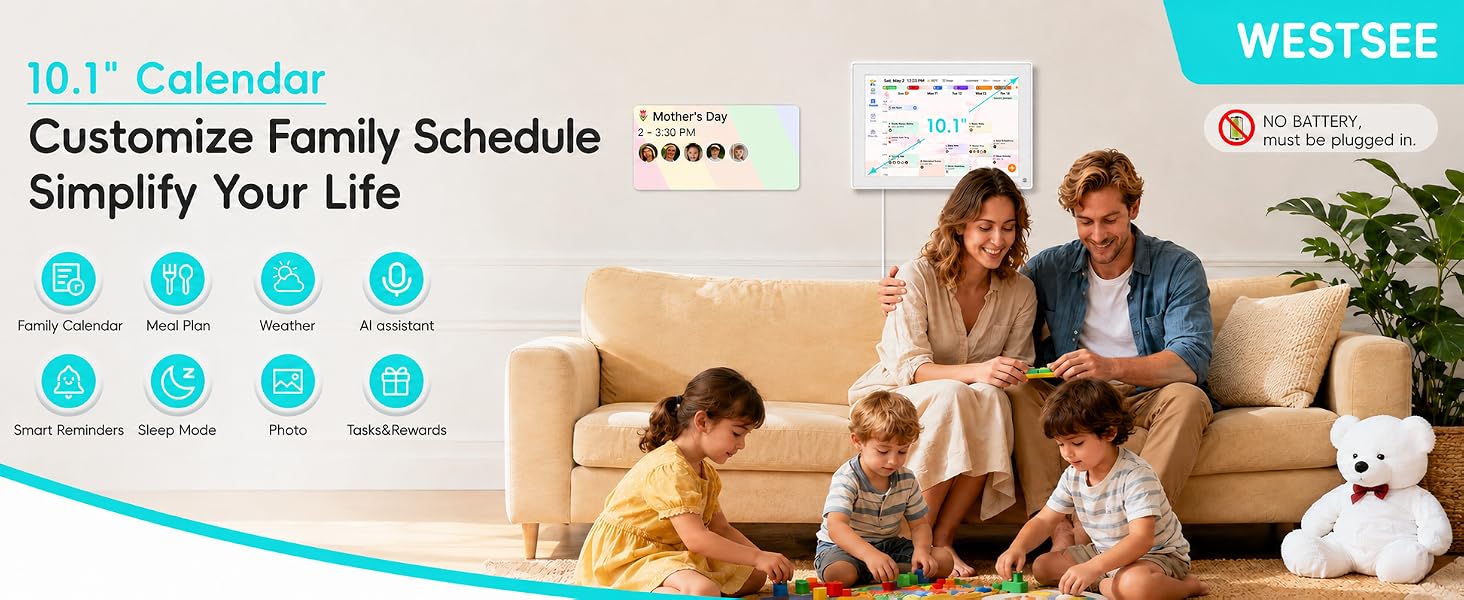
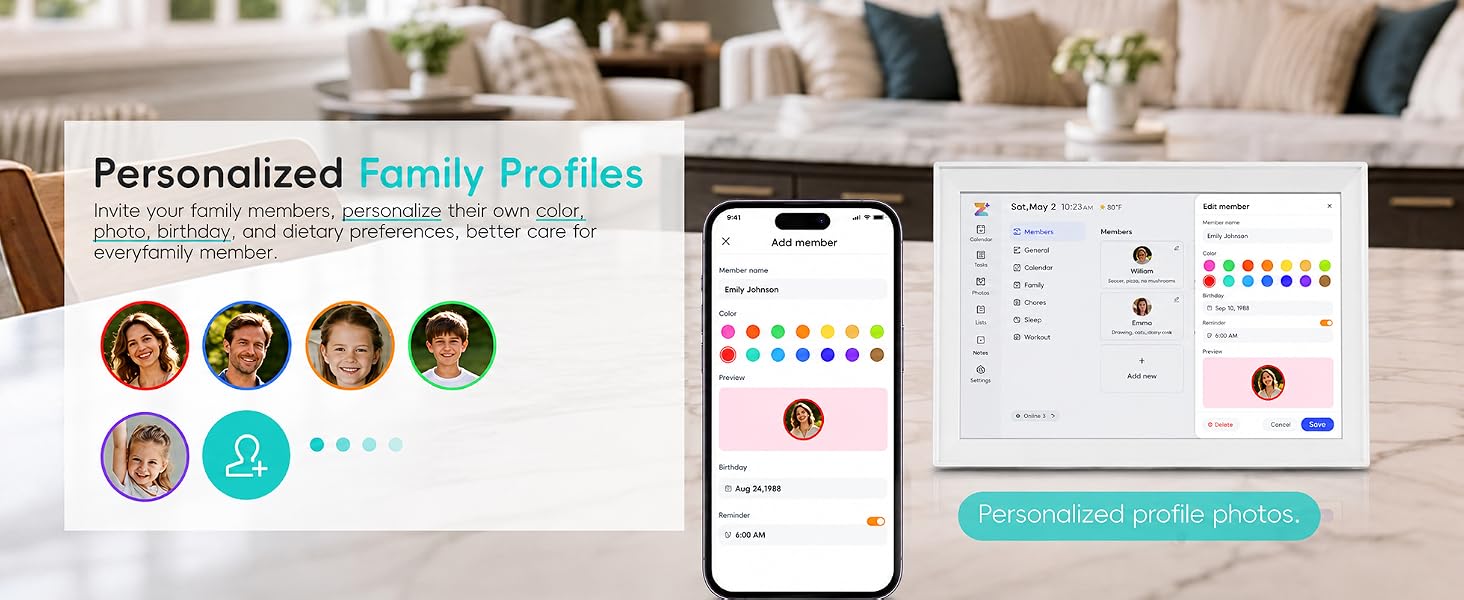
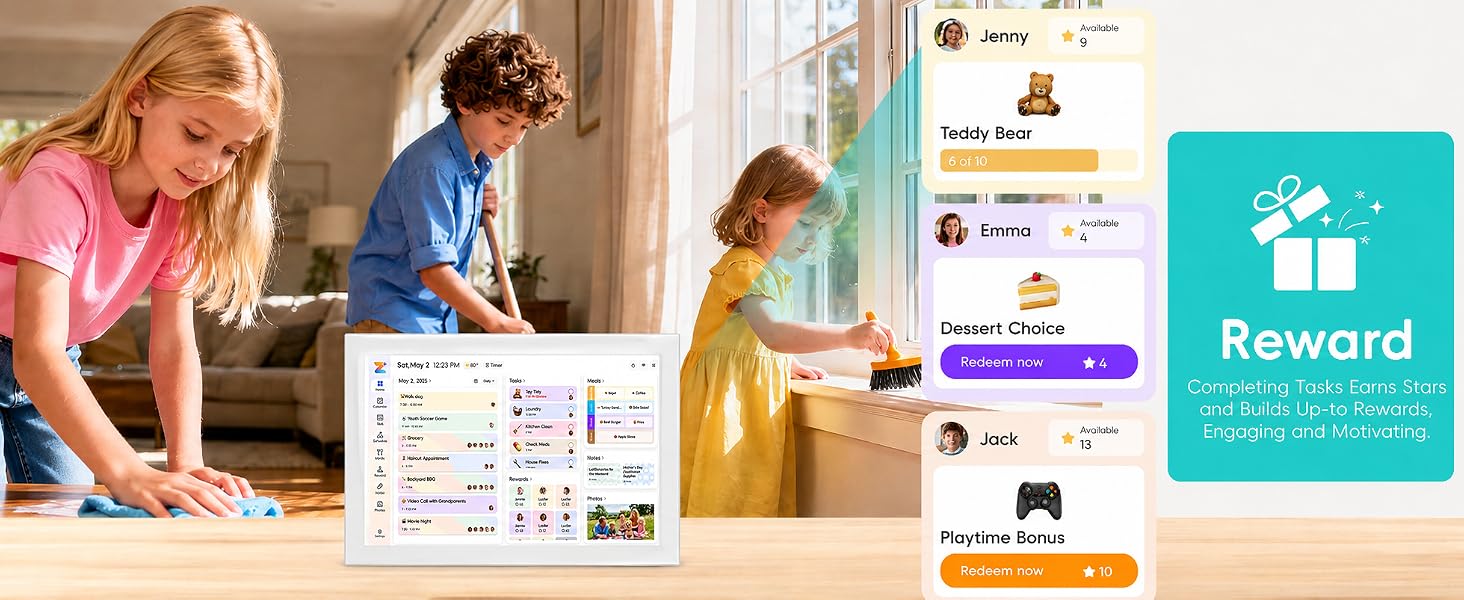
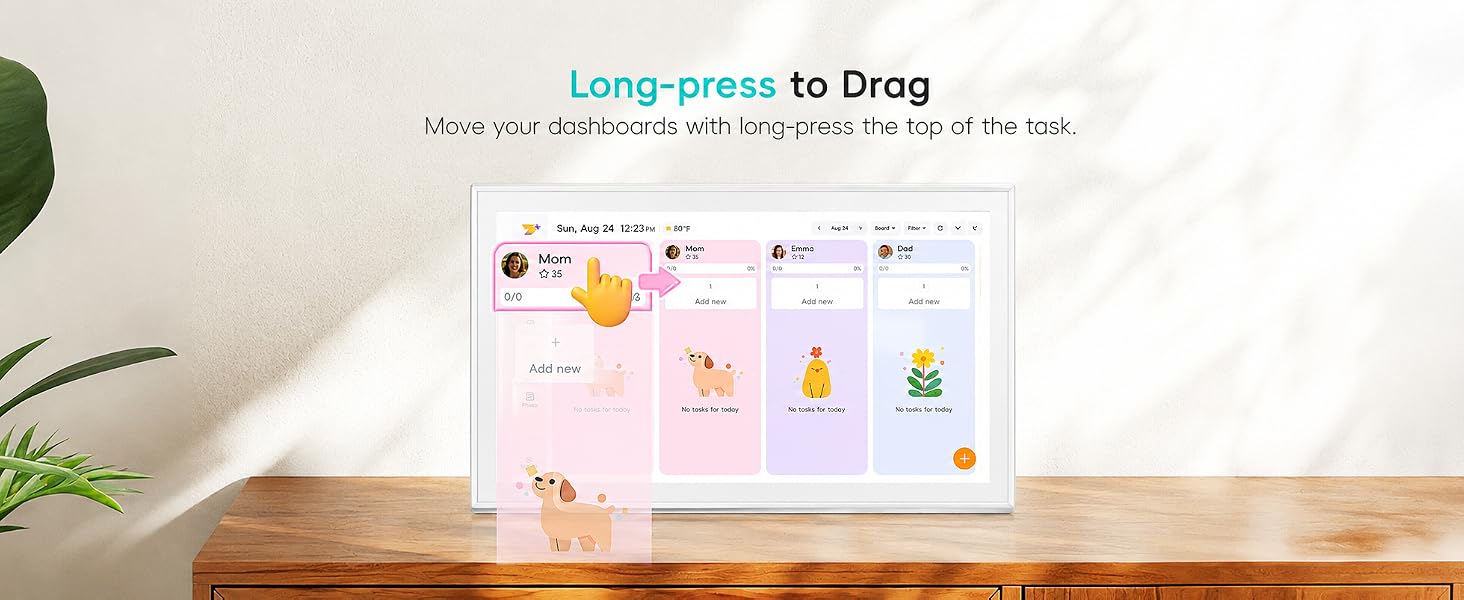
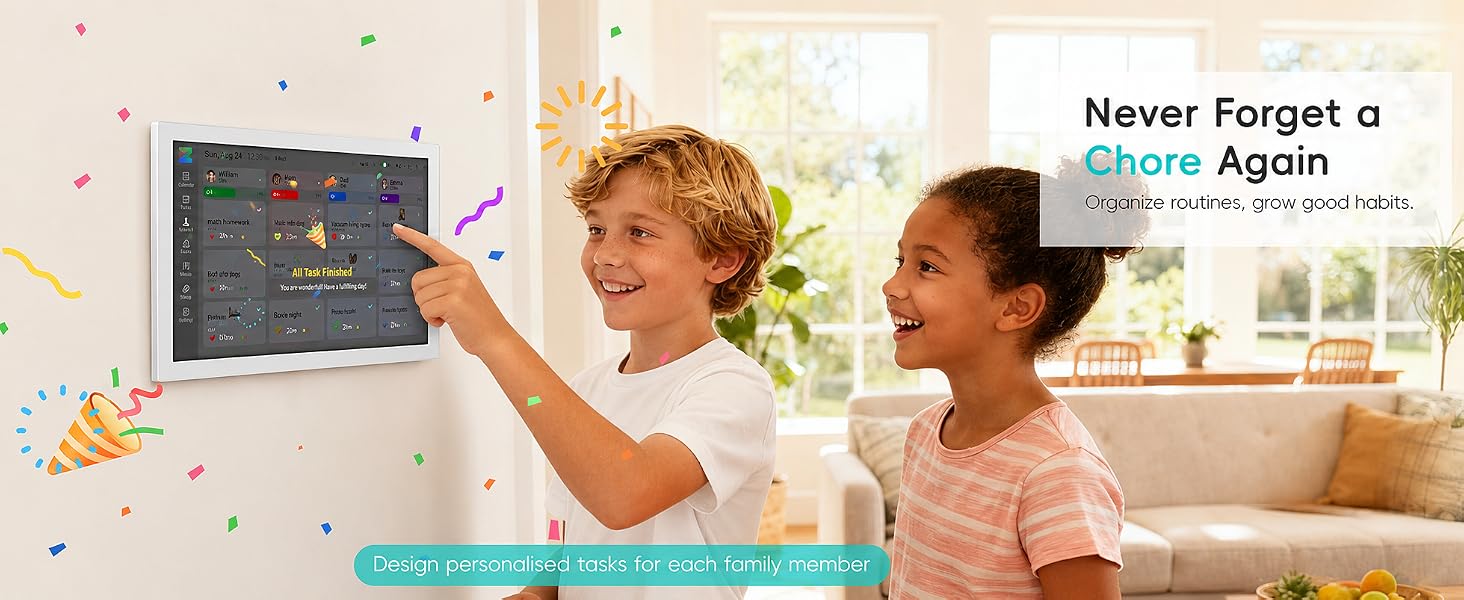
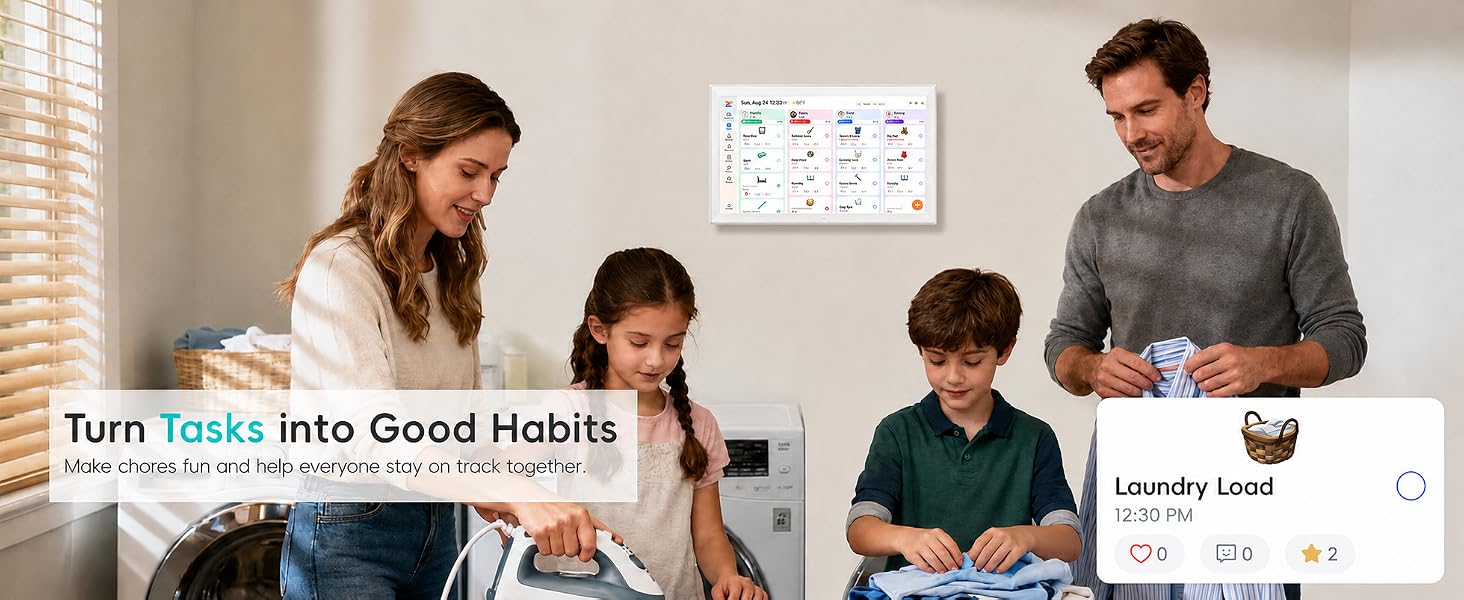
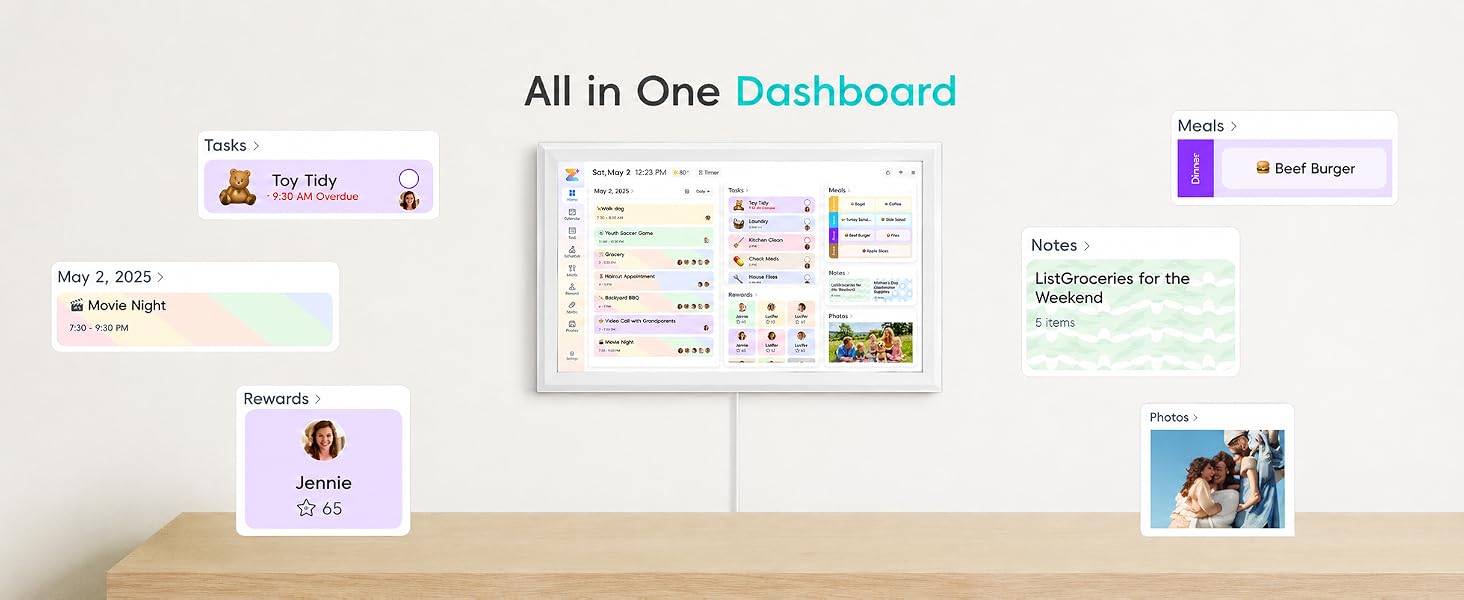
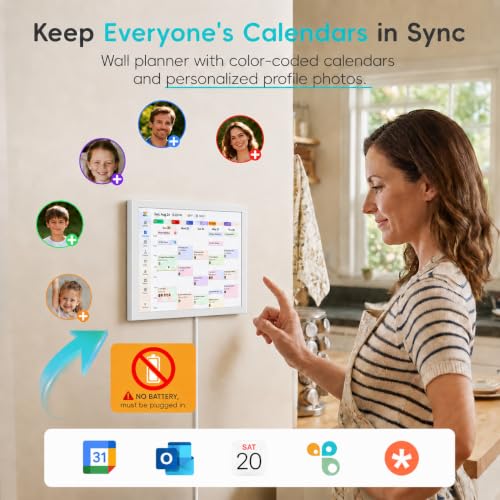
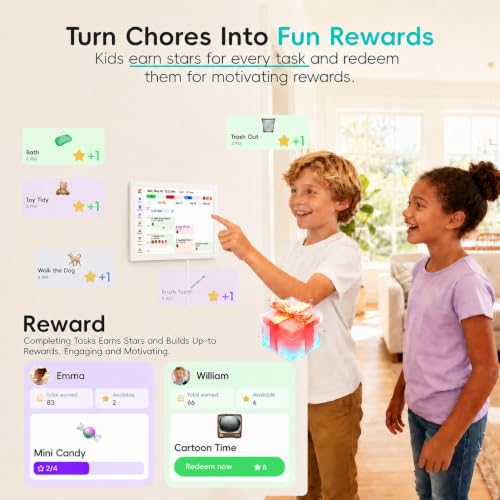
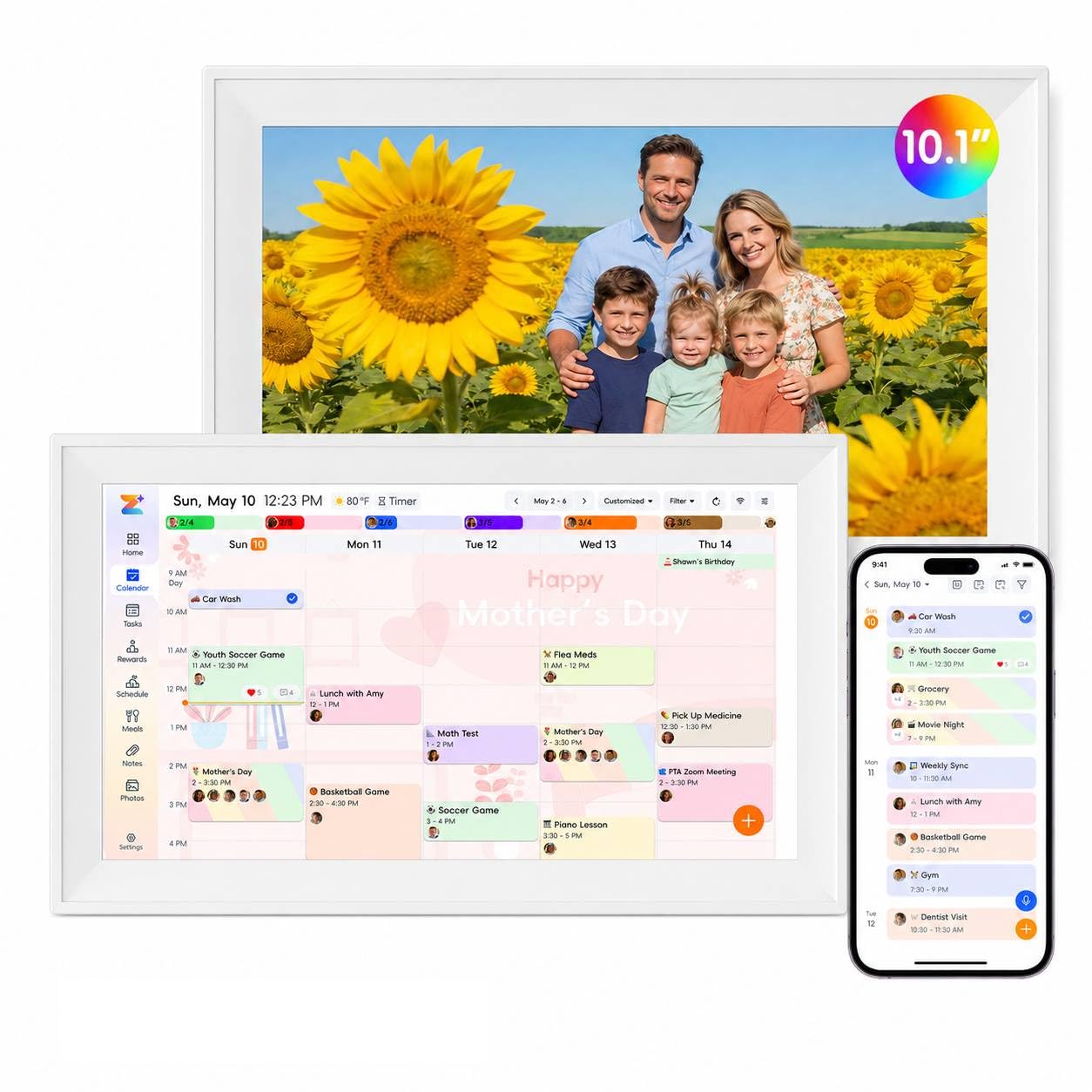
- Digital Calendar Wall Planner: Keep your family organized with the Westsee 10.1" touchscreen eletronic calendar — your family calendar for schedules, meals, and chores. Color-coded tasks let you see who's responsible at a glance. Empower kids to participate, stay connected, and enjoy a smoother family rhythm.
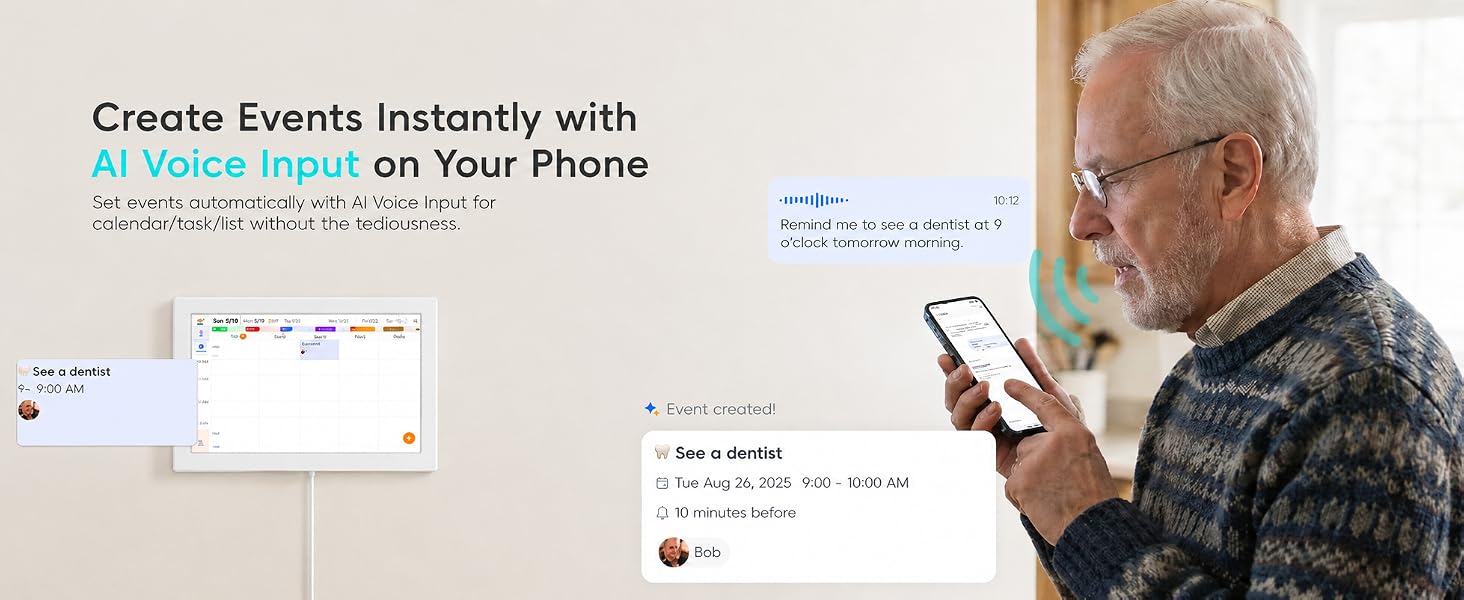
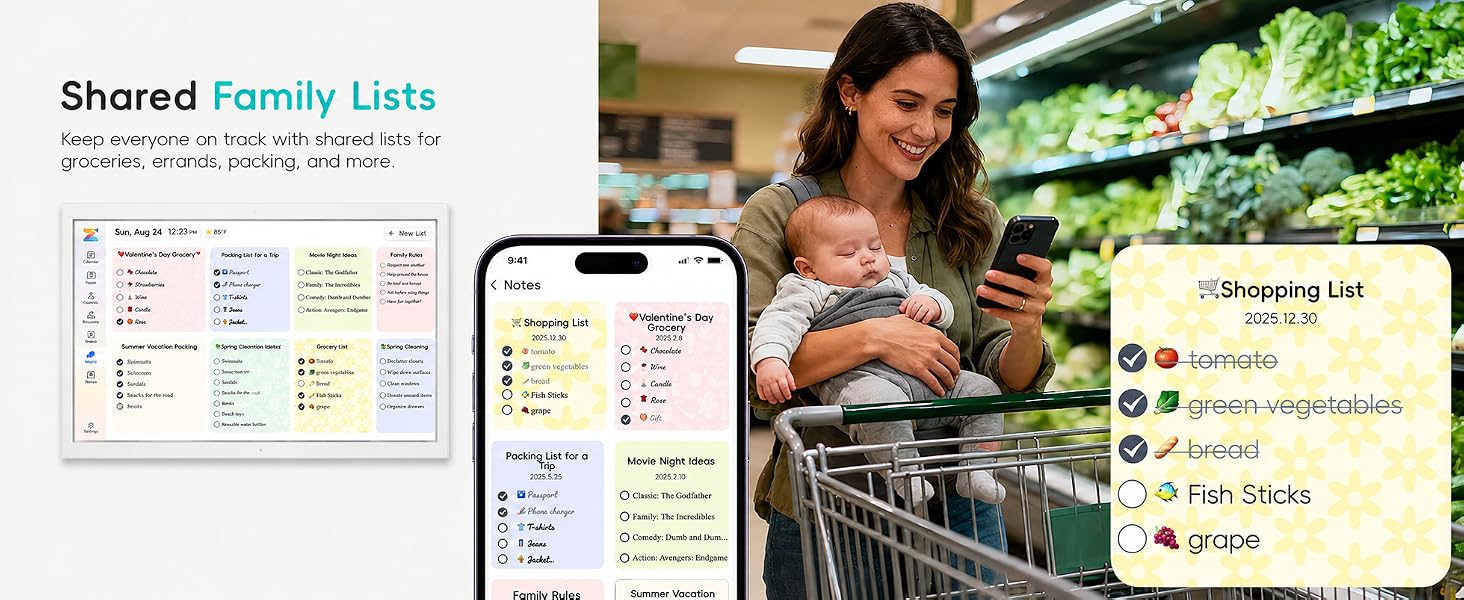
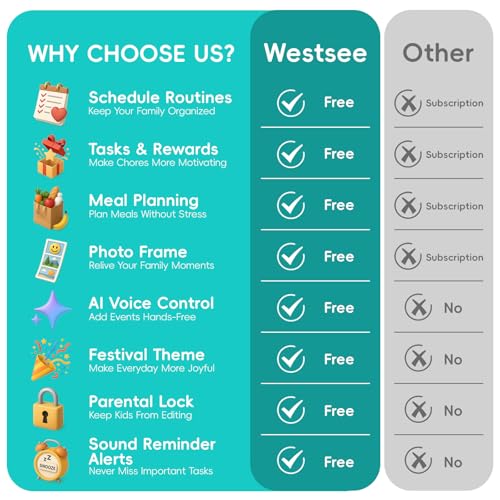
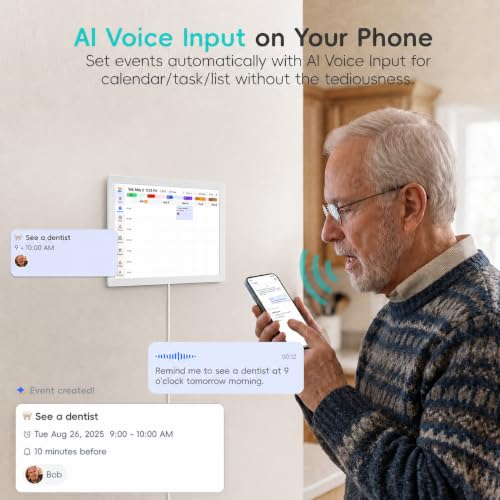
- No Subscription for Main Functions: Enjoy all core functions—schedules, tasks&rewards, meal plans, photo display and grocery list with our smart calendar free forever. Advanced tools tailored like AI Assitant may require a subscription for special needs on the future. Manage your family's day immediately and stay connected with the powerful Zical App.
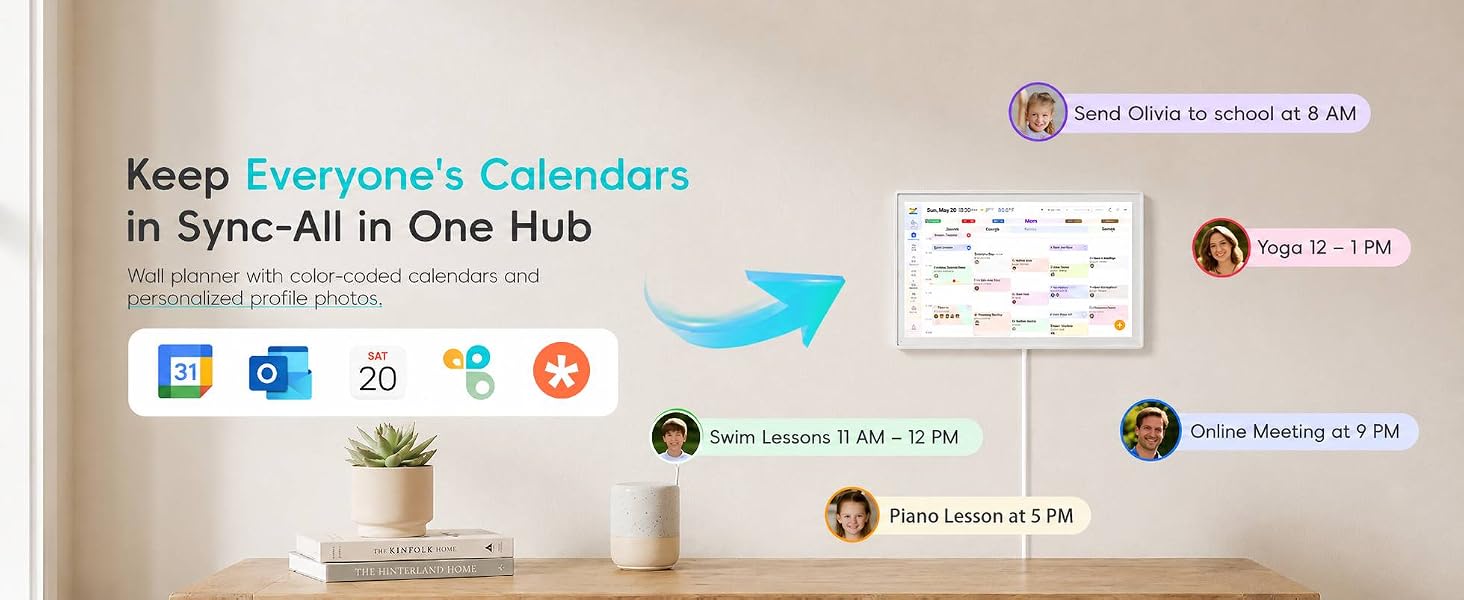
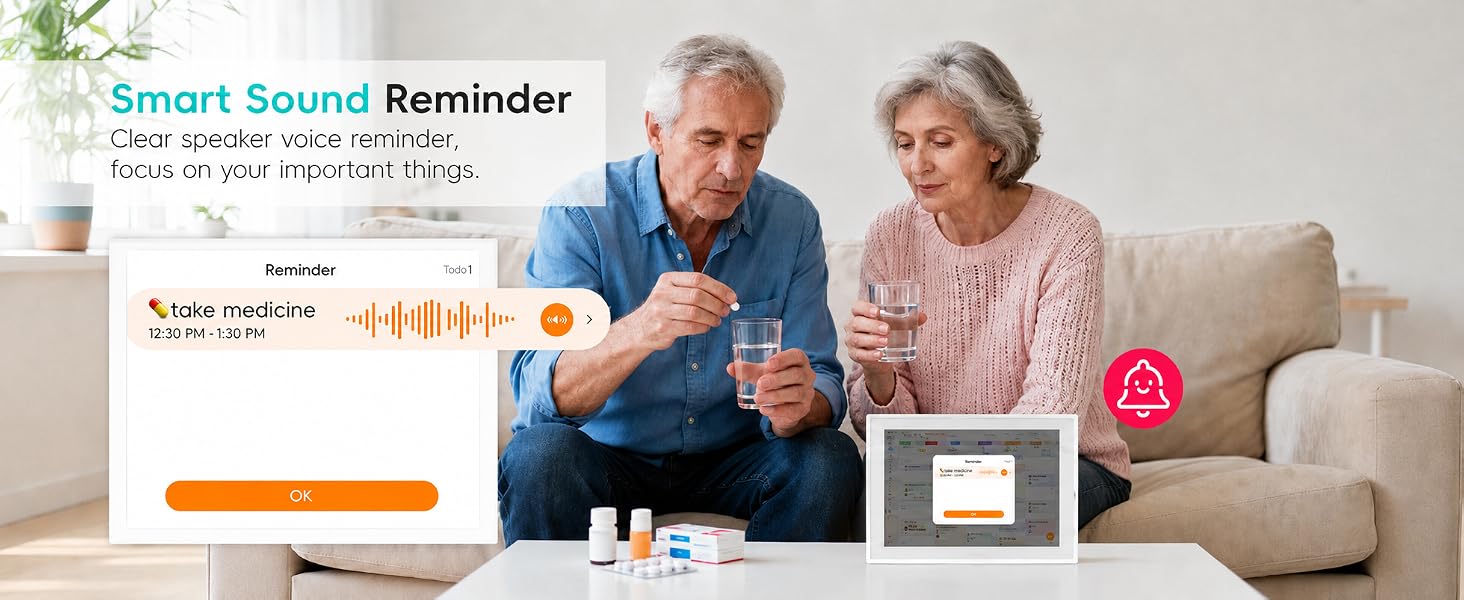
- Effortless Calendar Sync: Integrates for Google/iCloud/Outlook, and more. Edit events on-screen or in the Zical App for instant cross-device updates. Navigate via Day, Week, Month, or Custom Views, with built-in smart sound reminder for birthdays and notes to track all key moments.
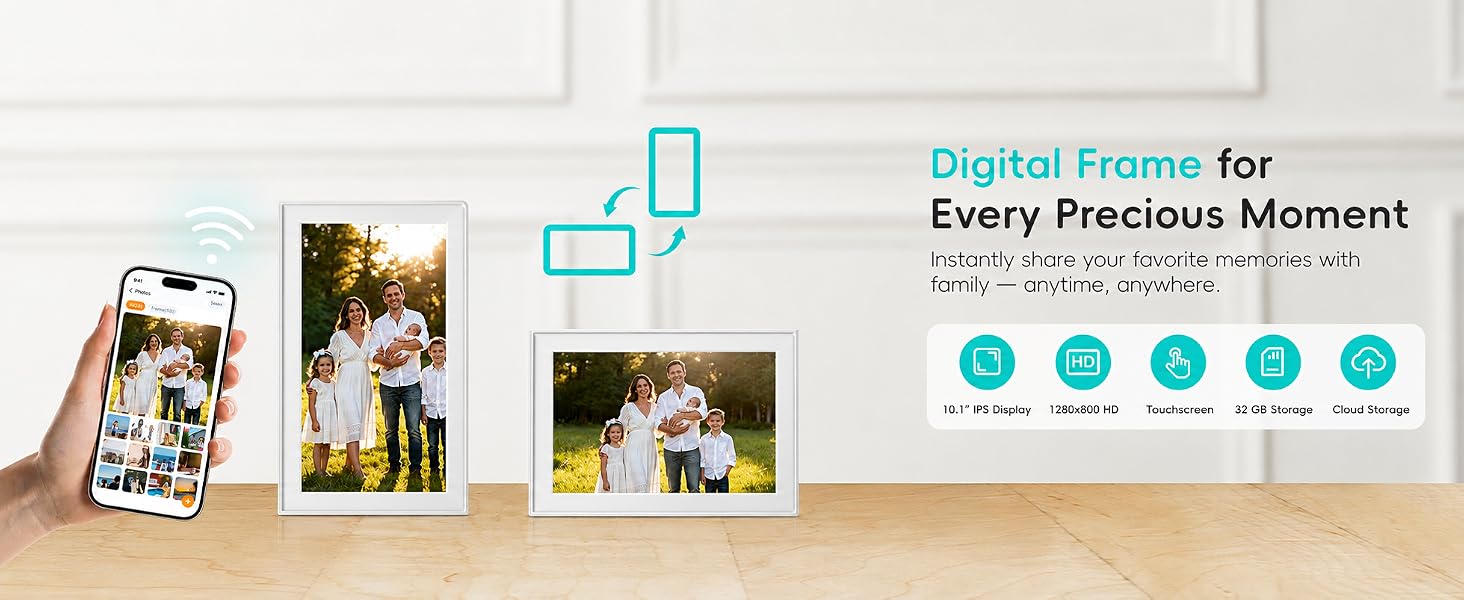
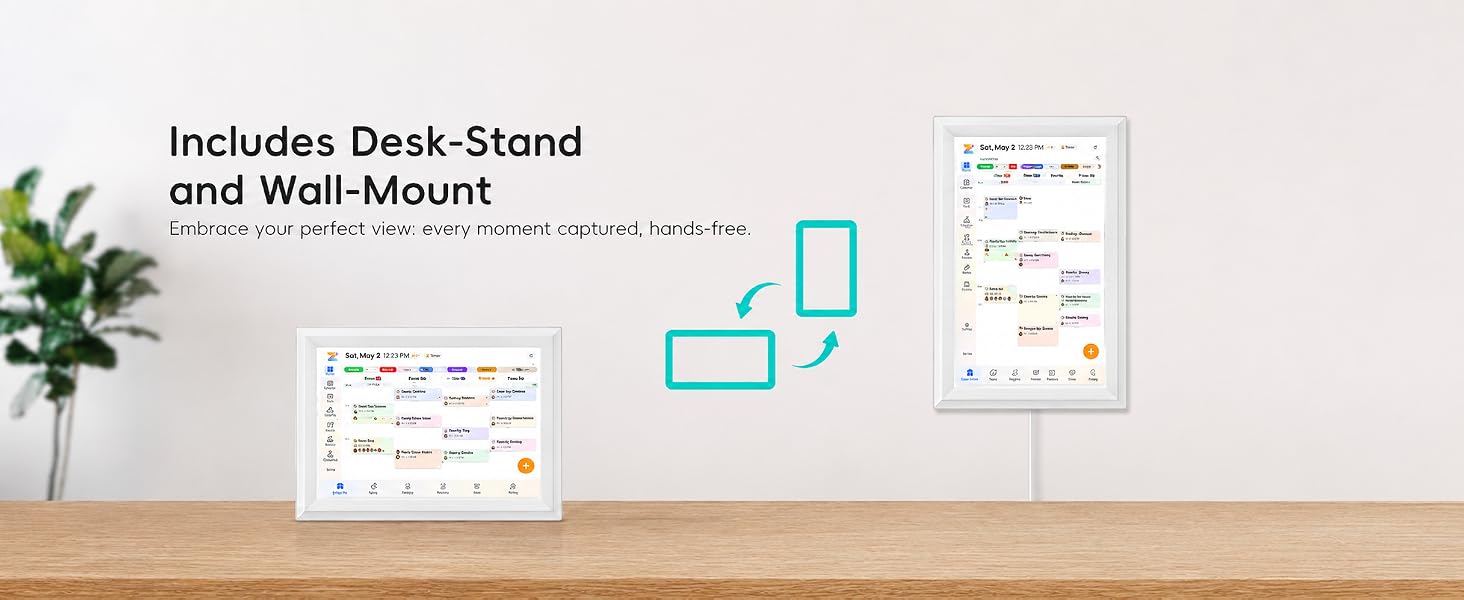
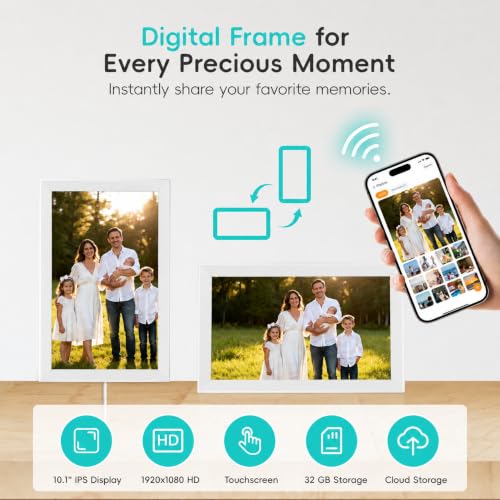
- Digital Picture Frame for Happy Moments: Store thousands of photos and videos with 32GB built-in memory. Keep your family connected by instantly sharing photos from anywhere. Turn your home into a gallery of togetherness, where your favorite memories are always on display for everyone to enjoy. Includes both a table stand and wall-mount display kit for versatile placement in the kitchen, office, entryway, or living room.
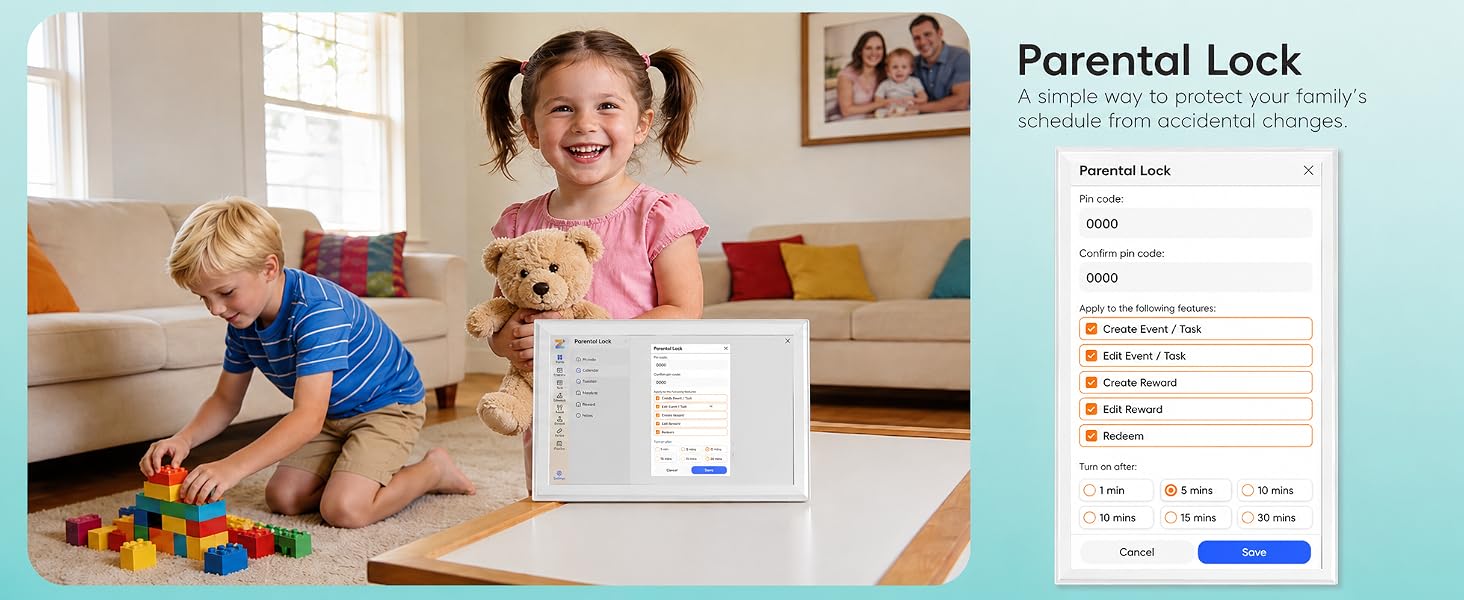
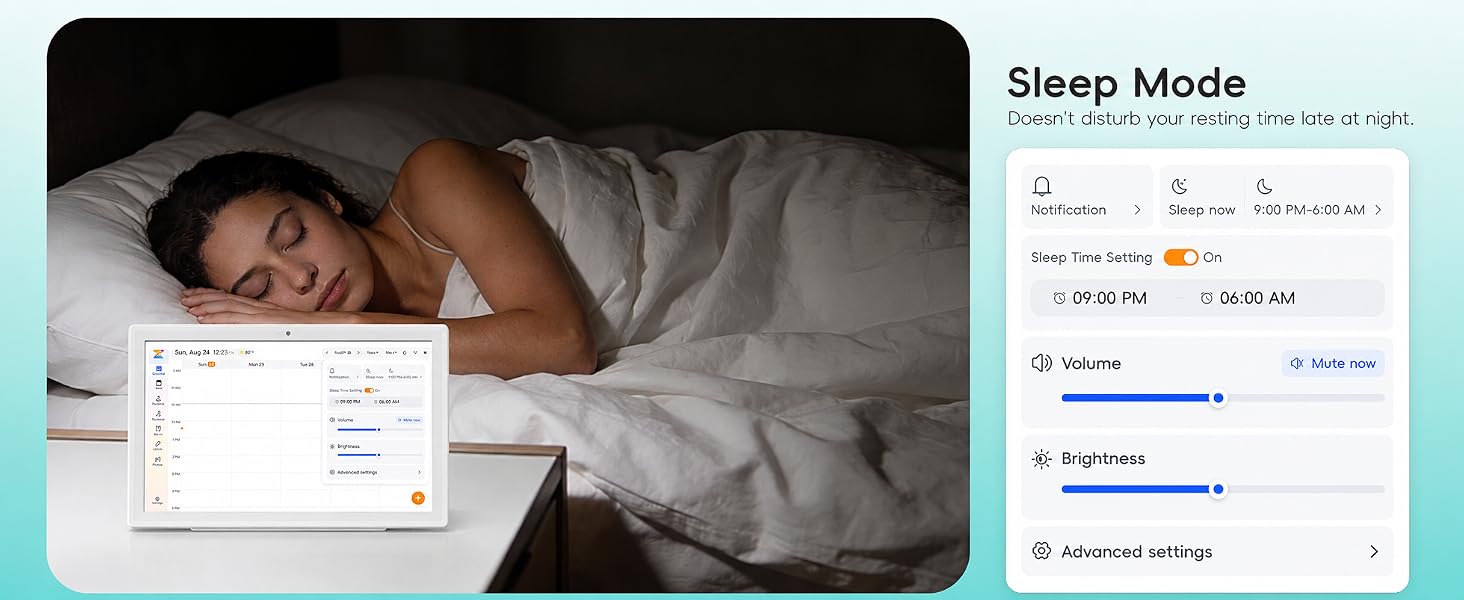
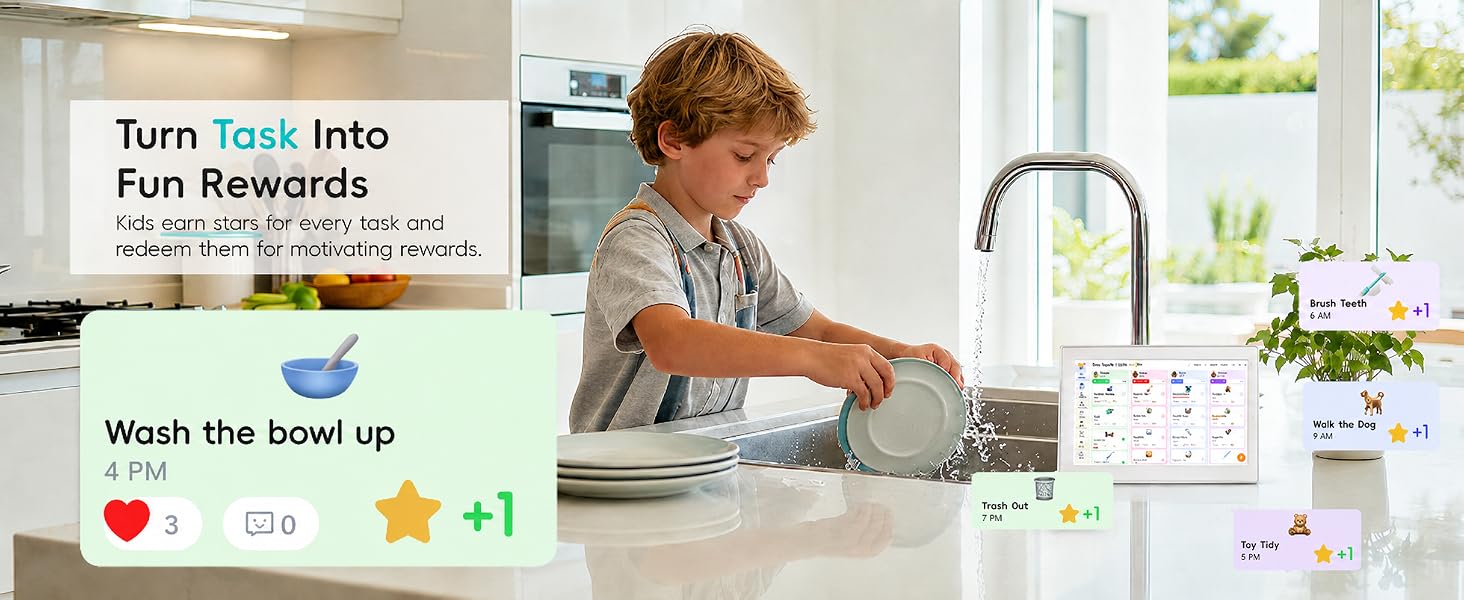
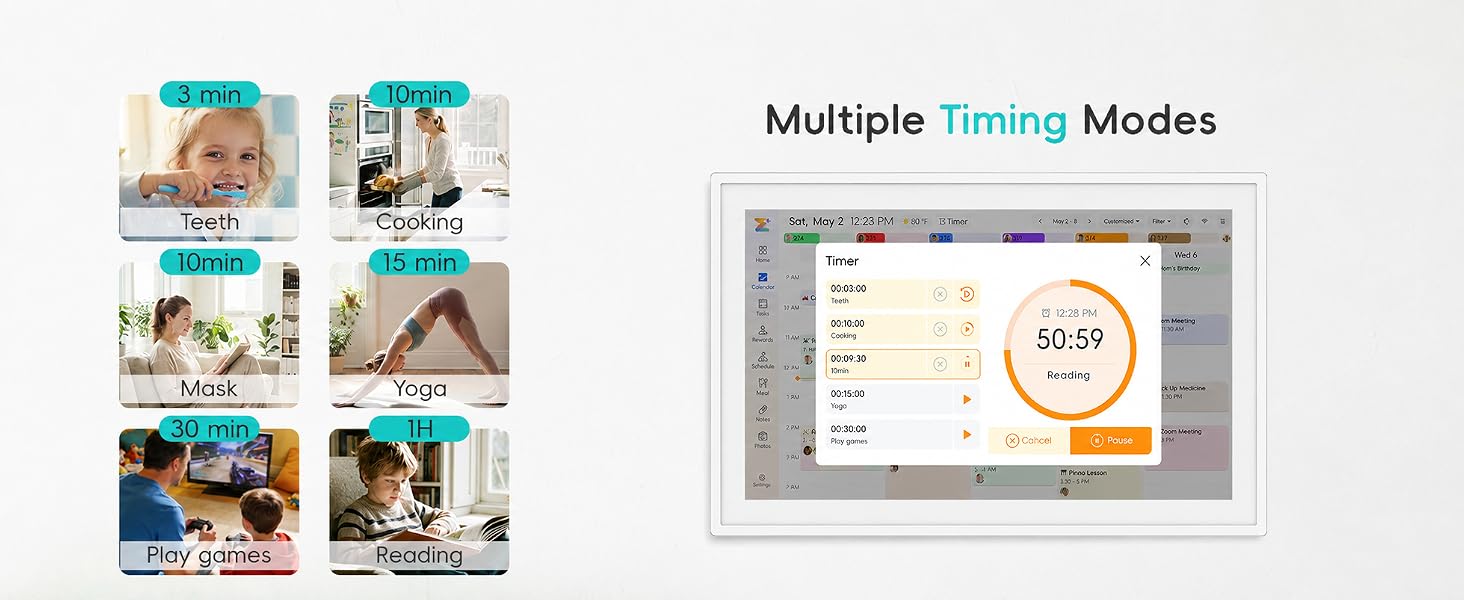
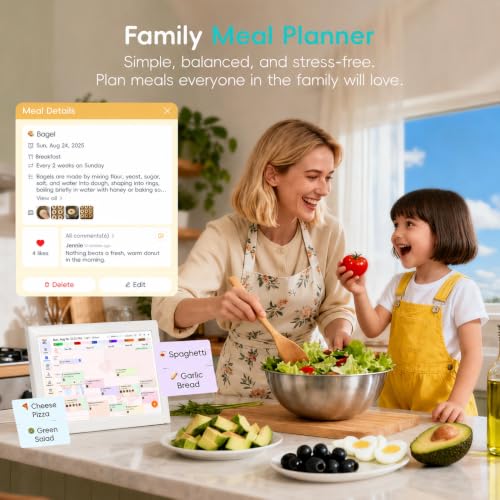
- Build Habits & Streamline Your Life: Empower your children through a fun task planner & rewards system to build lasting habits. Simplify meal by setting the weekly menu in advance. Enhance interaction by commenting on tasks and meals. Weather updates and automated sleep mode ensure the hub fits your routine for effortless, interactive management.
Does this calendar need to stay plugged in?
Yes. The calendar is designed to stay plugged in during use and supports 110–240V power input.
Can I mount it on my refrigerator with magnets?
Magnetic mounting is not currently supported. We recommend using the included wall-mount accessories or placing the calendar on a tabletop for stable use.
What should I do if my Zical is not connecting to Wi-Fi?
First, connect Zical to a different Wi-Fi network or a mobile hotspot to complete the initial setup. After setup is successful, you can switch back to the Wi-Fi network you want to use. This often helps solve the problem.
How do I reset the device or remove my information?
On the device, go to Settings > General, scroll down, and select Exit this calendar. This will remove the current calendar from the device and clear all calendar information stored on it.
How do I change the time zone, weather, or language?
You can update these settings on the device by going to Settings > General>Time & Language.



| SKU: | B0H3KZWN4K |
| Brand: | WESTSEE |
| Part: | X200-101 |
| Manufacture: | Westsee |
Product description
Does this calendar need to stay plugged in?
Yes. The calendar is designed to stay plugged in during use and supports 110–240V power input.
Can I mount it on my refrigerator with magnets?
Magnetic mounting is not currently supported. We recommend using the included wall-mount accessories or placing the calendar on a tabletop for stable use.
What should I do if my Zical is not connecting to Wi-Fi?
First, connect Zical to a different Wi-Fi network or a mobile hotspot to complete the initial setup. After setup is successful, you can switch back to the Wi-Fi network you want to use. This often helps solve the problem.
How do I reset the device or remove my information?
On the device, go to Settings > General, scroll down, and select Exit this calendar. This will remove the current calendar from the device and clear all calendar information stored on it.
How do I change the time zone, weather, or language?
You can update these settings on the device by going to Settings > General>Time & Language.