Car Radio for Ford F150 F-150 2004-2008, F250/F350
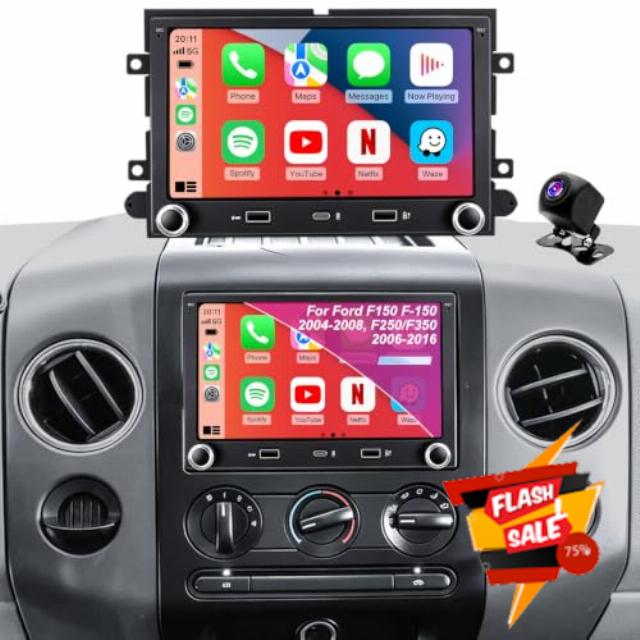
Car Radio for Ford F150 F-150 2004-2008, F250/F350 2006-2016, Mustang 2005-2009, E150/E250/E350 2009-2014, Expedition Explorer 7 Inch Touchscreen Stereo, Wireless CarPlay Android Auto GPS BT FM Camera
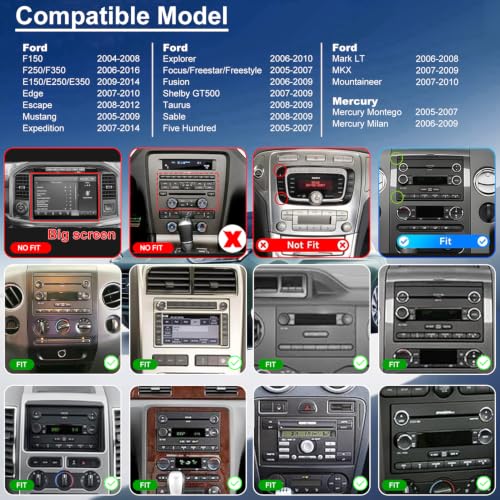
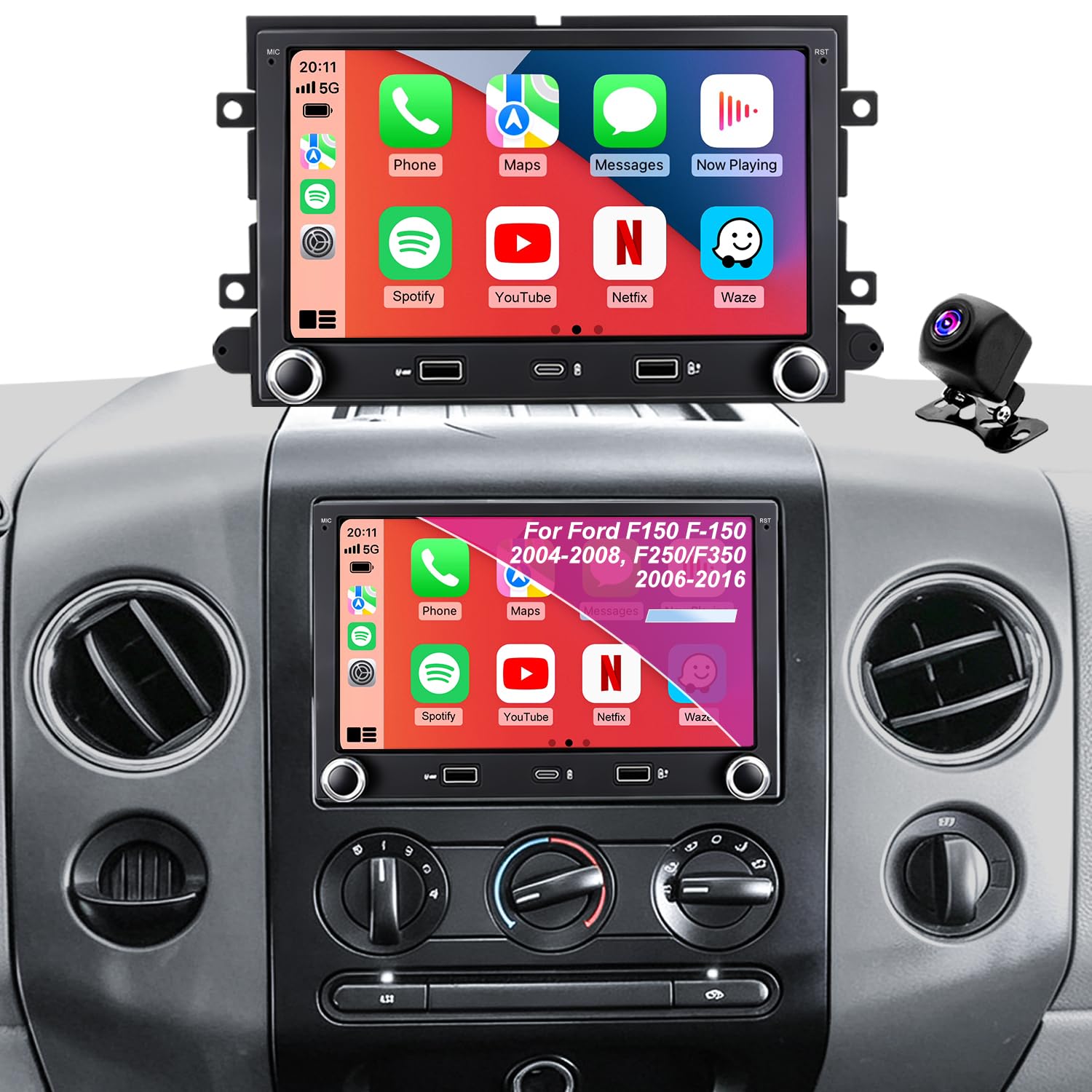
- 【Upgrade Radio for Ford】Touchscreen car radio with CarPlay Android Auto compatibility fits Ford F150 2004-2008, F250/F350 2006-2016, Mustang 2005-2009, E150/E250/E350 2009-2014, Expedition 2007-2014, Explorer 2006-2010, Edge 2007-2010, Escape 2008-2012, Five Hundred 2005-2007, Focus/Freestar/Freestyle 2005-2007, Fusion 2006-2009, Shelby GT500 2007-2009, Taurus 2008-2009, Sable 2008-2009, Mark LT 2006-2008, MKX 2007-2009, Mountaineer 2007-2010; Mercury Montego 2005-2007, Milan 2006-2009.
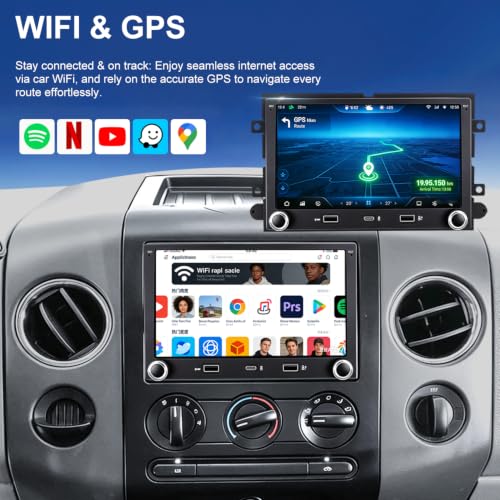
- 【5G WiFi & Android Car Stereo】 Ford F150 accessories radio with 2GB RAM and 32GB storage supports fast downloading of apps such as Waze, Spotify, and YouTube via 5G WiFi. Ford F-150 radio upgrade ensures fluid multitasking, smooth media streaming, and dependable GPS navigation performance for a smarter in-car experience.
- 【Wireless CarPlay & Fast Charging】 Ford F250 accessories stereo upgrade Supports wireless & wired CarPlay and Android Auto for hands-free calls, navigation, and music streaming. Ford F250 carplay radio built-in fast charging keeps your phone powered on the road, while USB and external storage support enable easy media playback and instant data access for a more connected driving experience.
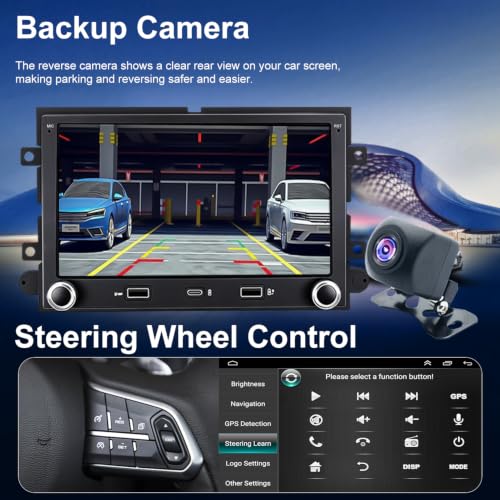
- 【Bluetooth Hands-Free & Steering Wheel Control】 Upgrade Ford F350 car stereo with Bluetooth hands-free calling for safer communication on the road. Ford F350 double din radio with steering wheel control lets you manage music, calls, and volume without taking your hands off the wheel, delivering a safer and more convenient driving experience.
- 【GPS Navigation & Backup Camera】 Ford Mustang android radio is equipped with built-in GPS navigation supporting both offline and online routing for dependable guidance. Ford Mustang radio with backup camera delivering a clear rearview display to enhance parking accuracy and improve safety when reversing.
- 【HD Touchscreen & Split Screen】 Upgrade Ford E150/E250/E350 radio replacement with HD touchscreen for smooth, responsive control and sharp visuals. With split-screen support, this Ford E150/E250/E350 touchscreen radio lets you display GPS navigation and music apps at the same time, delivering a safer, more convenient, and multitasking-friendly driving experience.
- 【EQ/DSP FM Radio & Support】 Upgrade Ford Expedition aftermarket radio with DSP audio and EQ tuning for clear, balanced sound and stronger bass. Enjoy stable Ford Expedition FM radio access on the road, while a one-year warranty and professional support ensure reliable performance and worry-free driving.
5Gwifi Android Car Radio Stereo for Ford F150 2004–2008, F250 F350 2006–2016, Mustang 2005-2009, E150/E250/E350 2009-2014 with CarPlay, Android Auto.
7 inches Double Din head unit Ford radio enhances driving experience with Fast Charging, smooth multimedia and smart connectivity.
For Ford Car Radio:
- Ford F150 2004–2008, Ford F250/F350 2006–2016, Ford Mustang 2005–2009,
- Ford E150/E250/E350 2009–2014, Ford Expedition 2007–2014, Ford Explorer 2006–2010,
- Ford Edge 2007–2010, Ford Escape 2008–2012, Ford Five Hundred 2005–2007,
- Ford Focus 2005–2007, Ford Freestar 2005–2007, Ford Freestyle 2005–2007,
- Ford Fusion 2006–2009, Ford Shelby GT500 2007–2009, Ford Taurus 2008–2009,
- Ford Sable 2008–2009, Ford Mark LT 2006–2008, Ford MKX 2007–2009, Ford Mountaineer 2007–2010.
For Mercury Car Radio:
- Mercury Montego 2005–2007, Mercury Milan 2006–2009.
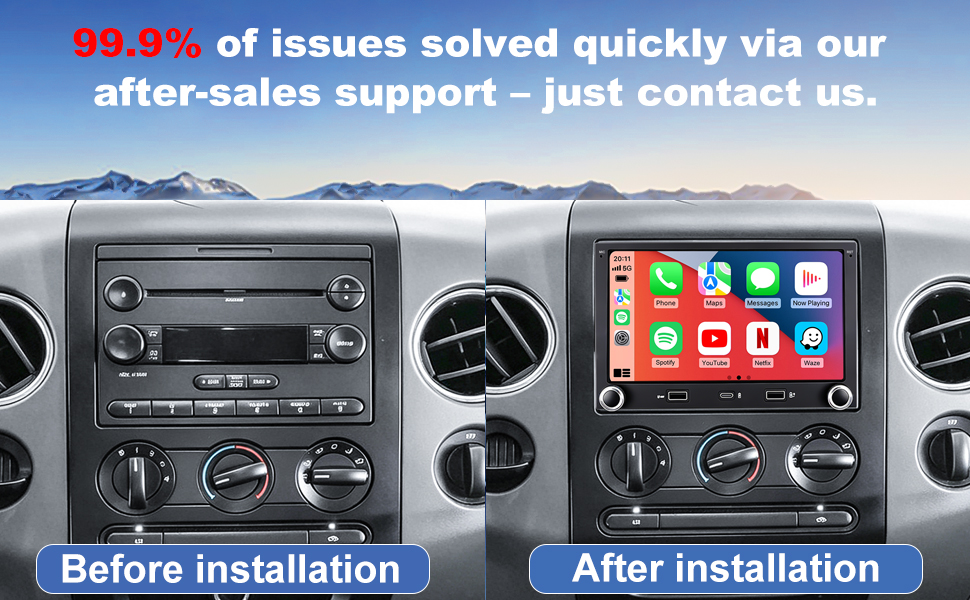
Note: Car model and year are for reference only. Please take a moment to check the shape and size of your center console before purchasing this aftermarket car radio. If you’re unsure about compatibility, you’re welcome to share your vehicle model and a photo of the center dashboard so we can offer helpful fitment suggestions.
Upgrade your vehicle with touchscreen car radio featuring CarPlay, Android Auto, and a rear view backup camera for safer driving and smarter control.
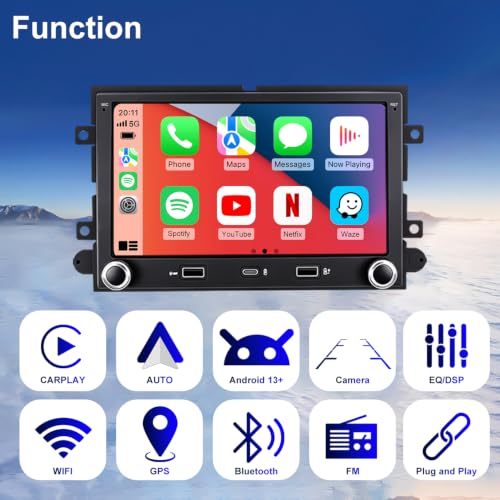
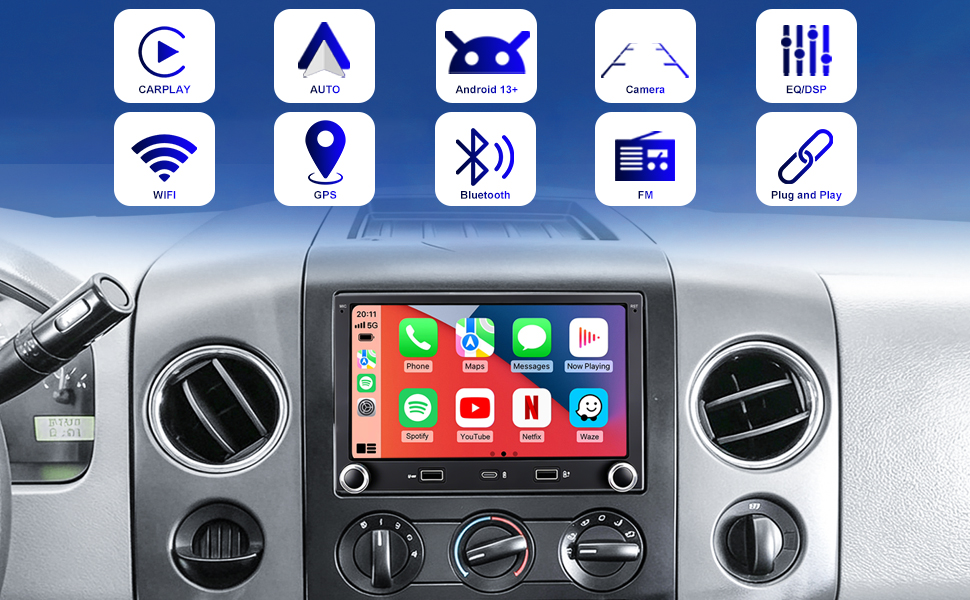
- Android System: Powered by 2GB RAM and 32GB ROM, ensuring smooth multitasking, quick app launch, and stable everyday performance.
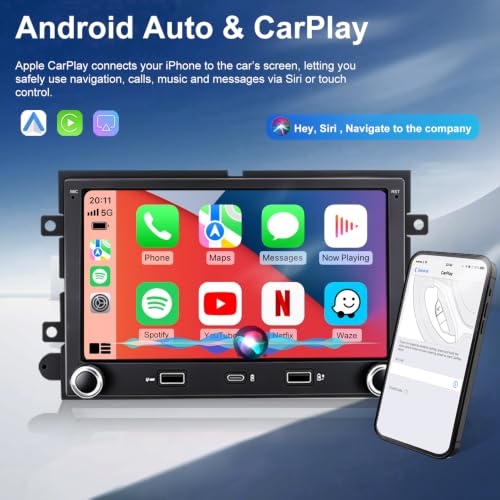
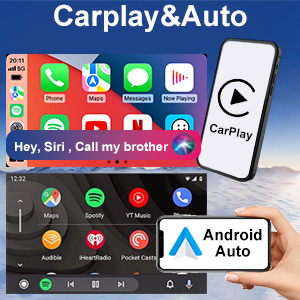
- Wireless CarPlay & Android Auto: Supports both wired and wireless CarPlay/Android Auto, enabling safe access to maps, calls, messages, and music.
- Built-In GPS Navigation: Integrated GPS system with offline/online map support, delivering precise real-time directions and reliable route guidance.
- High-Speed In-Car WiFi: 5G WiFi connectivity ensures fast internet access, seamless streaming, quick downloads, and stable app operation.
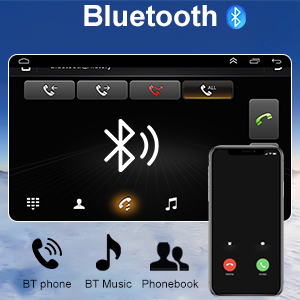
- Bluetooth Hands-Free & Audio: Advanced Bluetooth allows clear hands-free calling and wireless audio streaming with enhanced clarity .
- Backup Camera Support: HD rear camera input automatically switches to reverse view, providing a wide, clear image for safer parking and reversing.
- HD Touchscreen Split Screen: High-definition touchscreen with split-screen function lets you run navigation and media simultaneously.
- Stable FM Radio: Built-in FM tuner offers strong and stable signal reception for local stations, news updates, music, and entertainment programs.
- Dual USB Ports: Dual USB interfaces support fast charging and multimedia playback, making it easy to connect external devices and storage.
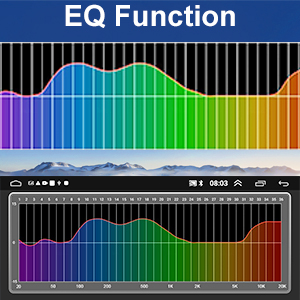
- DSP Sound System: Integrated DSP audio processing with adjustable EQ delivers rich bass, clear vocals, and balanced sound customization.
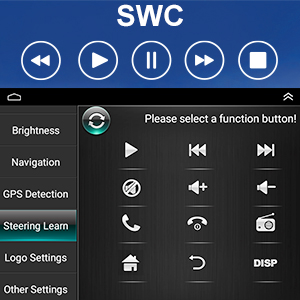
- Steering Wheel Control: Fully compatible with OEM steering wheel buttons for safer control of volume, calls, and playback without distraction.
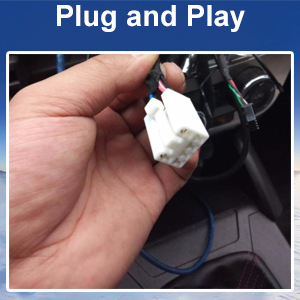
- Plug-and-Play Installation: Standard plug-and-play wiring harness design ensures quick installation with no wire cutting required.
Wireless CarPlay Connectivity
With wireless and wired CarPlay and Android Auto support, ford f150 accessories radio delivers stable smartphone connectivity for GPS navigation, calls, and music apps, ensuring safer driving.
Fast 5G WiFi Internet
With built-in 5G WiFi connectivity, this ford f150 radio headunit delivers stable and fast internet access for online GPS navigation, music streaming, app downloads, and system updates.
Bluetooth Audio Streaming
With Bluetooth-enabled connectivity, this ford f150 carplay radio delivers stable wireless audio streaming and clear hands-free calling, supporting music, podcasts, and phone communication for safer driving.
Smart In-Car GPS Navigation
This ford f250 car radio replacement with GPS navigation delivers reliable route guidance with offline map support and online updates, ensuring accurate directions and confident driving on every journey.
HD Multimedia DSP Audio
Ford f250 radio upgrade with touchscreen and advanced DSP audio tuning delivers clear visuals and balanced sound performance, enhancing music playback, video entertainment, and GPS navigation experience.
Multitasking Split-Screen FM
Ford f250 double din radio with split-screen support allows GPS navigation and FM radio or media apps to run together on the touchscreen, while FM preset stations provide quick access to saved channels.
Steering Wheel Control System
Ford f350 Android stereo with steering wheel control support integrates factory buttons, allowing easy management of audio, volume, and hands-free calls without distraction, improving driving safety.
HD Backup Camera Ready
Ford f350 radio supports backup camera input with wide-angle viewing, automatically switching to the rear camera display when reversing, helping drivers improve parking overall driving awareness.
Secure Plug & Play Mount
Ford f350 carplay radio with plug-and-play wiring design enables quick installation with no wire cutting required, ensuring a secure factory dash fit and delivering reliable aftermarket car radio upgrade.
- Q: Why won’t Bluetooth connect? Why is the Bluetooth or Wi-Fi signal weak?
A:1.Make sure the reverse cable is properly connected to the Bluetooth and Wi-Fi signal amplifier.
2.Open the Bluetooth settings on the car radio and search for your phone.
3.Select Car-BT and enter the password 0000. If it fails, delete previous pairings and reconnect.
- Q: How do I connect or disconnect Apple CarPlay?
A:1.Turn on Bluetooth on your iPhone; Zlink will automatically launch CarPlay.
2.Close the Zlink app running in the background to stop automatic connection.
3.On your iPhone, go to Settings > General > CarPlay > Zlink to enable or disable CarPlay.
- Q: How do I use Wireless Mirroring?
A:iOS: Open Zlink5 > Wireless Mirroring, enable your iPhone hotspot, then connect the car radio Wi-Fi and select zj-airplay.
Android: Open Zlink5 > Wireless Mirroring, install the Zlink app, connect Bluetooth, and turn on Personal Hotspot.
- Q: Why is the Wi-Fi not working?
A: When Apple CarPlay is active, Wi-Fi is temporarily disconnected. Close the background connection to prevent CarPlay from reconnecting automatically.
- Q: Why is there no signal from the rear camera?
A:1.Make sure the reverse/parking sensor wires are connected correctly.
2.Set the correct camera format: Car Settings > Factory Settings (password 8888) > Camera & Protocol Parameters > Reverse Video Resolution, then select NTSC/ PAL or AHD720/25.
- Q: How do I remove the backup camera trajectory lines?
A: Go to Car Settings > Factory Settings (password 8888) > Protocol Parameter Settings, then turn Reverse Track and Reverse Auxiliary Lines to Off.
- Q: Why is the car radio screen black?
A:1.Check that the CANBUS box is properly connected.
2.Press the small RST reset hole with a toothpick, then check the blue/red fuse on the back to make sure it’s not blown.
- Q: Why is the touch screen not responding?
A: Use five fingers to recalibrate the touch screen by following the steps shown in the instructional video.
- Q: Why is there no sound from the car stereo?
A:1.Check whether the speaker wires are connected incorrectly or wired in reverse.
2.Make sure the CANBUS box is properly connected.
- Q: Why aren’t the steering wheel controls working?
A:1.Check whether the protocol serial port wire is reversed, loose, or missing, and make sure the SWC cable is connected.
2.Verify that the correct vehicle protocol is selected.

| SKU: | B0H3L57BZB |
| Size: | 7 inches |
| Brand: | Hyperego |
| Manufacture: | Hyperego |
| Size: | 7 inches |
Product description
- Q: Why won’t Bluetooth connect? Why is the Bluetooth or Wi-Fi signal weak?
A:1.Make sure the reverse cable is properly connected to the Bluetooth and Wi-Fi signal amplifier.
2.Open the Bluetooth settings on the car radio and search for your phone.
3.Select Car-BT and enter the password 0000. If it fails, delete previous pairings and reconnect.
- Q: How do I connect or disconnect Apple CarPlay?
A:1.Turn on Bluetooth on your iPhone; Zlink will automatically launch CarPlay.
2.Close the Zlink app running in the background to stop automatic connection.
3.On your iPhone, go to Settings > General > CarPlay > Zlink to enable or disable CarPlay.
- Q: How do I use Wireless Mirroring?
A:iOS: Open Zlink5 > Wireless Mirroring, enable your iPhone hotspot, then connect the car radio Wi-Fi and select zj-airplay.
Android: Open Zlink5 > Wireless Mirroring, install the Zlink app, connect Bluetooth, and turn on Personal Hotspot.
- Q: Why is the Wi-Fi not working?
A: When Apple CarPlay is active, Wi-Fi is temporarily disconnected. Close the background connection to prevent CarPlay from reconnecting automatically.
- Q: Why is there no signal from the rear camera?
A:1.Make sure the reverse/parking sensor wires are connected correctly.
2.Set the correct camera format: Car Settings > Factory Settings (password 8888) > Camera & Protocol Parameters > Reverse Video Resolution, then select NTSC/ PAL or AHD720/25.
- Q: How do I remove the backup camera trajectory lines?
A: Go to Car Settings > Factory Settings (password 8888) > Protocol Parameter Settings, then turn Reverse Track and Reverse Auxiliary Lines to Off.
- Q: Why is the car radio screen black?
A:1.Check that the CANBUS box is properly connected.
2.Press the small RST reset hole with a toothpick, then check the blue/red fuse on the back to make sure it’s not blown.
- Q: Why is the touch screen not responding?
A: Use five fingers to recalibrate the touch screen by following the steps shown in the instructional video.
- Q: Why is there no sound from the car stereo?
A:1.Check whether the speaker wires are connected incorrectly or wired in reverse.
2.Make sure the CANBUS box is properly connected.
- Q: Why aren’t the steering wheel controls working?
A:1.Check whether the protocol serial port wire is reversed, loose, or missing, and make sure the SWC cable is connected.
2.Verify that the correct vehicle protocol is selected.