ORICO M.2 NVMe SSD 512GB with Heatsink, Up to 2800MB/s PCIe

ORICO M.2 NVMe SSD 512GB with Heatsink, Up to 2800MB/s PCIe Gen3x4 2280 Internal Solid State Drive, SLC Cache 3D NAND, Compatible with Laptop and PC Desktops -J1
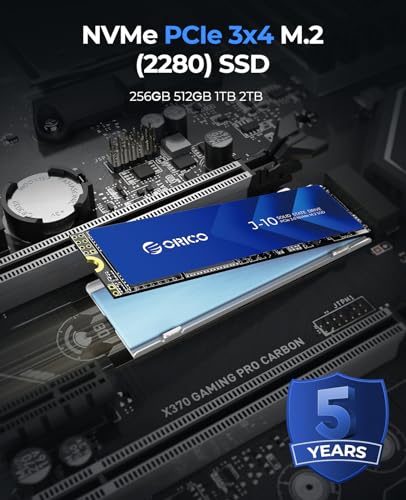
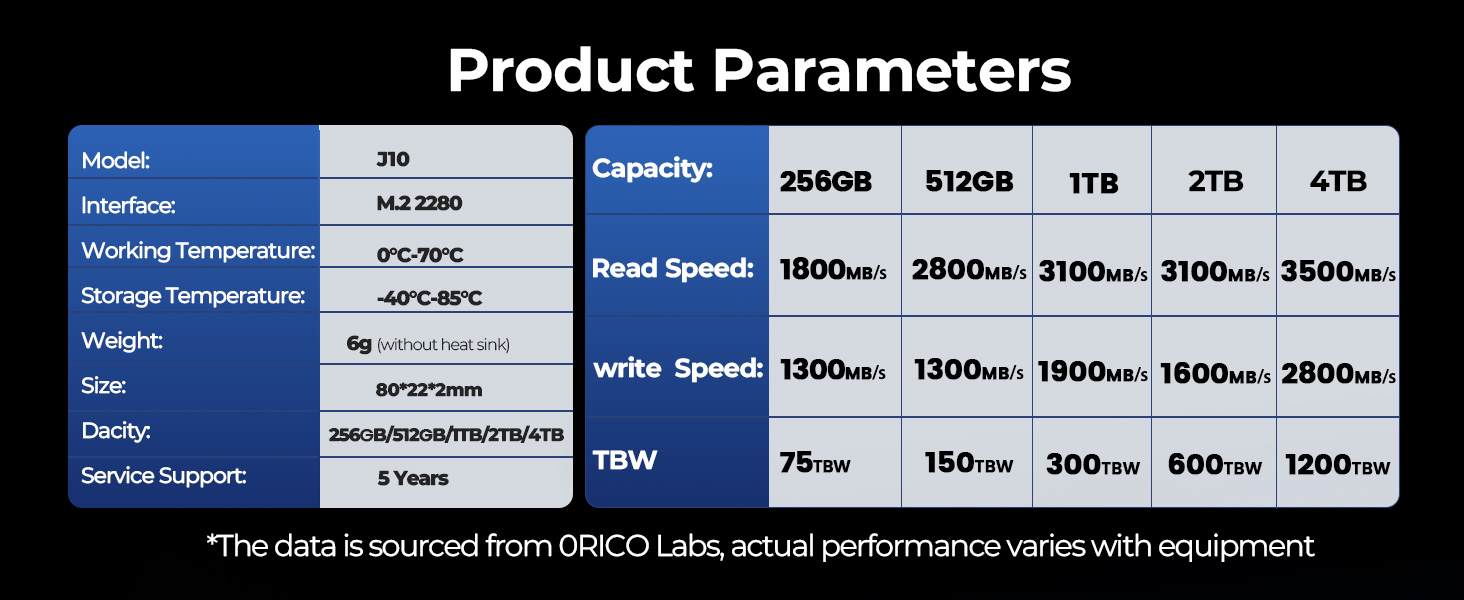
- 【Top-tier Performance】512GB M.2 NVMe SSD (PCIe Gen3 x4) technology with Read speeds up to 2800 MB/s and write speeds of up to 1300 MB/s (performance may vary based on system hardware & configuration.)
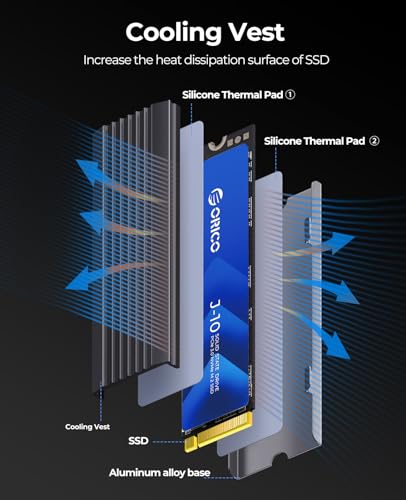
- 【Enhanced Heatsink】 Includes high performance heat sink silicone film with good thermal conductivity, aluminum alloy cooling vest with groove design, greatly increase the heat dissipation area, allows a optimum cooling performance
- 【Support PC and DIY PSSD】M.2 2280 form factor. Supports S.M.A.R.T. function and its built-in smart algorithm management mechanism has functions that are able to ensure operation efficiency, available fo desktops, laptops and DIY your own portable external SSD
- 【Reliability and Stability】Our SSD undergoes 96 hours of rigorous testing, including sleep, read/write, high-temperature, performance, and boot tests, ensuring exceptional stability and reliability
- 【Note of Compatibility】Our J10 SSD is . and is . Additionally, please remember to format new SSDs before use to ensure system compatibility
- 【Note of Capacity】1GB = 1 billion bytes, 1TB = 1 trillion bytes. Actual user capacity may be less depending on operating environment
With up to 20% lower temperatures than heatsinkless SSDs, the heatsinked J10 prevents overheating while maintaining long-term reliability, extending product life.
Improve your gaming experience in just a moment
Improve productivity and make work more efficient
Pair it with the ORICO TXM2M NVMe enclosure to form an external SSD and use it anytime, anywhere.
Why is my new M.2 SSD running slower than the advertised speeds?
If your M.2 SSD's read and write speeds are not reaching the advertised levels, it may be due to write caching being disabled. Enabling write caching on your device can optimize write performance, especially during large file transfers.
Here’s how to check and enable this feature:
- Open Device Manager: (Windows 10: Right-click on the Start menu and select Device Manager. Windows 11: Right-click the Start icon on the taskbar or press Windows + X and select Device Manager.)
- Locate Disk Drives: Expand the Disk drives section to see a list of your installed storage devices.
- Select Your SSD: Right-click on your M.2 SSD and select Properties.
- Enable Write Caching: Go to the Policies tab. >>>>Check the option labeled Enable write caching on the device.>>>>Click OK to save changes.
Sometimes, caching options in the BIOS/UEFI can affect SSD performance. During startup:
- Access the BIOS/UEFI by pressing the designated key (often F2, Delete, or Esc) immediately after powering on.
- Look for any settings related to storage or caching and ensure they are enabled.
After making these adjustments, your M.2 SSD should perform closer to, or even surpass, the advertised speeds.








| SKU: | B0CG1RN6QV |
| Weight: | 70 Grams |
| Brand: | ORICO |
| Model: | ORICO-J10 series |
| Colour: | Blue |
| Pack Quantity: | 1 |
| Manufacture: | SHENZHEN ORICO TECHNOLOGIES CO.,LTD |
| Colour: | Blue |
| Quantity: | 1 |
Product description

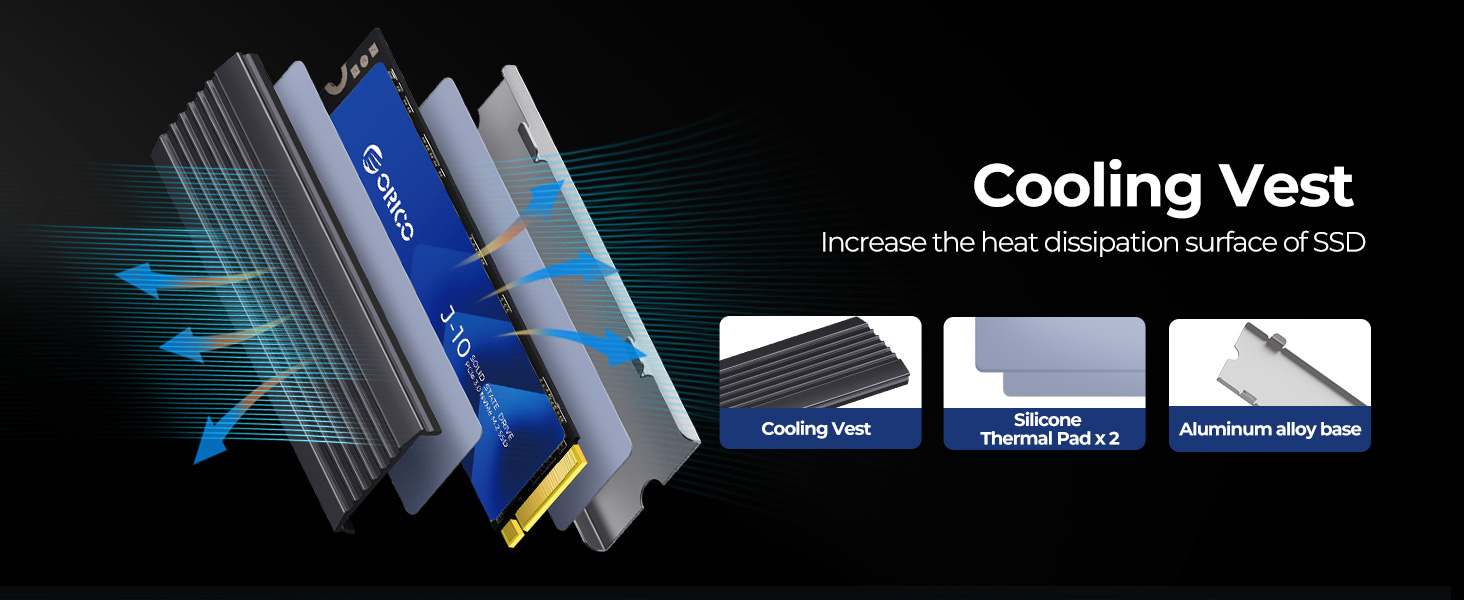
With up to 20% lower temperatures than heatsinkless SSDs, the heatsinked J10 prevents overheating while maintaining long-term reliability, extending product life.

Improve your gaming experience in just a moment
Improve productivity and make work more efficient
Pair it with the ORICO TXM2M NVMe enclosure to form an external SSD and use it anytime, anywhere.
Why is my new M.2 SSD running slower than the advertised speeds?
If your M.2 SSD's read and write speeds are not reaching the advertised levels, it may be due to write caching being disabled. Enabling write caching on your device can optimize write performance, especially during large file transfers.
Here’s how to check and enable this feature:
- Open Device Manager: (Windows 10: Right-click on the Start menu and select Device Manager. Windows 11: Right-click the Start icon on the taskbar or press Windows + X and select Device Manager.)
- Locate Disk Drives: Expand the Disk drives section to see a list of your installed storage devices.
- Select Your SSD: Right-click on your M.2 SSD and select Properties.
- Enable Write Caching: Go to the Policies tab. >>>>Check the option labeled Enable write caching on the device.>>>>Click OK to save changes.
Sometimes, caching options in the BIOS/UEFI can affect SSD performance. During startup:
- Access the BIOS/UEFI by pressing the designated key (often F2, Delete, or Esc) immediately after powering on.
- Look for any settings related to storage or caching and ensure they are enabled.
After making these adjustments, your M.2 SSD should perform closer to, or even surpass, the advertised speeds.