MOFT Trackable Tripod Wallet, Find My MagSafe Wallet Card
MOFT Trackable Tripod Wallet, Find My MagSafe Wallet Card Holder with Adjustable Phone Tripod Stand, 4-in-1 Magnetic Phone Wallet for iPhone 17/16/15/14/13/12 Series, Slim Minimalist Wallet,Terracotta
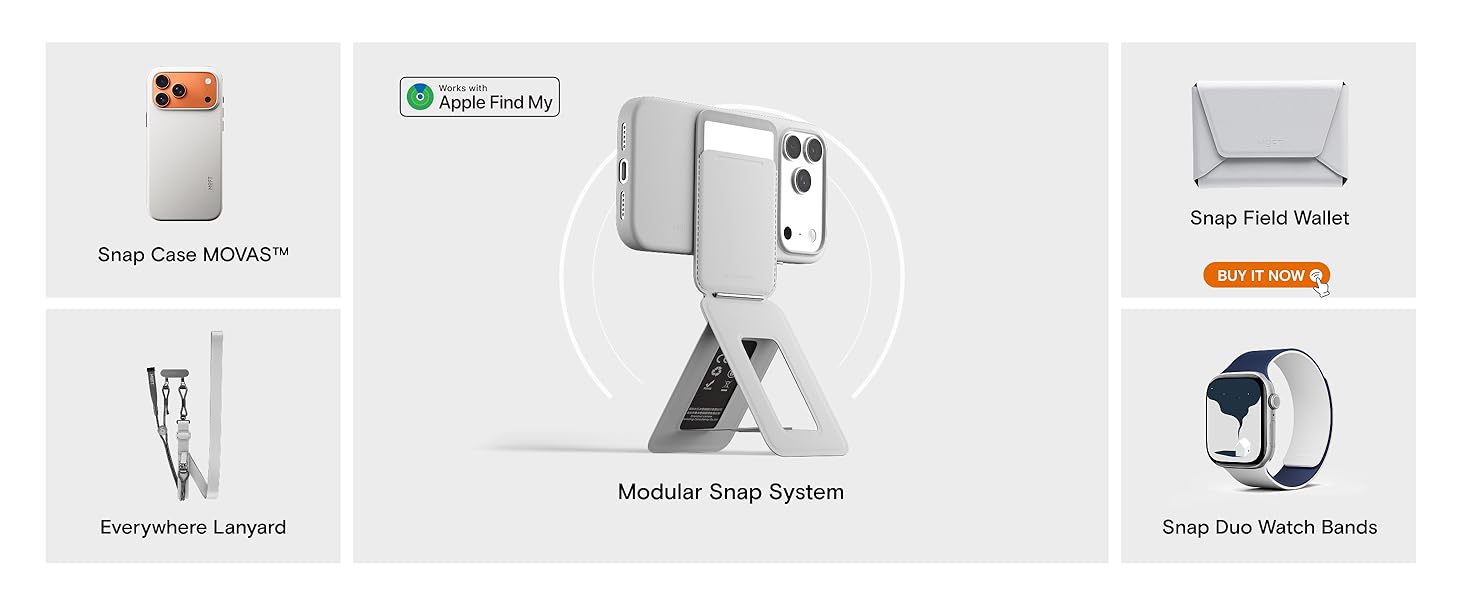
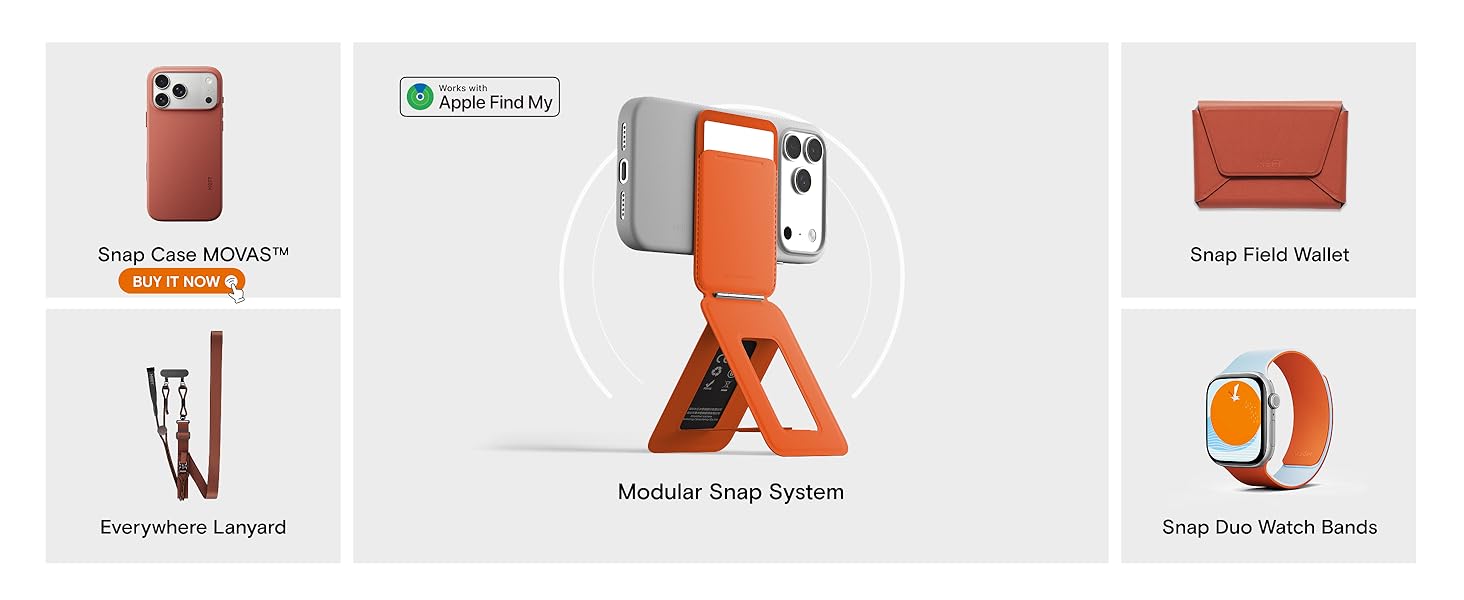
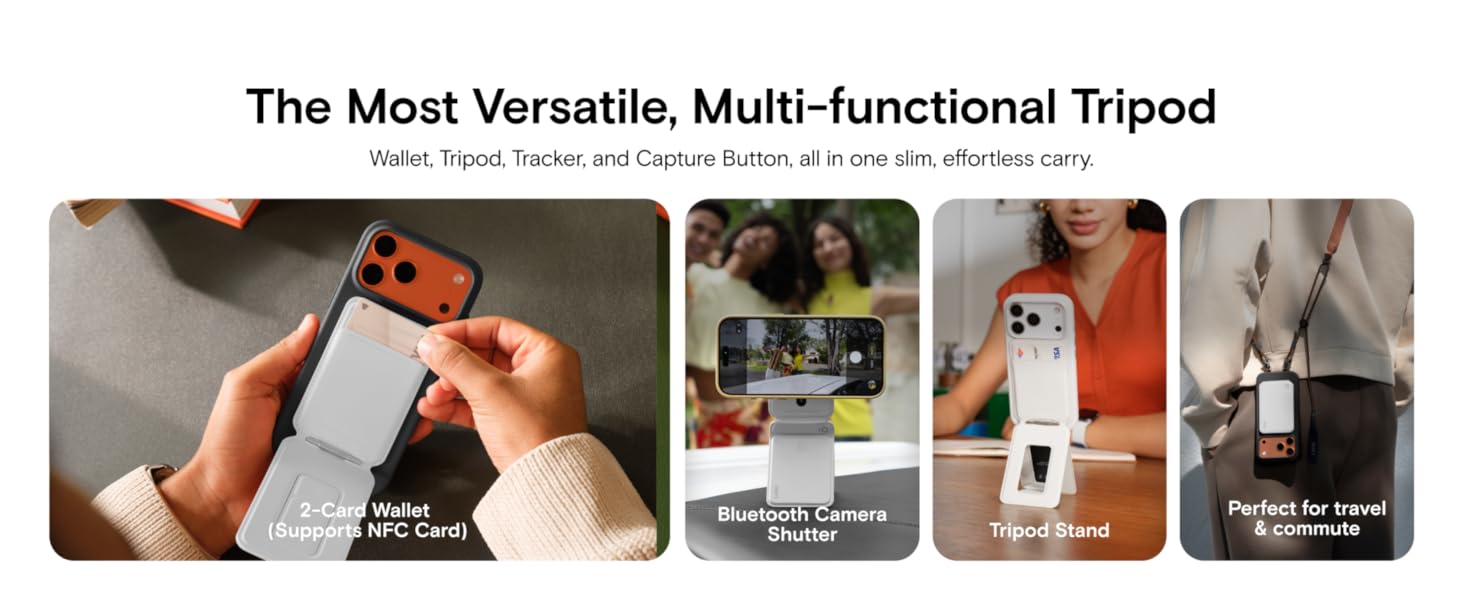
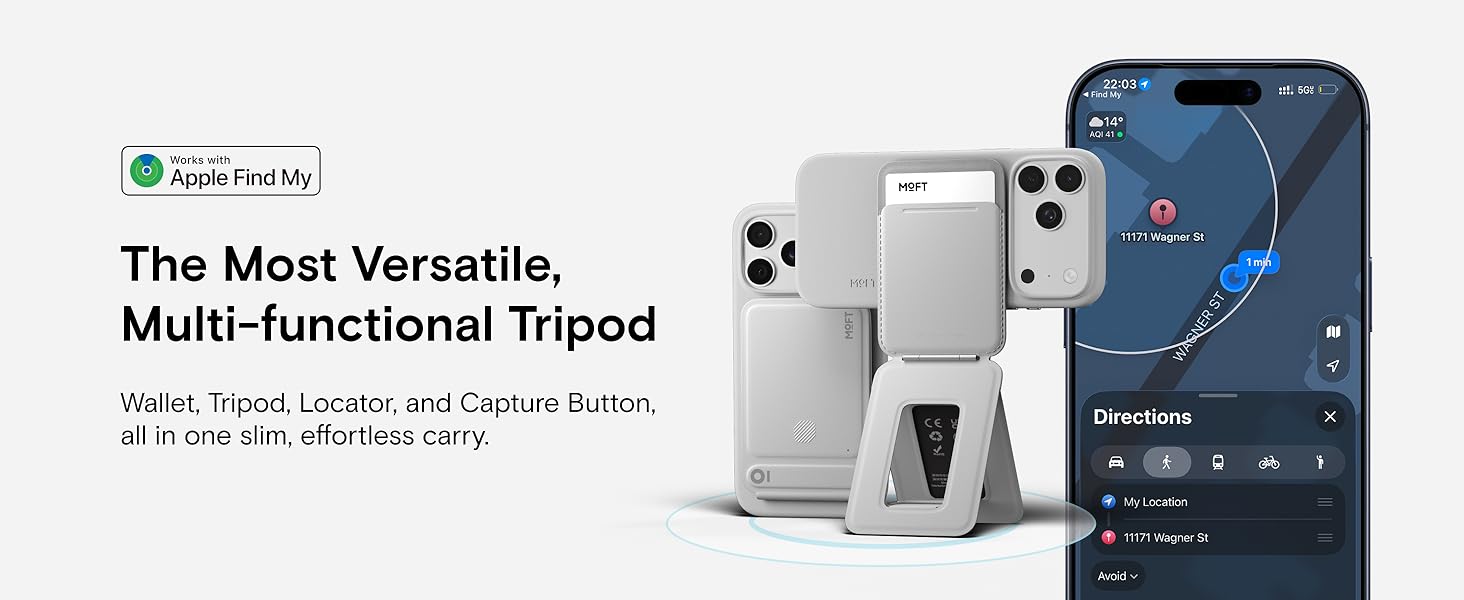
- 【Ultimate 4-in-1 Integration: One for All】 Stop managing a mess of separate accessories. This All-in-One powerhouse merges a trackable wallet, iphone stand, phone tripod, and shutter into a single, ultra-slim profile. It solves the "clutter pain point" by replacing four bulky tools with one streamlined solution, turning your iPhone into a fully-equipped mobile workstation.
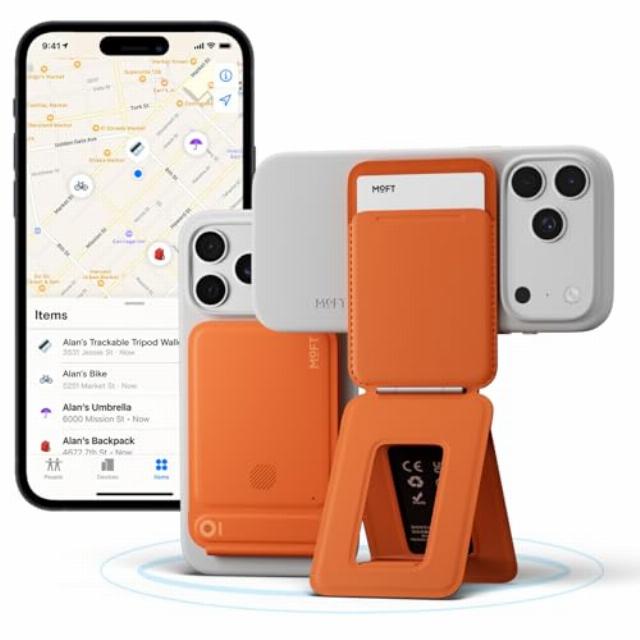
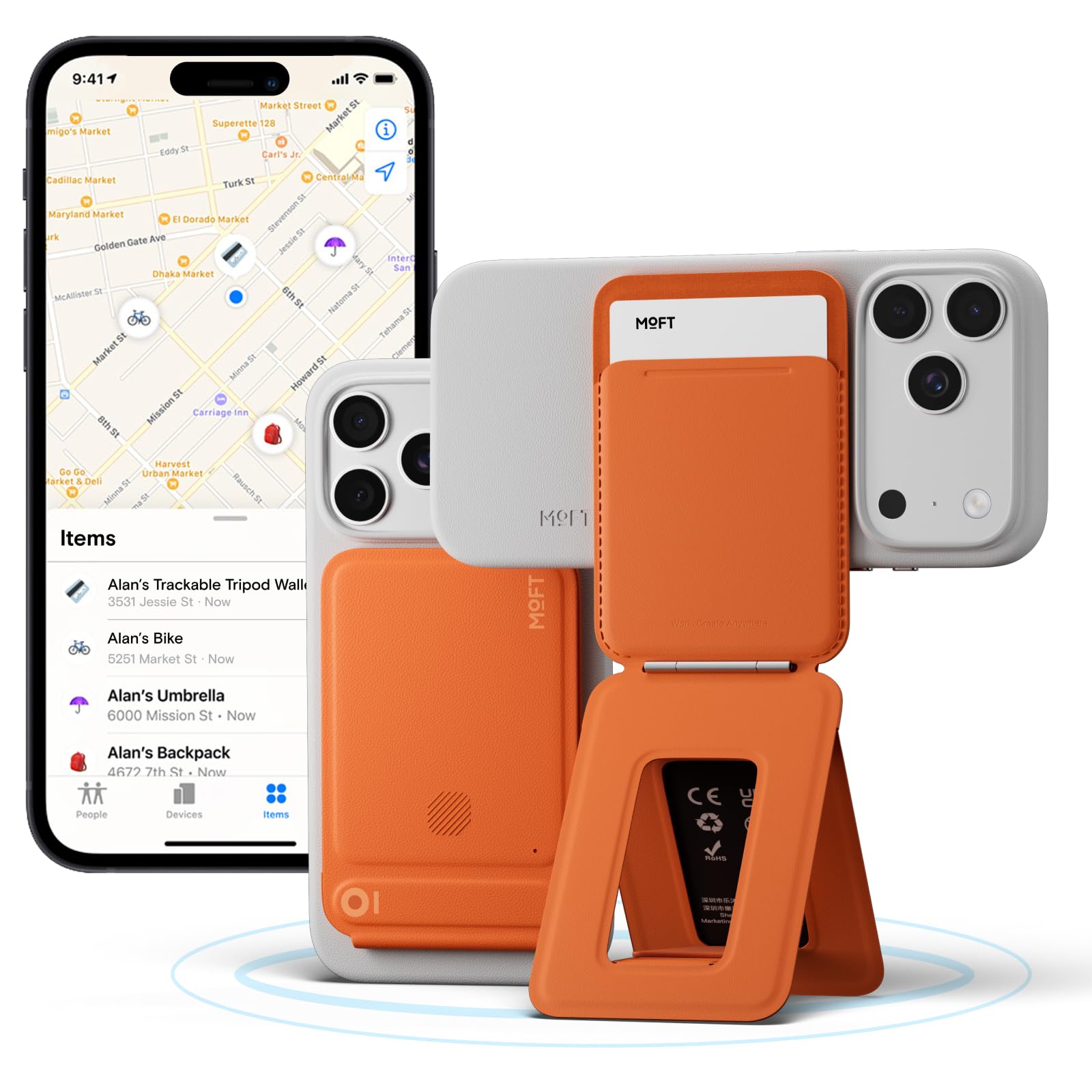
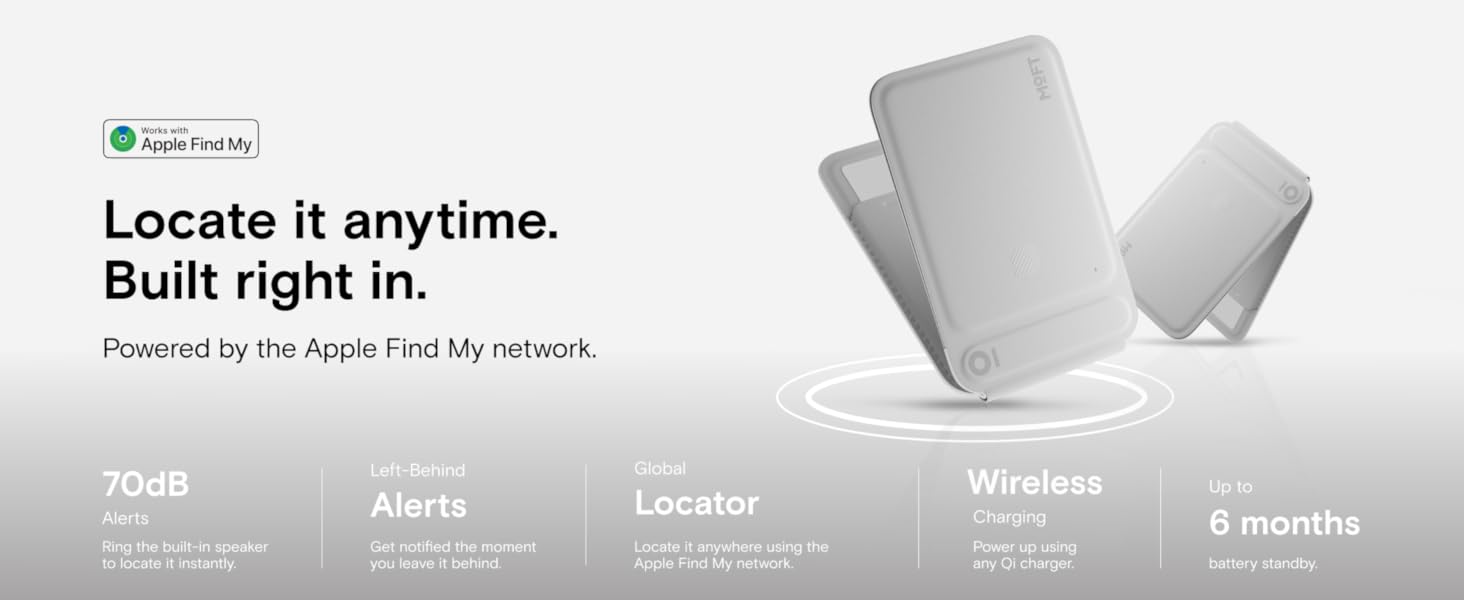
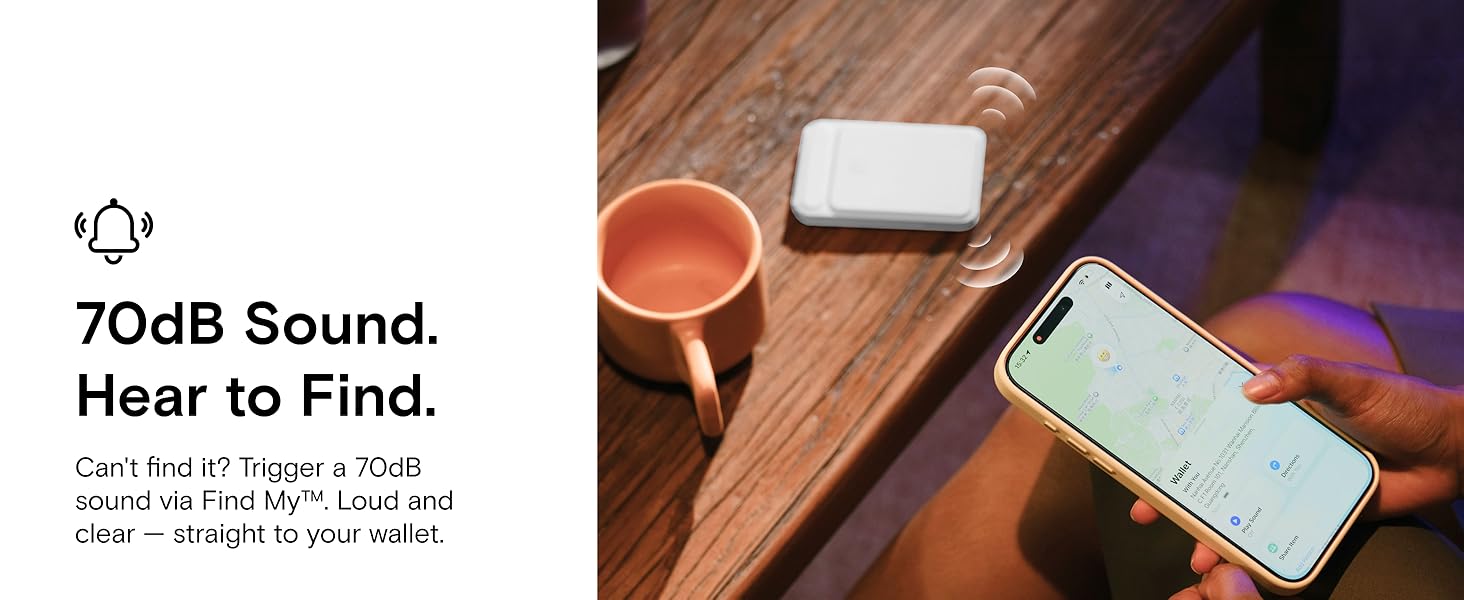
- 【Never lose your wallet again】 Experience total peace of mind with our trackable Tripod wallet featuring built-in Apple Find My technology. Unlike a standard MagSafe wallet, you can locate your magnetic card holder worldwide via the Find My app or play a sound to find it under a couch. Your essential cards are now digitally tethered to your life.
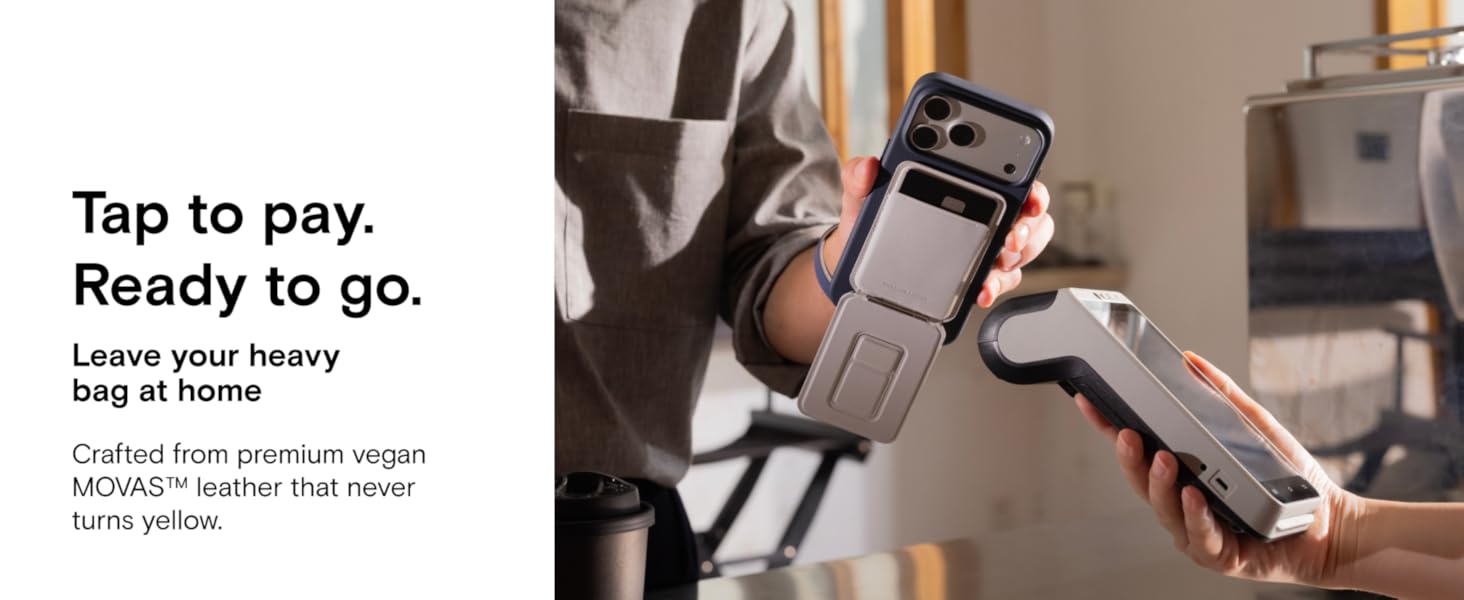
- 【Ultra-slim & Trackable Tripod Wallet】 Stop the hassle of digging through your card holder at the gate. This slim minimalist wallet houses up to 2 cards and is engineered for NFC tap-to-pay convenience. You can pass through transit gates, access office buildings, or make payments by simply tapping against the scanner—no need to remove your cards. Enjoy a seamless "tap-and-go" experience while your essentials stay securely inside.
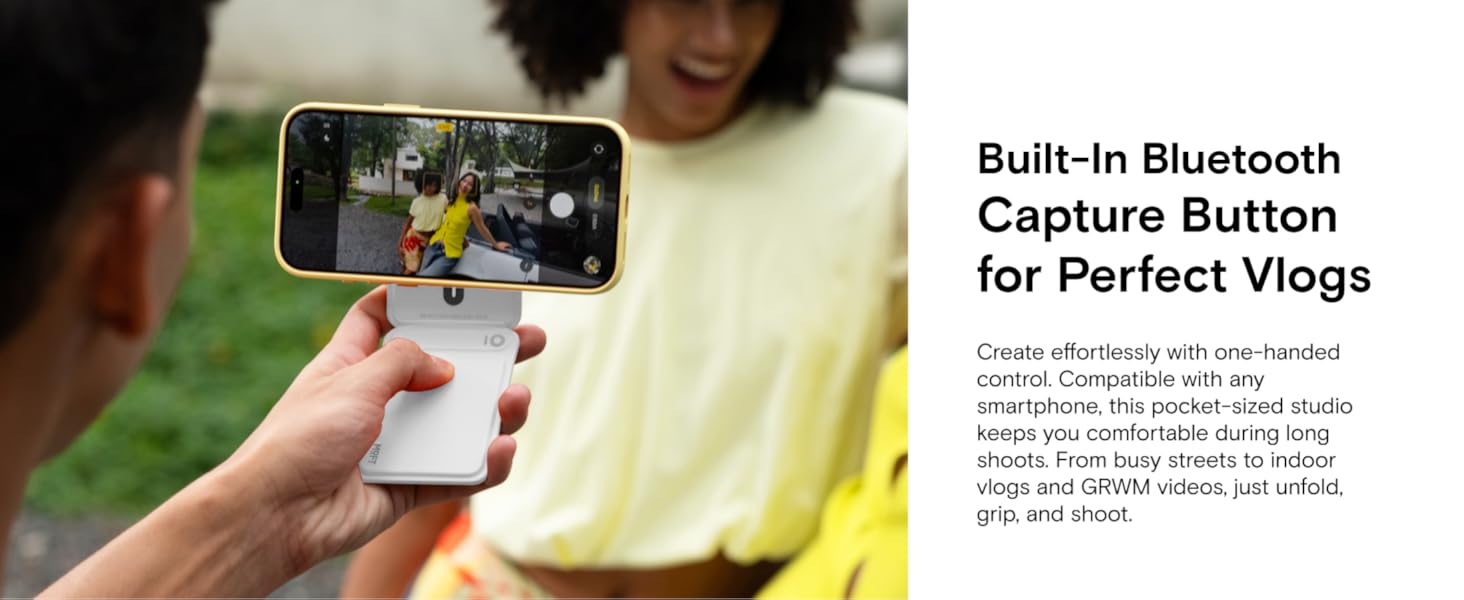
- 【Pocket-sized tripod with Capture Button】 Ditch the bulk of traditional gear with a phone tripod that stays with you everywhere. Our ultra-portable origami design unfolds in an instant to provide stability for your vlogging or group shots. Paired with the new bluetooth shutter button, you can capture the perfect moment remotely without lugging around heavy, awkward equipment.
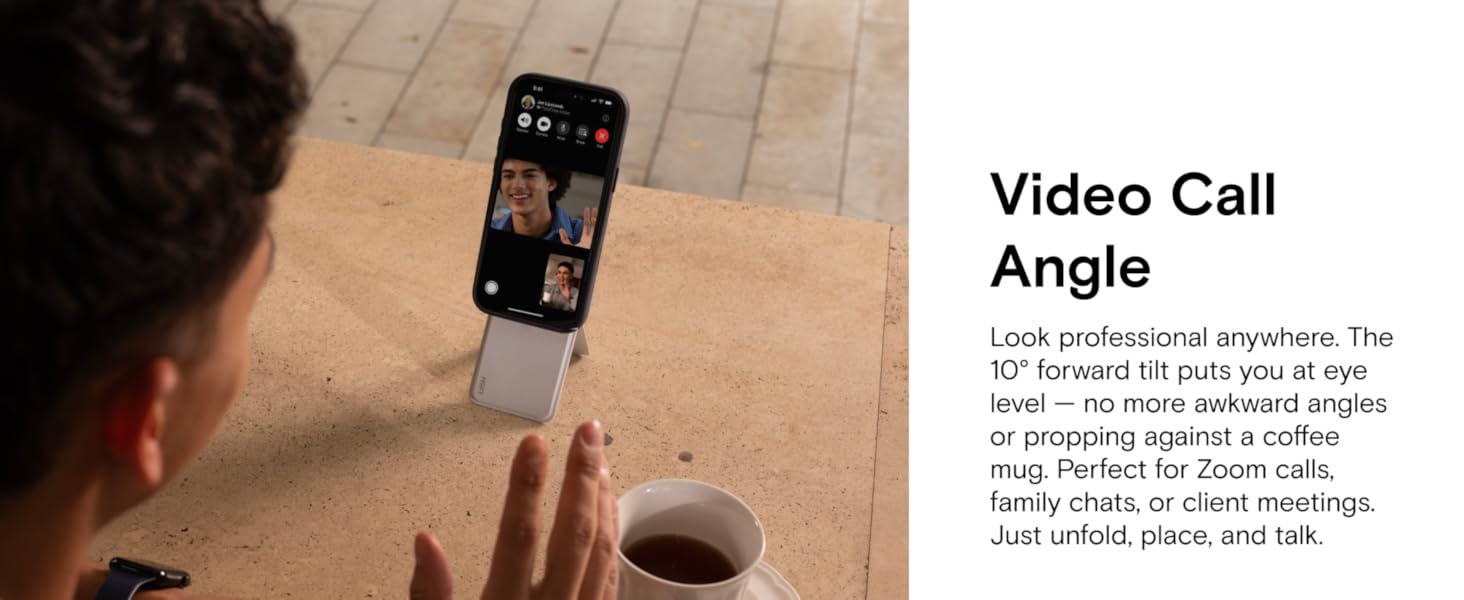
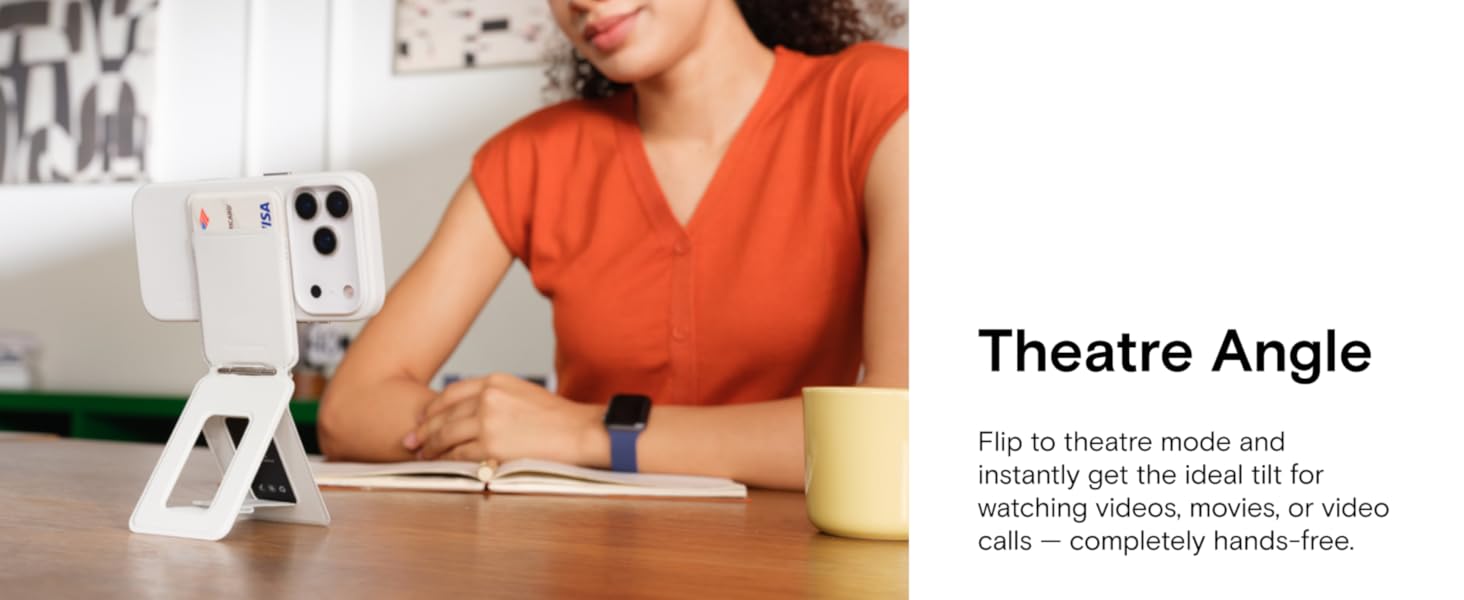
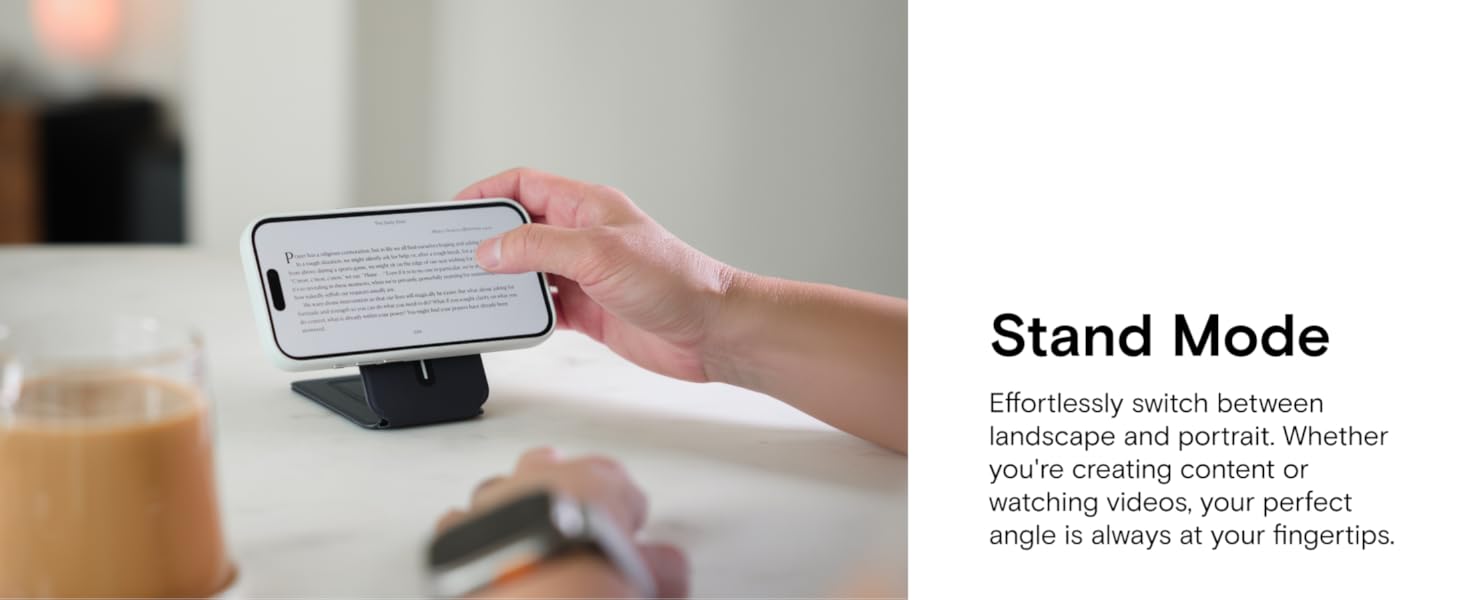
- 【Versatile Viewing Angles Phone Stand 】 Break free from fixed positions with a multi-angle iphone stand that adapts to your needs. The innovative folding structure offers more than just portrait and landscape; it features a floating mode that raises your screen to eye level for ergonomic video calls and a low-angle mode for comfortable browsing. Whether you're working, watching, or creating, you'll always find the perfect, strain-free perspective.
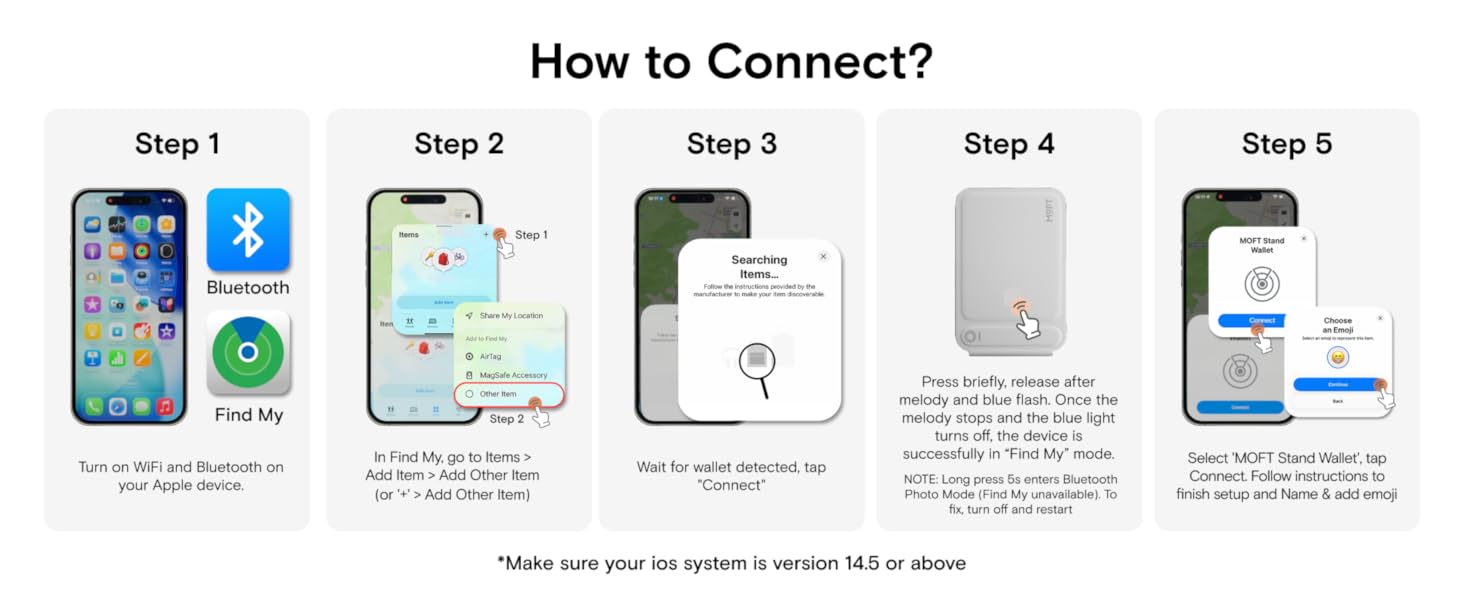
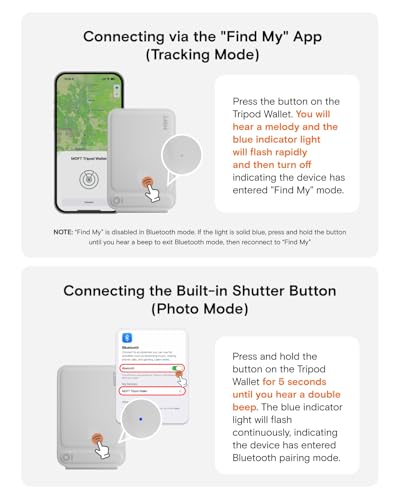
- 【Easy 4-Step Find My Setup Guide】 If you encounter any connection issues, please contact us immediately for fast, dedicated customer support. Pairing your trackable wallet with the Apple Find My network takes just a few steps: 1. Press the button until release after melody and blue flash. 2. Open the Find My app on your iPhone. 3. Tap the “+” icon and choose “Add Other Item.” 4. When your wallet appears, tap “Connect” and name it.
magnetic wallet for iphone
Why can’t I connect to the “Find My” app?
Scenario 1: The device is in Bluetooth Photo Mode
“Find My” is disabled in Bluetooth mode. If the light is solid blue, press and hold the button until you hear a beep to exit Bluetooth mode, then reconnect to “Find My”
Scenario 2: The device is asleep in “Find My” mode
Double-click the button until you hear a melody and see the blue light flash rapidly, then turn off, to wake the device before pairing. NOTE: Do not close the app during pairing. If pairing fails, restart the device and try again.
The video showcases the product in use.The video guides you through product setup.The video compares multiple products.The video shows the product being unpacked.How to Connect "Find My" app?
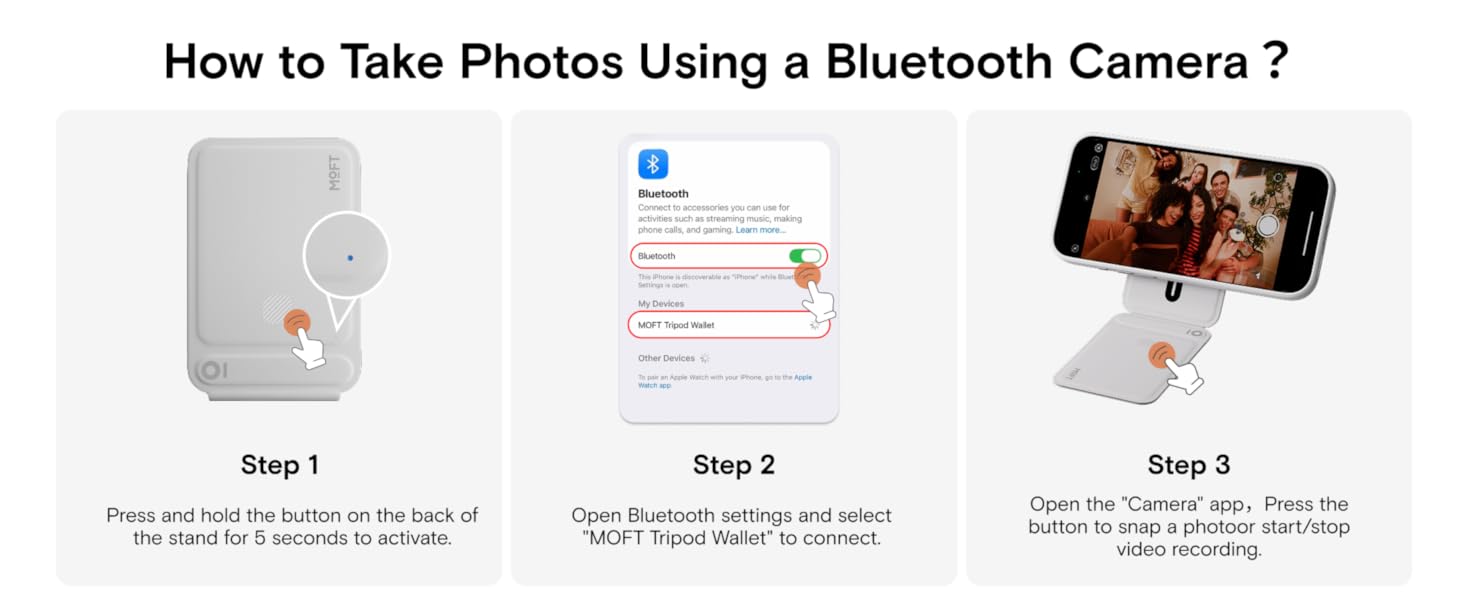
Why can’t I connect to Bluetooth Photo Mode?
Scenario 1: New Device
Make sure the device is in Bluetooth pairing mode (blue light flashing) and not in “Find My” mode. If it still won’t connect, press and hold to turn off Bluetooth mode first, then press and hold again for 5 seconds to re-enter pairing mode and reconnect.
Scenario 2: Paired with Another Phone
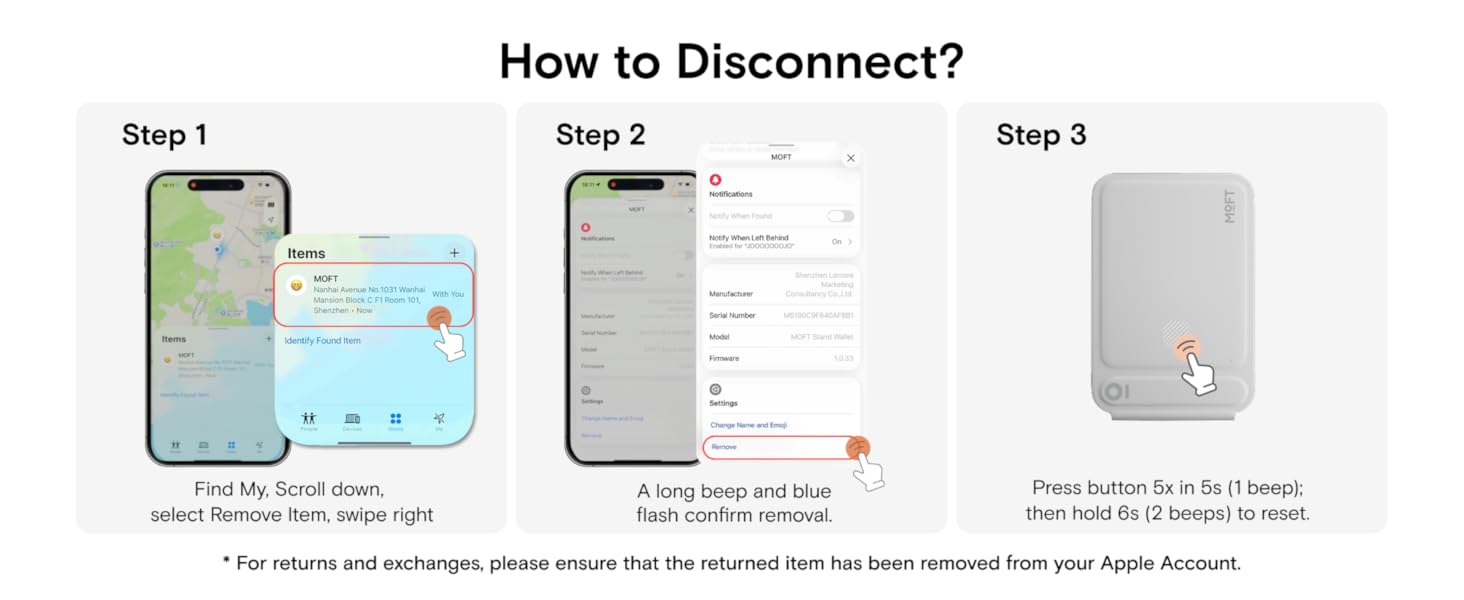
The device can only connect to one phone at a time. Disconnect it from the previous phone and select “Forget This Device” before pairing again.
The video showcases the product in use.The video guides you through product setup.The video compares multiple products.The video shows the product being unpacked.How to Connect Bluetooth Photo Mode?

| SKU: | B0GY13RXHB |
| Brand: | MOFT |
| Model: | MS027WF-1-ME-SROG |
| Colour: | Terracotta |
| Manufacture: | MOFT |
| Colour: | Terracotta |
Product description
 The video showcases the product in use.The video guides you through product setup.The video compares multiple products.The video shows the product being unpacked.
magnetic wallet for iphone
Why can’t I connect to the “Find My” app?
Scenario 1: The device is in Bluetooth Photo Mode
“Find My” is disabled in Bluetooth mode. If the light is solid blue, press and hold the button until you hear a beep to exit Bluetooth mode, then reconnect to “Find My”
Scenario 2: The device is asleep in “Find My” mode
Double-click the button until you hear a melody and see the blue light flash rapidly, then turn off, to wake the device before pairing. NOTE: Do not close the app during pairing. If pairing fails, restart the device and try again.
The video showcases the product in use.The video guides you through product setup.The video compares multiple products.The video shows the product being unpacked.How to Connect "Find My" app?
Why can’t I connect to Bluetooth Photo Mode?
Scenario 1: New Device
Make sure the device is in Bluetooth pairing mode (blue light flashing) and not in “Find My” mode. If it still won’t connect, press and hold to turn off Bluetooth mode first, then press and hold again for 5 seconds to re-enter pairing mode and reconnect.
Scenario 2: Paired with Another Phone
The device can only connect to one phone at a time. Disconnect it from the previous phone and select “Forget This Device” before pairing again.
The video showcases the product in use.The video guides you through product setup.The video compares multiple products.The video shows the product being unpacked.How to Connect Bluetooth Photo Mode?