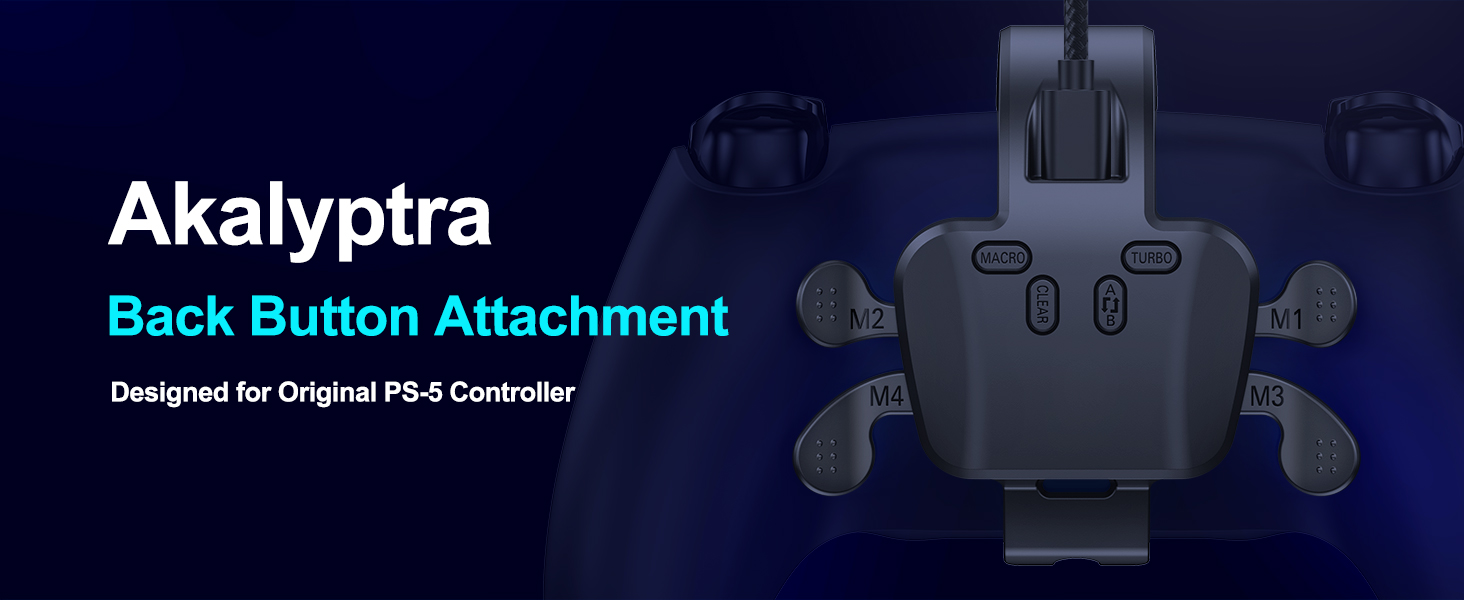
Akalyptra Back Paddles Attachment for PS-5 Controller
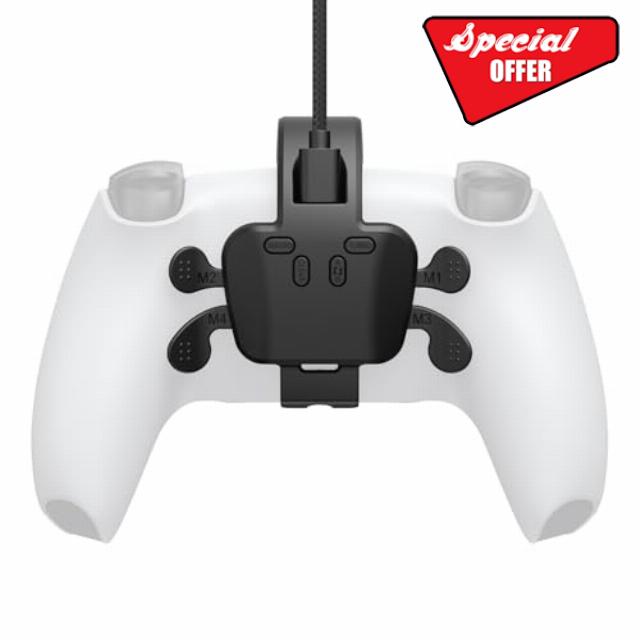
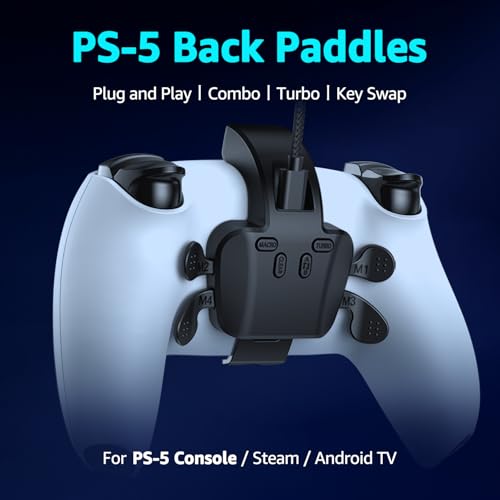
Akalyptra Back Paddles Attachment for PS-5 Controller with Microphone Function, Wired Plug & Play with 4 Programmable Back Buttons, Support Turbo/ Remap/Combo/Controller Button Swap Functions, Compatible with PS-5 Console/PC/MAC(Black, 7.2FT)
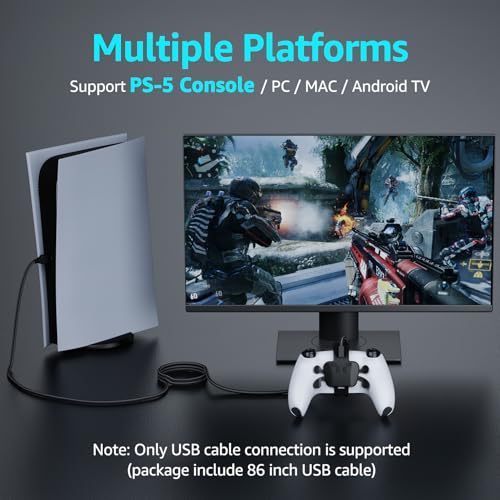
- 【Pre-use Notice】 – " ", .(Settings> Accessories>Controller (General)>Communication Method>Select “Use USB Cable”)
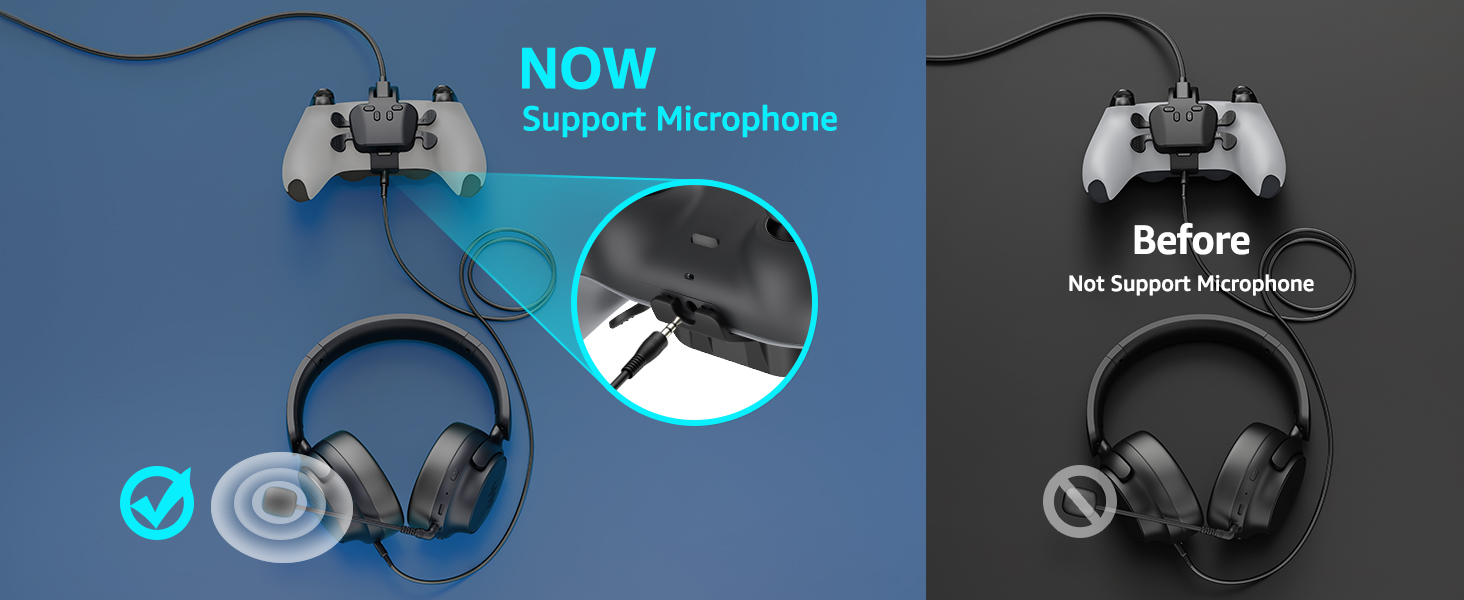
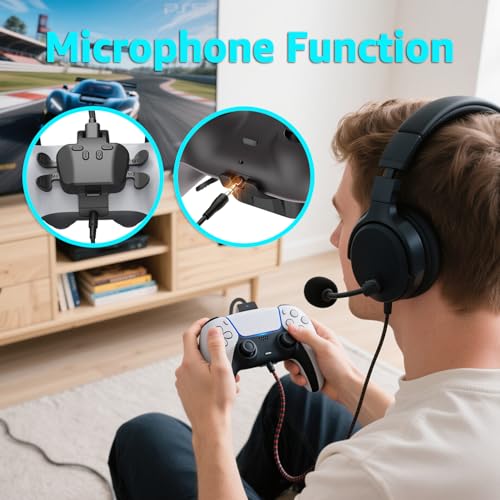
- 【Microphone Function】The upgraded back paddles supports the controller’s headphone microphone, allowing you to communicate with your teammates during gameplay, taking your gaming experience to the next level.
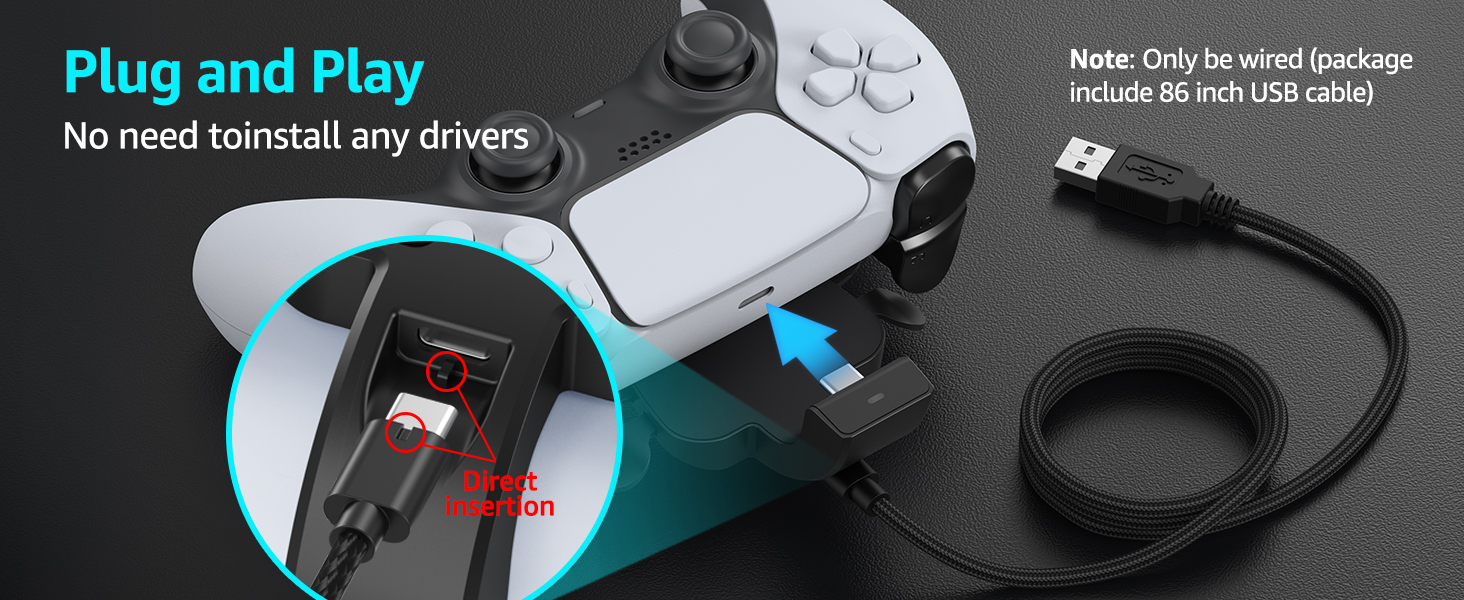
- 【Plug and Play 】Unlike other PS-5 remap kits, the back paddles require no installation—just connect and play immediately. (Wired connection, not include controller)
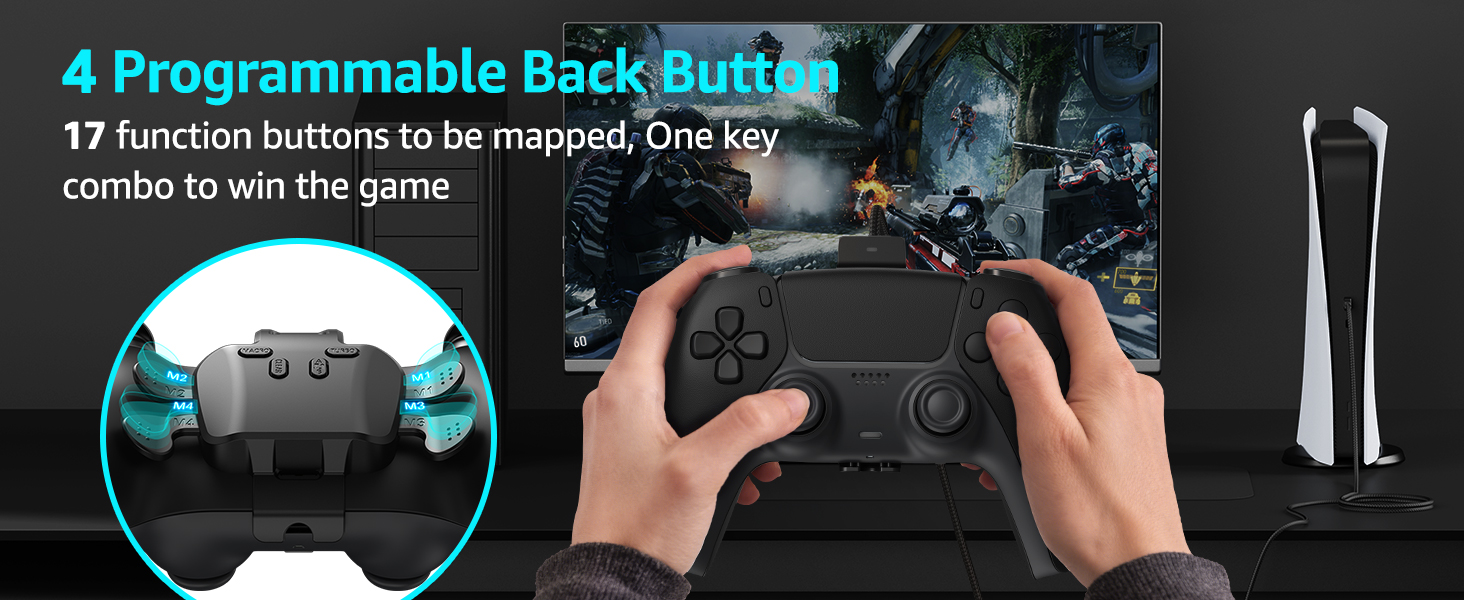
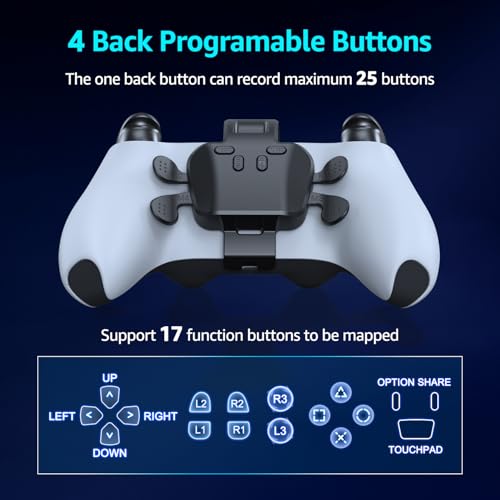
- 【4 Programmable / Remappable Back Buttons】Equipped with 4 back paddles (M1/M2/M3/M4), all programmable via Macro function for button remapping or combos. Each paddle can record up to 25 controller inputs, with a single recording limited to 5 seconds. (Controller not included)
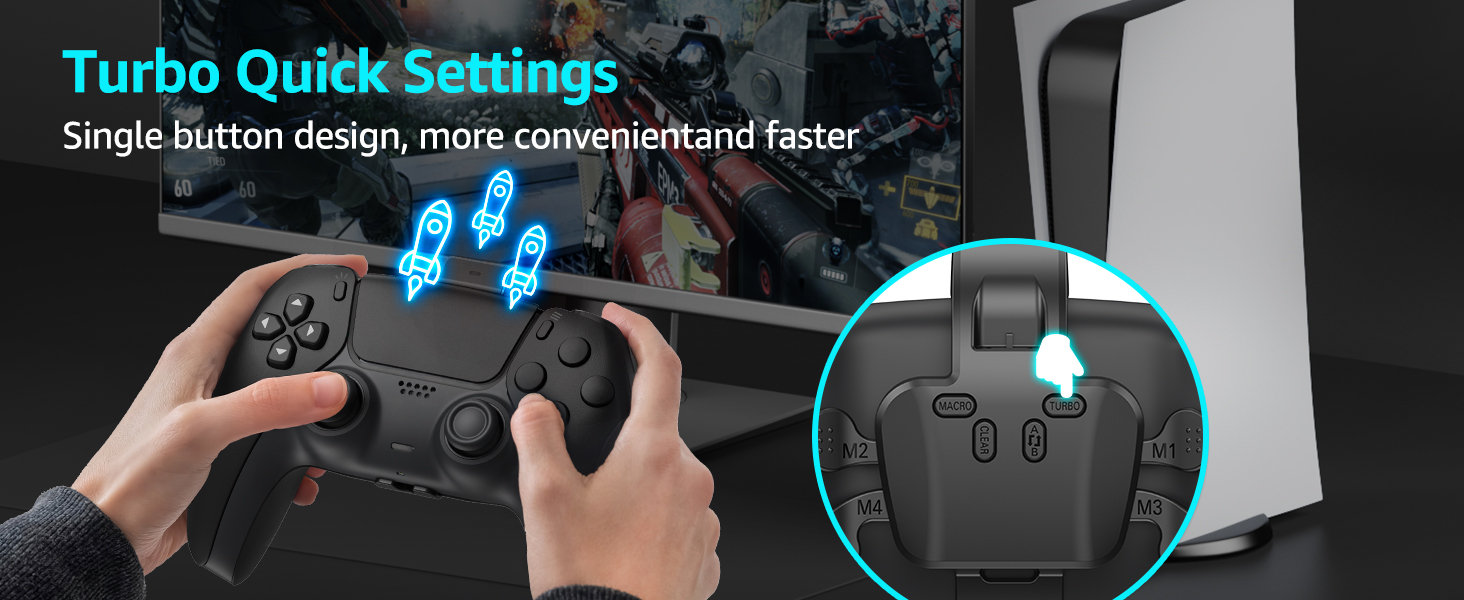
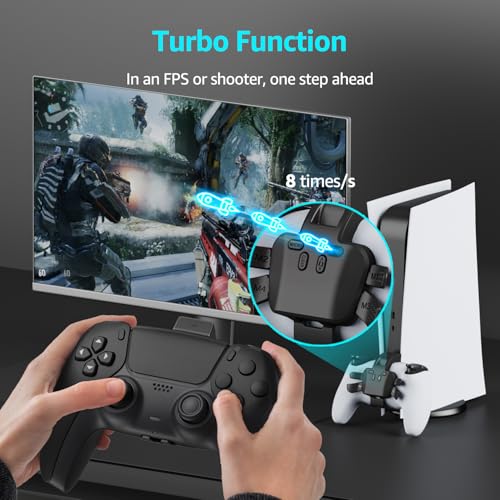
- 【Turbo Function】Suppprt Semi-Automatic and Fully-Automatic Turbo, Controller Single-Button Rapid Fire or Programming Combo Loop, Efficient Repetitive Output(Speed: 8Hz)
- 【High Compatibility 】IWGAME paddles are compatible with all PS-5 controller versions (BDM-010, BDM-020, BDM-030, BDM-040,BDM-050) and work seamlessly across multiple platforms including PS-5 Console, PC, MAC, and Android TV
Paddles for PS-5 Controller
PS-5 Paddles Tutorial video
Set PS-5 Console to ”USB Cable“ Connection Mode
This is a very important step to Set Up the PS-5 Console ”USB Cable“ Before Use
Precautions before use:
Set the PS-5 console's system connection mode to ”USB Cable" mode before use, otherwise, the paddle will not be recognized.(will not work)
Here’s how to set it up:
“Setting” → “Accessories” → Controller (General) → Communication Method → Select “Use USB Cable”
The video showcases the product in use.The video guides you through product setup.The video compares multiple products.The video shows the product being unpacked.set usb cable mode before use
Programmable (Remap)
One-Button Combo or Button Remap
1. Enter Programming Mode: Briefly press the macro button, the paddle attachment indicator lightwill slowly blink green, enter programming mode.
2. Set up programming(Remap): Press the controller button or joysticks you want to program (remap).then press one of the paddles (M1/M2/M3/M4) to assign it as thetrigger button.
3. Save the Settings: The paddle attachment indicator light will turn solid blue, confirmingthe settings have been saved.
The video showcases the product in use.The video guides you through product setup.The video compares multiple products.The video shows the product being unpacked.macro remap functions
Turbo Function(Rapid Fire)
Rapid-Fire
1.Semi-Auto Mode (Press for First Time): Hold down the Turbo button and the button you want to set for rapid-fire or macro looping. Keep holding for it to work.
2. Fully-Auto Mode (Press for Second Time): Hold down the Turbo button and the same button(The button fromStep 1)for the second time. Rapid-fire or macro looping will continue automatically.
3.Cancel Turbo Function(Press for Third Time): Hold down the Turbo button and the same button(The button fromStep 1)for the third time to cancel.
The video showcases the product in use.The video guides you through product setup.The video compares multiple products.The video shows the product being unpacked.Turbo/Rapid Fire function
Controller Button Swap
Only the Buttons on the Controller can be Swapped
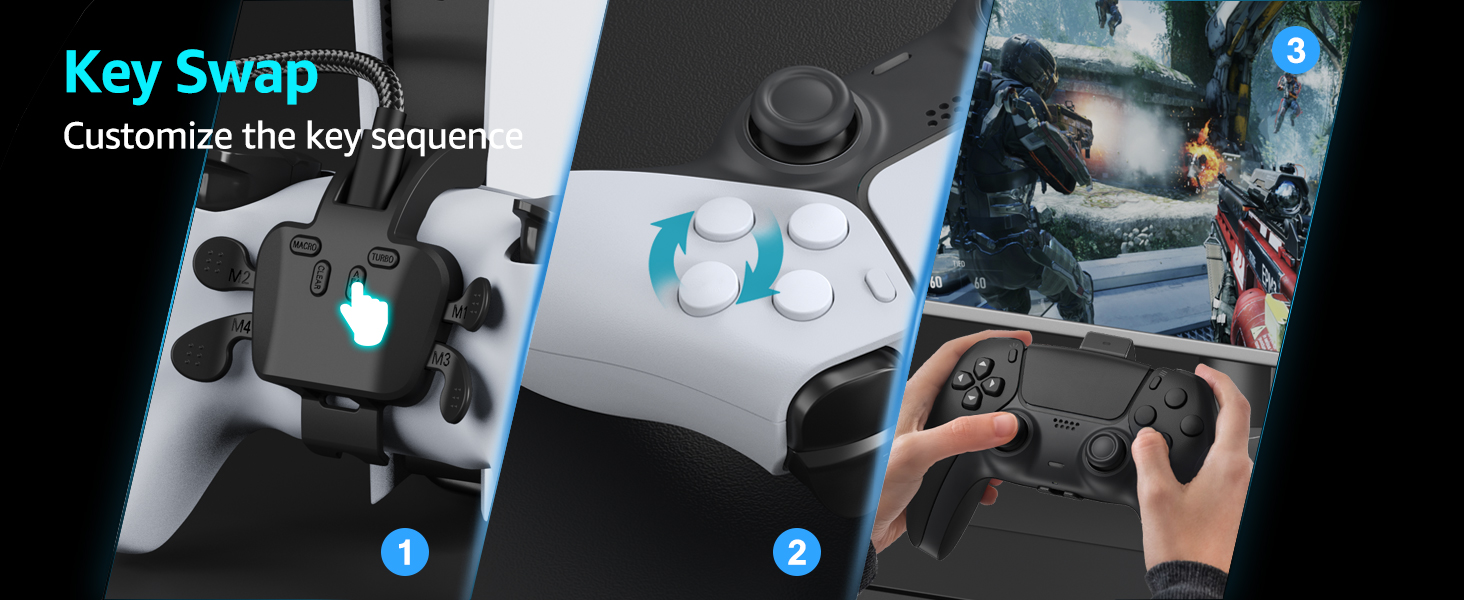
1. Enter Key Swap Mode: Briefly press the Key Swap button, the paddle attachment indicatorlight will slowly blink green, enter key Swap mode.
2. Set up Key Swap: Press the two buttons on the controller that you want to swap.
3. Save the Settings: Press the key swap button again to finish swapping. The controller'sindicator light will stay solid blue, indicating the setup is successful.
NOTE: Only Supported Controller Buttons(╳, ○, □, △,L1, L2, L3, R1, R2, R3)
The video showcases the product in use.The video guides you through product setup.The video compares multiple products.The video shows the product being unpacked.Controller button swap

| SKU: | B0GWM1QBC7 |
| Dimensions: | 3.2 x 1.3 x 3.3 inches |
| Brand: | Akalyptra |
| Model: | FDR300 |
| Colour: | Black |
| Manufacture: | Akalyptra |
| Colour: | Black |
Product description
The video showcases the product in use.The video guides you through product setup.The video compares multiple products.The video shows the product being unpacked.Paddles for PS-5 Controller
PS-5 Paddles Tutorial video
Set PS-5 Console to ”USB Cable“ Connection Mode
This is a very important step to Set Up the PS-5 Console ”USB Cable“ Before Use
Precautions before use:
Set the PS-5 console's system connection mode to ”USB Cable” mode before use, otherwise, the paddle will not be recognized.(will not work)
Here’s how to set it up:
“Setting” → “Accessories” → Controller (General) → Communication Method → Select “Use USB Cable”
The video showcases the product in use.The video guides you through product setup.The video compares multiple products.The video shows the product being unpacked.set usb cable mode before use
Programmable (Remap)
One-Button Combo or Button Remap
1. Enter Programming Mode: Briefly press the macro button, the paddle attachment indicator lightwill slowly blink green, enter programming mode.
2. Set up programming(Remap): Press the controller button or joysticks you want to program (remap).then press one of the paddles (M1/M2/M3/M4) to assign it as thetrigger button.
3. Save the Settings: The paddle attachment indicator light will turn solid blue, confirmingthe settings have been saved.
The video showcases the product in use.The video guides you through product setup.The video compares multiple products.The video shows the product being unpacked.macro remap functions
Turbo Function(Rapid Fire)
Rapid-Fire
1.Semi-Auto Mode (Press for First Time): Hold down the Turbo button and the button you want to set for rapid-fire or macro looping. Keep holding for it to work.
2. Fully-Auto Mode (Press for Second Time): Hold down the Turbo button and the same button(The button fromStep 1)for the second time. Rapid-fire or macro looping will continue automatically.
3.Cancel Turbo Function(Press for Third Time): Hold down the Turbo button and the same button(The button fromStep 1)for the third time to cancel.
The video showcases the product in use.The video guides you through product setup.The video compares multiple products.The video shows the product being unpacked.Turbo/Rapid Fire function
Controller Button Swap
Only the Buttons on the Controller can be Swapped
1. Enter Key Swap Mode: Briefly press the Key Swap button, the paddle attachment indicatorlight will slowly blink green, enter key Swap mode.
2. Set up Key Swap: Press the two buttons on the controller that you want to swap.
3. Save the Settings: Press the key swap button again to finish swapping. The controller'sindicator light will stay solid blue, indicating the setup is successful.
NOTE: Only Supported Controller Buttons(╳, ○, □, △,L1, L2, L3, R1, R2, R3)
The video showcases the product in use.The video guides you through product setup.The video compares multiple products.The video shows the product being unpacked.Controller button swap