Kamylorus Wireless Controller for PS-5, Gaming Controller

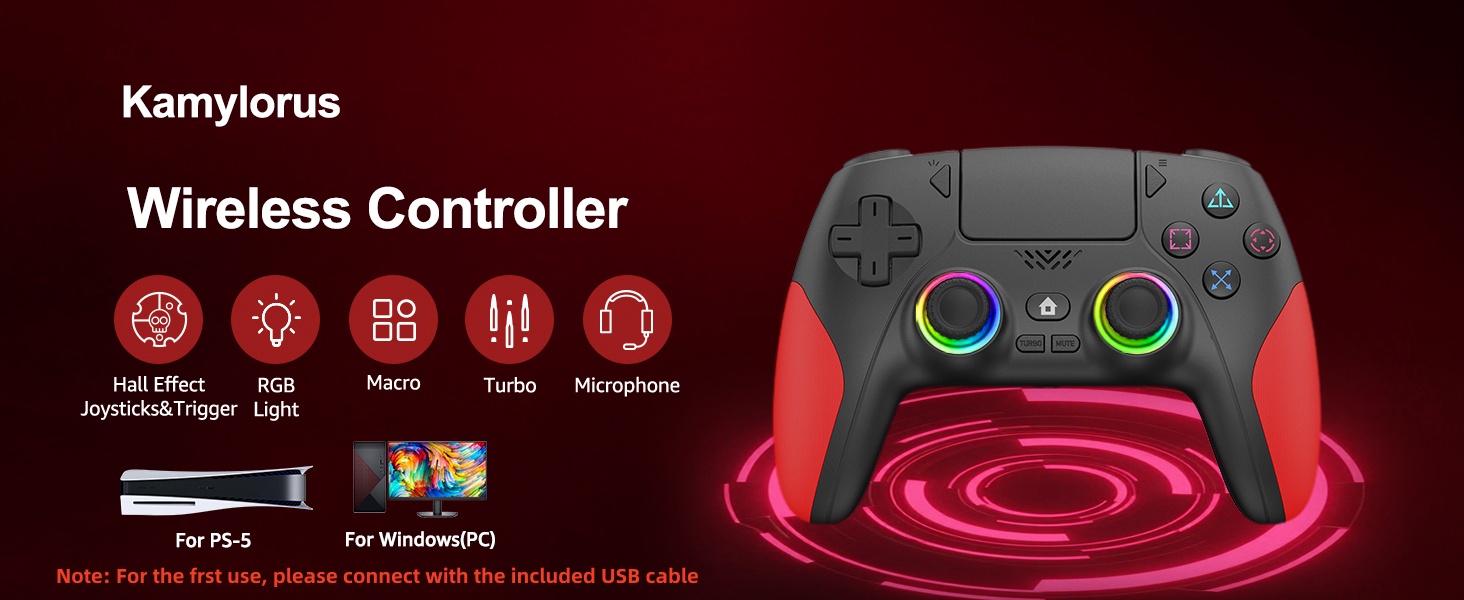
Kamylorus Wireless Controller for PS-5, Gaming Controller for PC with Hall Effect, Programmable/Remap/Turbo, Dual Vibration, 3.5Mm Audio Jack, 6-Axis Motion Control Gamepad with Speaker(Black)
- 【Usage Notes】For initial use, connect the controller to a PS-5 console using the included USB-C cable and press the Home button to activate. Not compatible with PS4
- 【Dual Vibration】 The Kamylorus controller for PS-5 delivers immersive dual-vibration feedback for enhanced realism
- 【Audio】Outputs higher-fidelity game sound through built-in speakers of gamepad. Microphone function requires a 3.5mm TRRS headset (not compatible with Apple 3.5mm headphones)
- 【Hall Effect Joystick】The controller for PS-5 with hall sensors ensures zero drift with <0.1ms response time and 256 pressure levels for instant trigger recognition in FPS games
- 【2 Back Buttons】The programmable Kamylorus control gamepad for PS-5 features two mappable back buttons (paddles) for customized control
- 【Turbo Function】Press the Turbo button + any target button of the bluetooth controller to activate rapid auto-pressing (10Hz), creating a seamless rapid-fire effect
- 【Adjustable RGB Lights】Kamylorus wireless controller for PS-5 features 8 customizable RGB lighting modes for a cool and stylish look
Frequently Asked Questions & Answers
Q1: My joysticks/triggers is drifting. What should I do?
A1: Don’t worry — joysticks/triggers drift can often be resolved by recalibrating the Hall Effect joysticks. Steps: (Check the calibration tutorial video). Restart the controller after calibration to save settings.
Important: Do not lift or pull up the joysticks during calibration. This may damage the joystick or cause it to get stuck.
Q2: My controller won’t connect to my PS-5 and displays "Connect this device using a USB cable, or register it again." What does this mean?
A2: This message means the PS-5 Console is not receiving data from the controller. The most common cause is using a charging-only USB cable instead of a data-transfer cable.
How to Fix: Use a USB data cable to connect the controller to the PS-5 Console. We strongly recommend using the included cable (supports both charging and data transfer). A proper data cable will allow normal pairing.
Q3: How to connect the controller to PS-5 Console?
A3: For the first connection, plug the controller into the PS-5 console with a USB data cable. Wait a few seconds for the console to recognize the controller, then press the Home button. (Ensure PS-5 settings allow USB controller connection.) The controller only remembers the last connected device. If you recently used it on a PC/phone, you must re-pair it with the PS-5 using a USB data cable.


| SKU: | B0GFHYWDMZ |
| Dimensions: | 4.7 x 2.6 x 6.3 inches |
| Brand: | Kamylorus |
| Colour: | Black |
| Manufacture: | Kamylorus |
| Colour: | Black |
Product description


Frequently Asked Questions & Answers
Q1: My joysticks/triggers is drifting. What should I do?
A1: Don’t worry — joysticks/triggers drift can often be resolved by recalibrating the Hall Effect joysticks. Steps: (Check the calibration tutorial video). Restart the controller after calibration to save settings.
Important: Do not lift or pull up the joysticks during calibration. This may damage the joystick or cause it to get stuck.
Q2: My controller won’t connect to my PS-5 and displays “Connect this device using a USB cable, or register it again.” What does this mean?
A2: This message means the PS-5 Console is not receiving data from the controller. The most common cause is using a charging-only USB cable instead of a data-transfer cable.
How to Fix: Use a USB data cable to connect the controller to the PS-5 Console. We strongly recommend using the included cable (supports both charging and data transfer). A proper data cable will allow normal pairing.
Q3: How to connect the controller to PS-5 Console?
A3: For the first connection, plug the controller into the PS-5 console with a USB data cable. Wait a few seconds for the console to recognize the controller, then press the Home button. (Ensure PS-5 settings allow USB controller connection.) The controller only remembers the last connected device. If you recently used it on a PC/phone, you must re-pair it with the PS-5 using a USB data cable.