2025 Latest Tablet 10 inch Android 15 Tablets with Keyboard

2025 Latest Tablet 10 inch Android 15 Tablets with Keyboard, 30GB RAM 64GB ROM 2.0GHz Octa-Core, Dual Camera, 1TB Expand, Widevine L1, 5G WiFi, BT 5.0, 2 in 1 Tableta PC (Rose Gold/Pink)
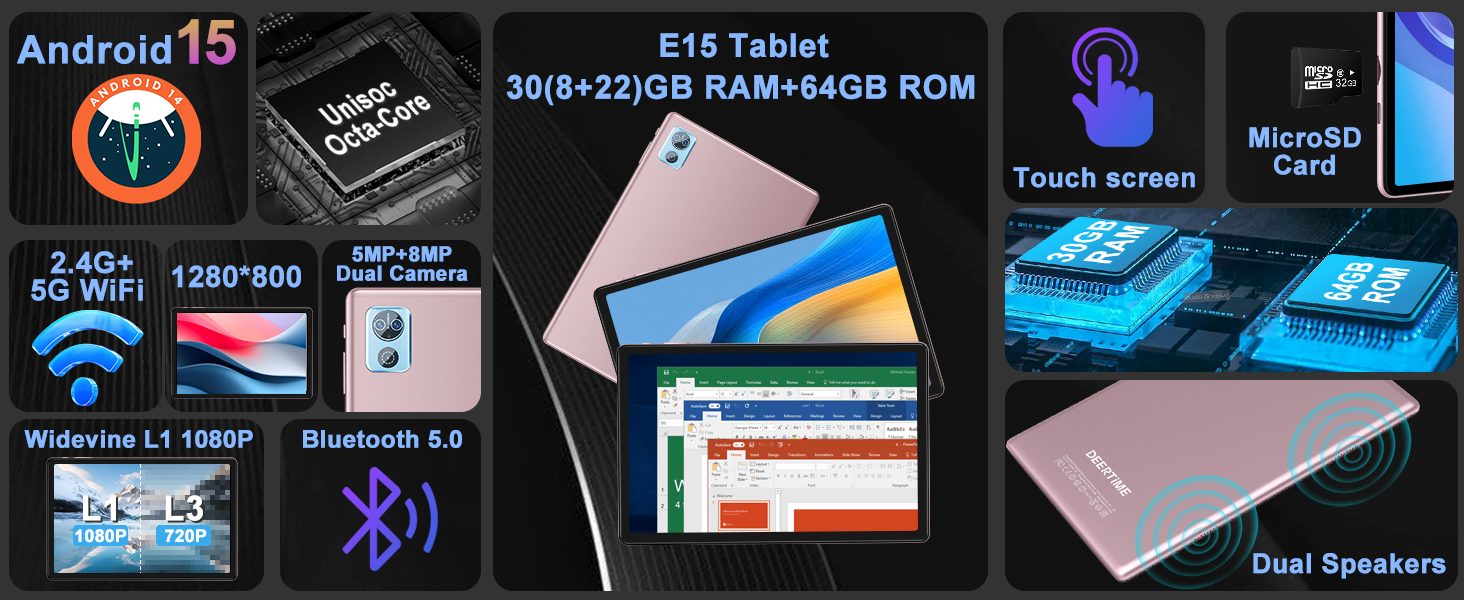
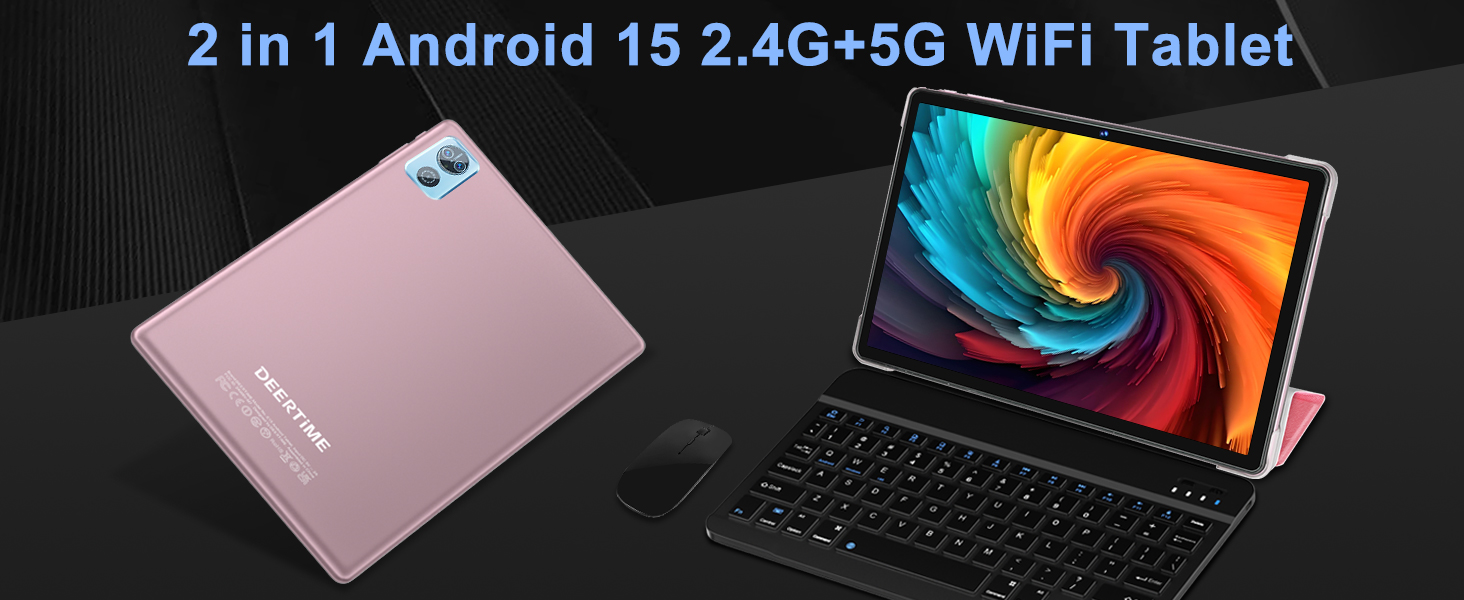
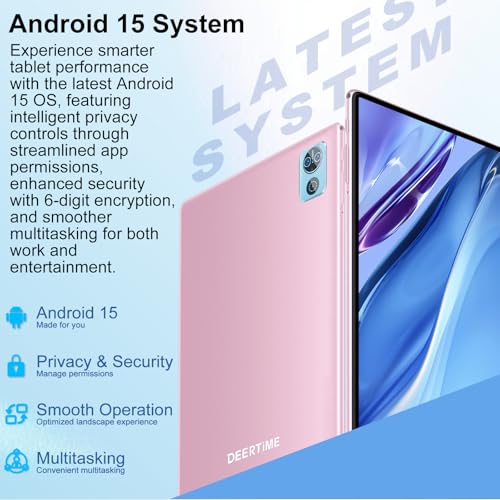
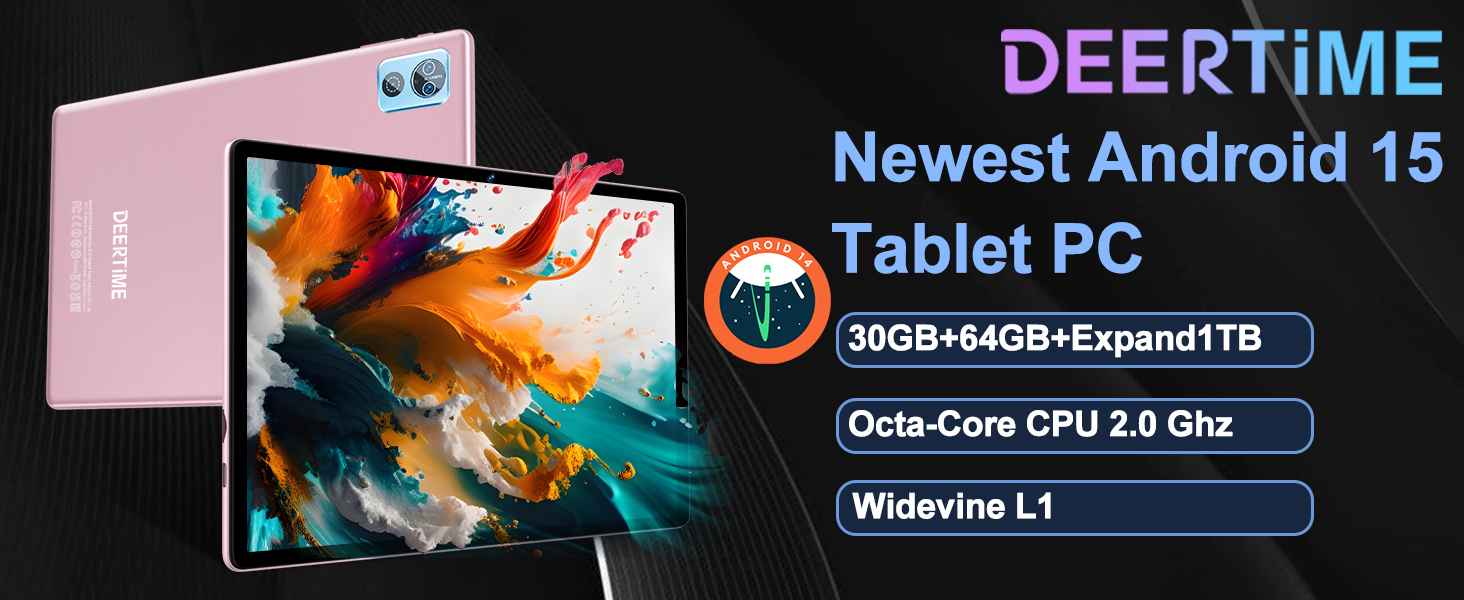
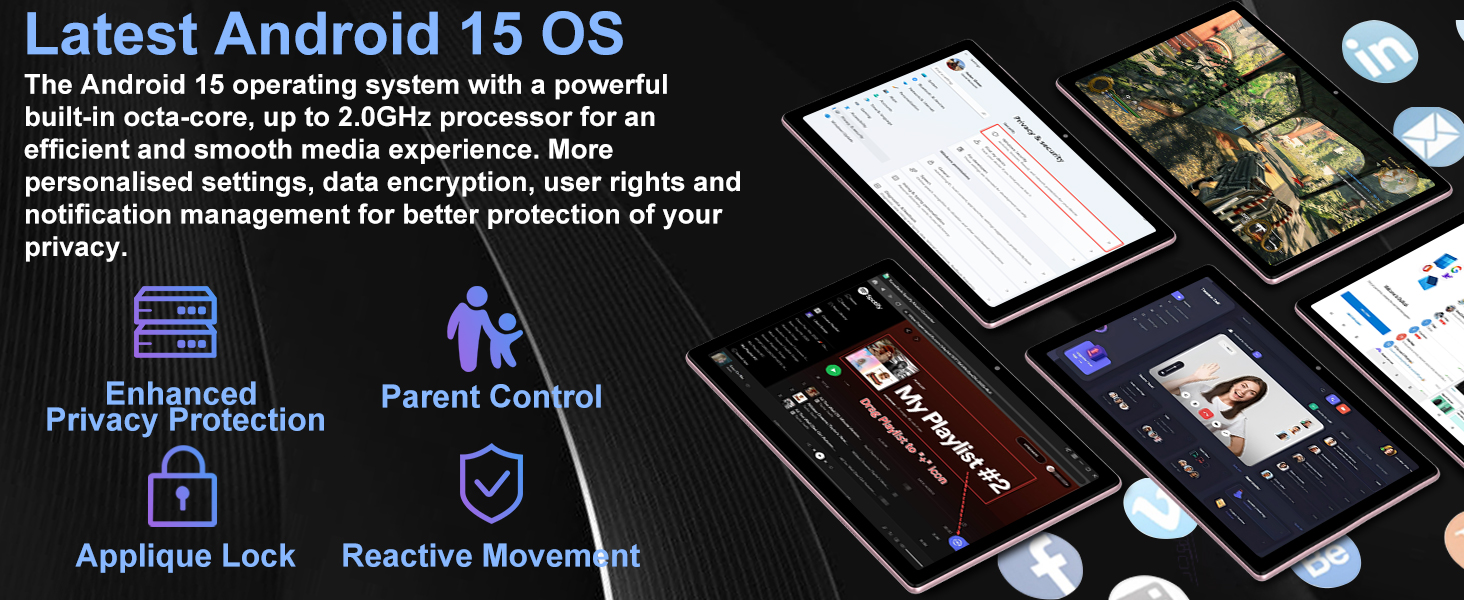
- Cutting-Edge Android 15 Tablet – Unlock next-level performance with the latest Android 15 OS, designed for enhanced speed, smarter privacy features, and adaptive power efficiency. Enjoy smoother app navigation, improved security, and seamless compatibility with newest applications and games
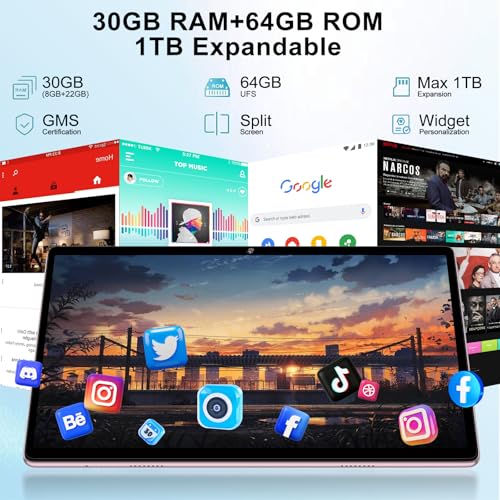
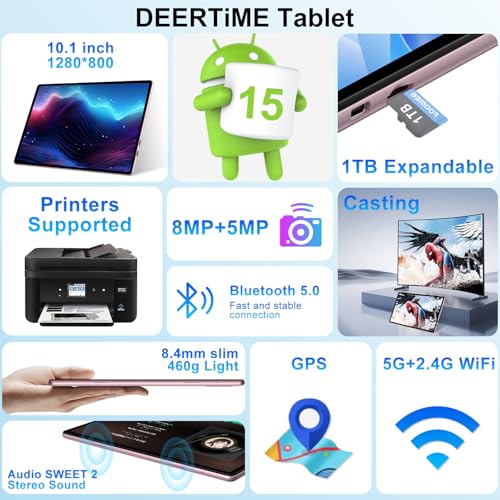
- Ample 30GB RAM + Expandable Storage – Multitask without limits on this 10.1 inch tablet. With 30GB RAM(8GB physical + 22GB virtual) and 64GB internal storage—expandable to 1TB—you have space for all apps, photos, and videos. Perfect for work and entertainment
- Octa-Core Powered Performance – Powered by an advanced octa-core processor reaching up to 2.0GHz, this Android tablet handles gaming, video calls, and apps with ease. Enjoy buttery-smooth operation and enhanced energy efficiency
- Vibrant 10.1-inch FHD InCell Display – Enjoy stunning clarity on the DEERTiNE tablet’s 10.1-inch 1280×800 resolution FHD screen. Protected by tempered glass and featuring Widevine L1 HD streaming, it offers vibrant visuals and durability
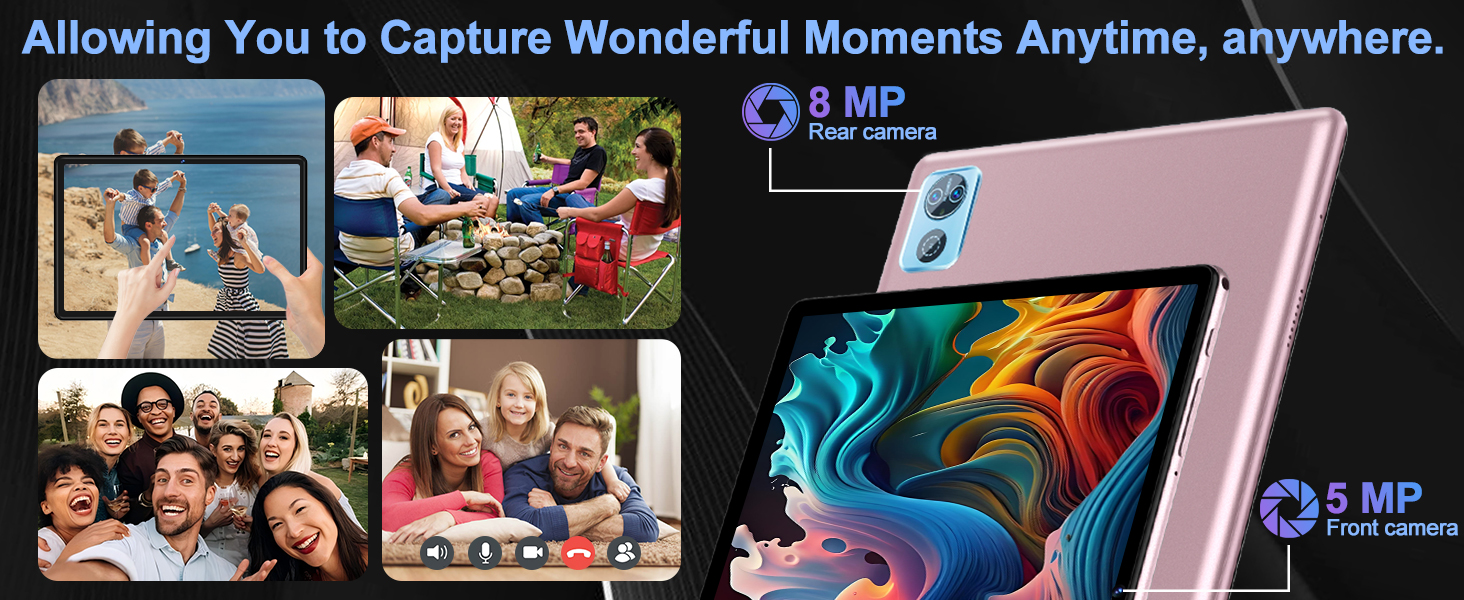
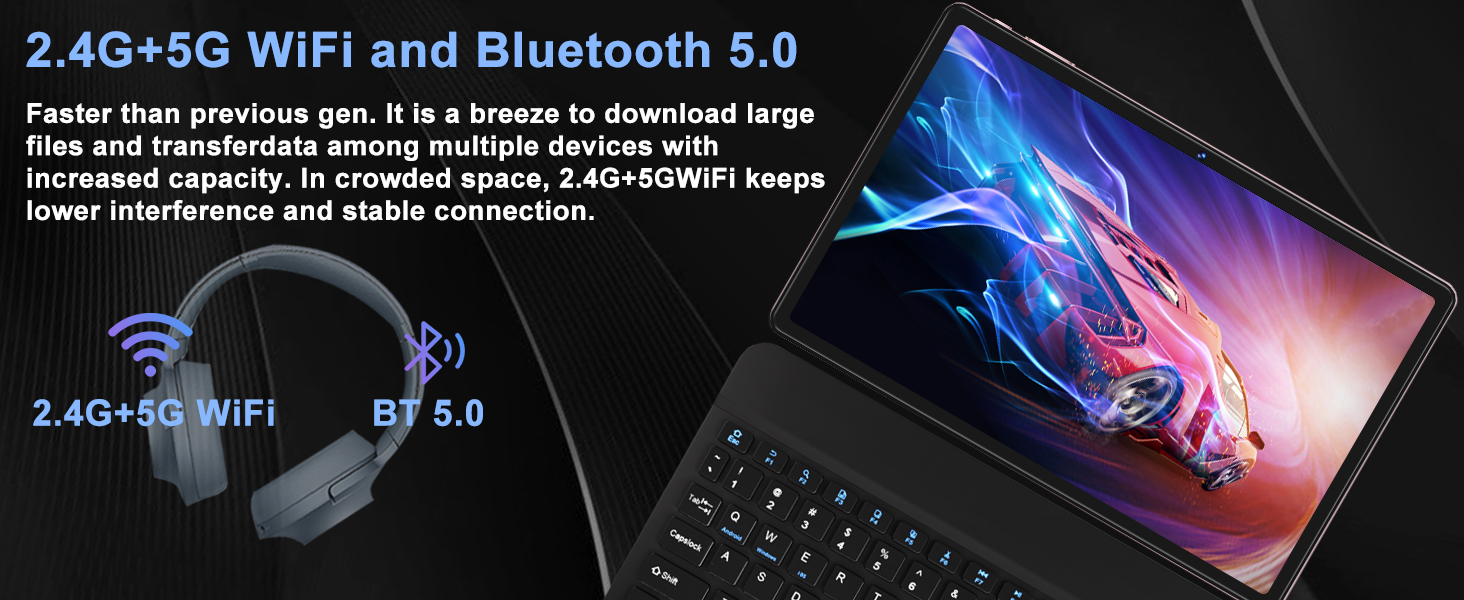
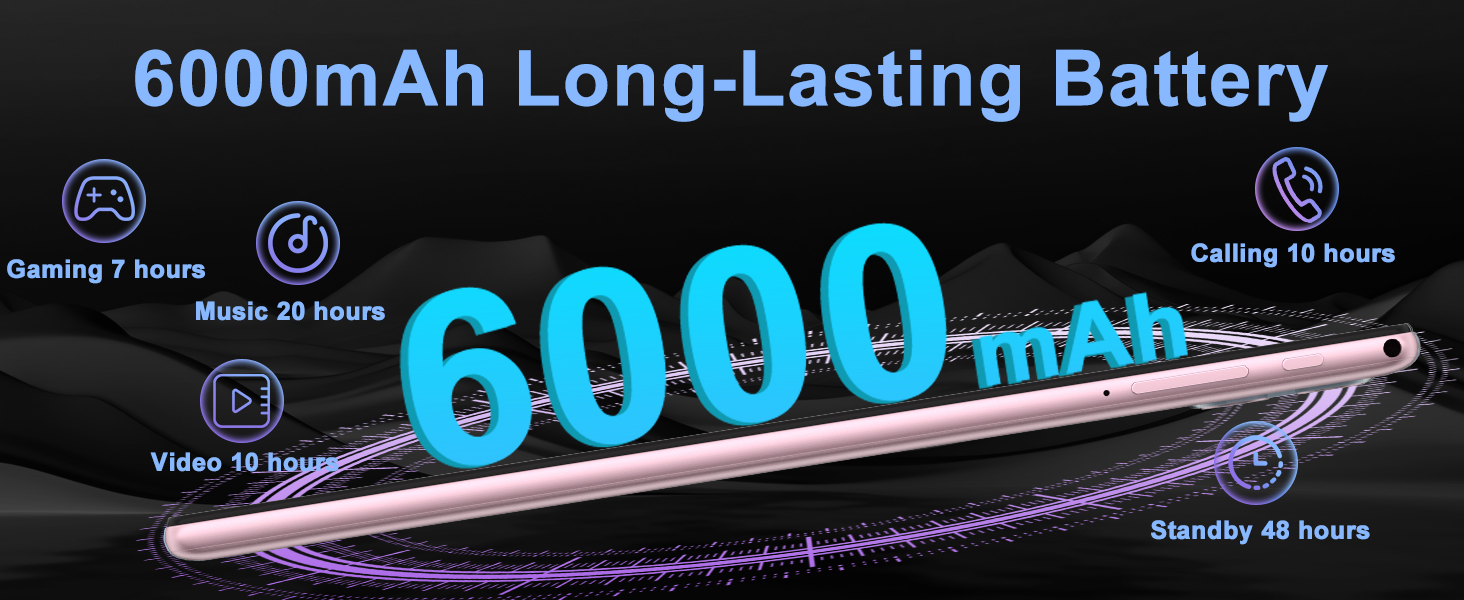
- All-Day 6000mAh Battery & 5G Wi-Fi – Built for all-day use, the E15 tablet’s 6000mAh battery keeps you connected longer, it’s ideal for on-the-go use. Stay connected faster with 2.4G/5G Wi-Fi, Bluetooth 5.0, and GPS, plus dual cameras for clear video calls and photos
How to connect mouse and keyboard
Connect the mouse method:
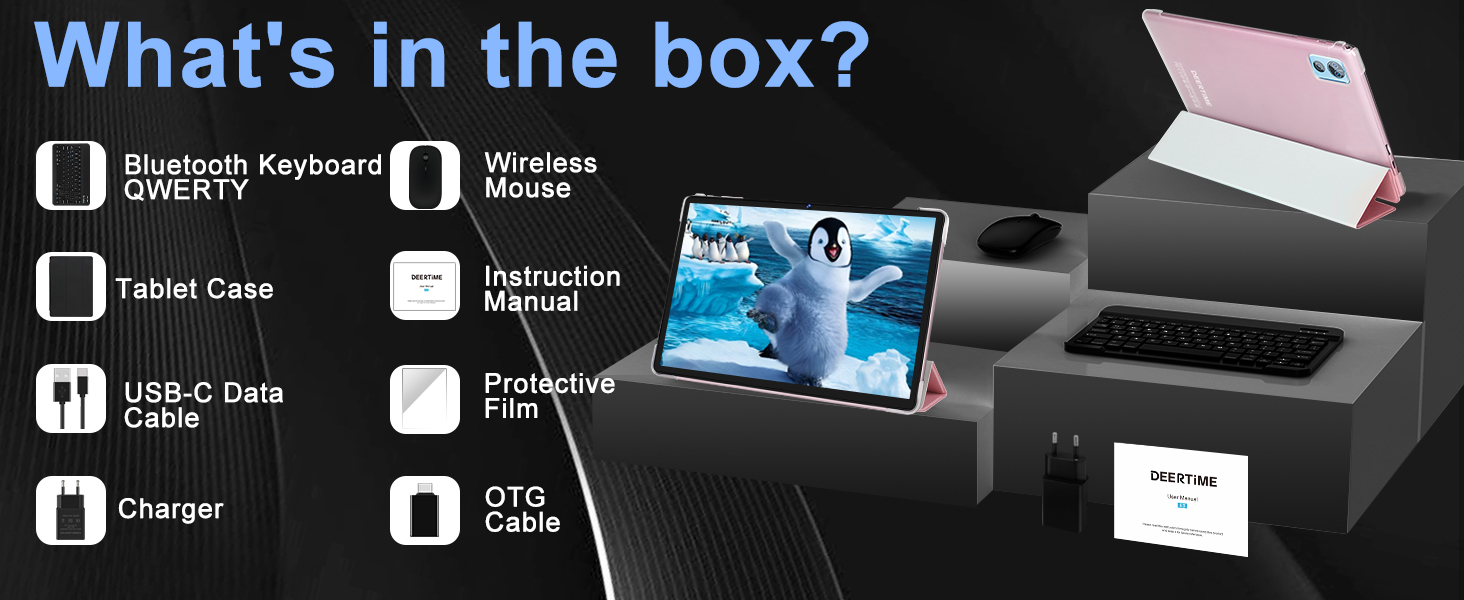
1. Open the battery back cover of the mouse, then take the signal receiver for the mouse out. 2. Install two AAA batteries in the mouse. 3.Connect the adapter to the Type-C port of the tablet. 4. Insert the signal receiver of the mouse into the female end of the adapter. 5. Turn on the mouse switch,finished.
Connect the bluetooth keyboard method:
1. First turn on Bluetooth on the tablet and long press to jump to a new page. 2. Select "+ pair new device". 3. Turn on the switch of the Bluetooth keyboard, select "ON", and then click "Connect". 4. The "Bluetooth 3.0 keyboard" will appear on the tablet page, select the "Bluetooth 3.0 keyboard"to pair with it. 5. There will be 6 numbers on the tablet. At this time, you only need to type the corresponding numbers on the keyboard to connect successfully.
Please note that the Bluetooth keyboard needs to be charged when using it for the first time. If you don't need to use the Bluetooth keyboard, just turn the keyboard off. After the keyboard is fully charged, it can be connected to the tablet.
Please note: The tablet can only be charged using the included charger or a standard charger. Do not use a fast charger, as this may prevent the tablet from charging properly.
In addition, when using the tablet for the first time, please pay attention to use the tablet to 0% first, and then fully charge the tablet before continuing to use it, do not use it fully charged for the first time. Avoid the tablet to enter into a state of power loss to ensure a longer battery life.





| SKU: | B0FJKYV2LW |
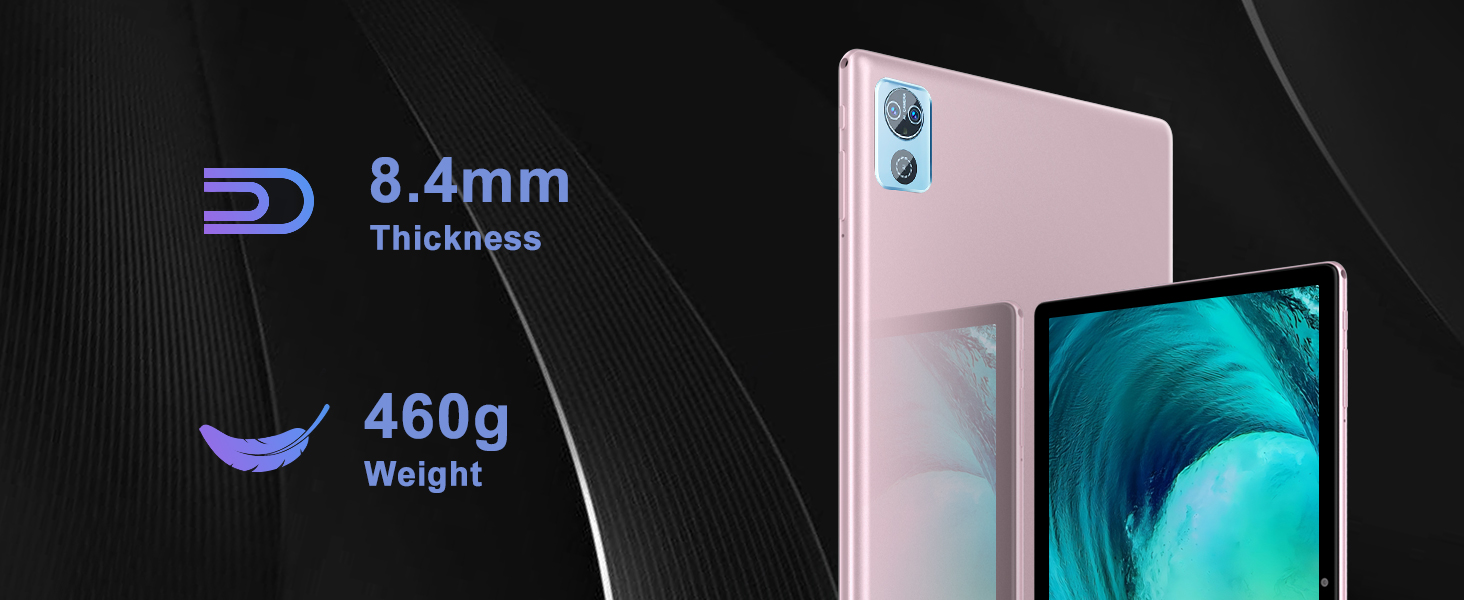
| Weight: | 1 pounds |
| Dimensions: | 9.6 x 6.3 x 0.4 inches |
| Brand: | DEERTiME |
| Model: | E15 |
| Colour: | Rose Gold |
| Batteries Included: | 1 Lithium Polymer batteries required. (included) |
| Colour: | Rose Gold |
Product description
How to connect mouse and keyboard
Connect the mouse method:
1. Open the battery back cover of the mouse, then take the signal receiver for the mouse out. 2. Install two AAA batteries in the mouse. 3.Connect the adapter to the Type-C port of the tablet. 4. Insert the signal receiver of the mouse into the female end of the adapter. 5. Turn on the mouse switch,finished.
Connect the bluetooth keyboard method:
1. First turn on Bluetooth on the tablet and long press to jump to a new page. 2. Select “+ pair new device”. 3. Turn on the switch of the Bluetooth keyboard, select “ON”, and then click “Connect”. 4. The “Bluetooth 3.0 keyboard” will appear on the tablet page, select the “Bluetooth 3.0 keyboard”to pair with it. 5. There will be 6 numbers on the tablet. At this time, you only need to type the corresponding numbers on the keyboard to connect successfully.
Please note that the Bluetooth keyboard needs to be charged when using it for the first time. If you don't need to use the Bluetooth keyboard, just turn the keyboard off. After the keyboard is fully charged, it can be connected to the tablet.
Please note: The tablet can only be charged using the included charger or a standard charger. Do not use a fast charger, as this may prevent the tablet from charging properly.
In addition, when using the tablet for the first time, please pay attention to use the tablet to 0% first, and then fully charge the tablet before continuing to use it, do not use it fully charged for the first time. Avoid the tablet to enter into a state of power loss to ensure a longer battery life.