10.1 inch Wall Planner Digital Calendar & Chore Chart, Smart
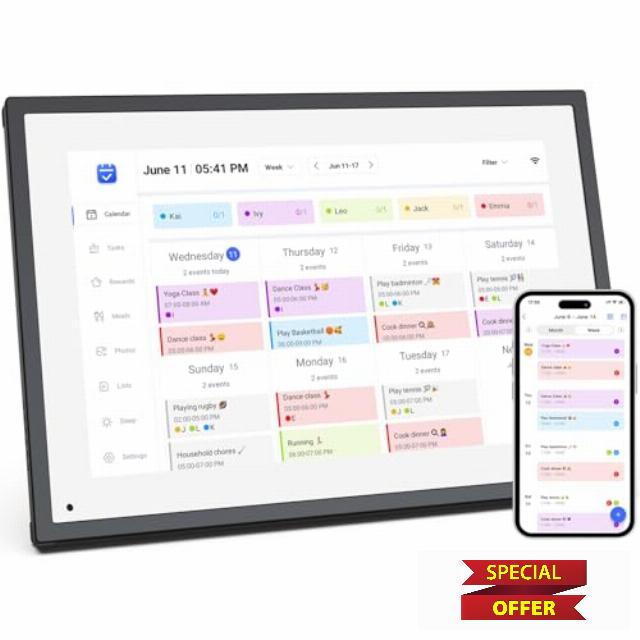
10.1 inch Wall Planner Digital Calendar & Chore Chart, Smart Touchscreen Interactive Display for Family Schedules, Hearth Display Digital Calendar, Great for Organizing Your 2025 Calendar
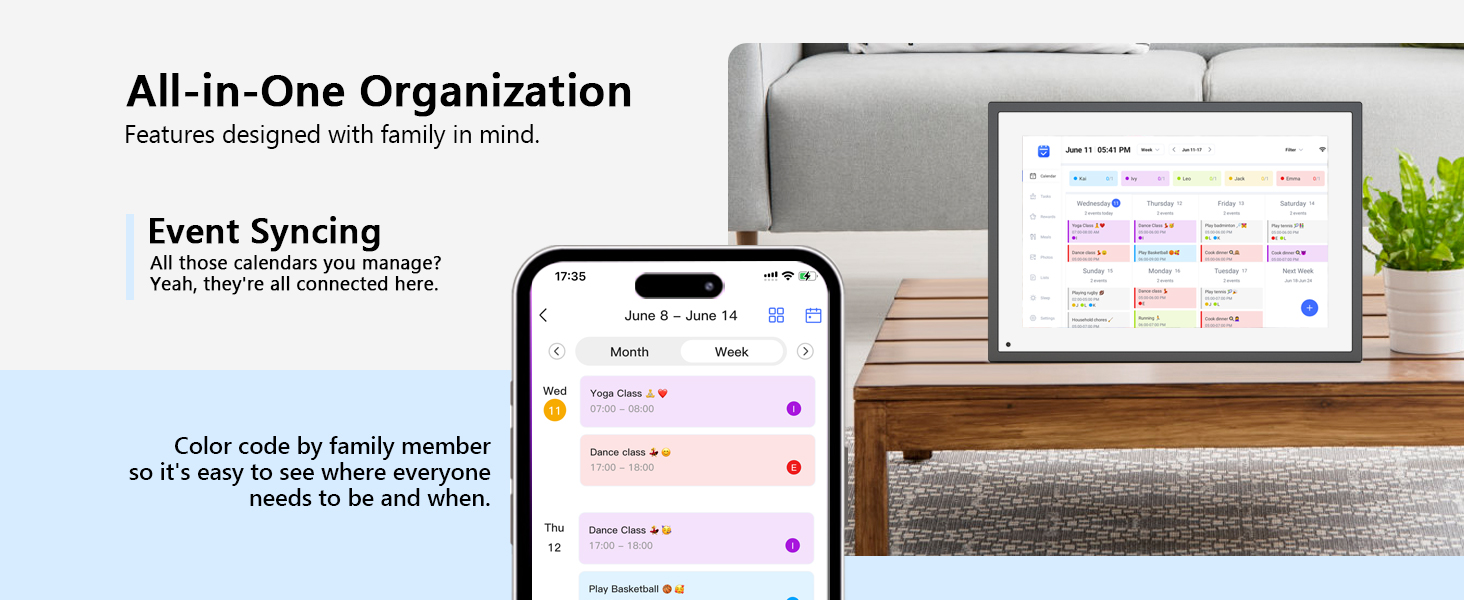
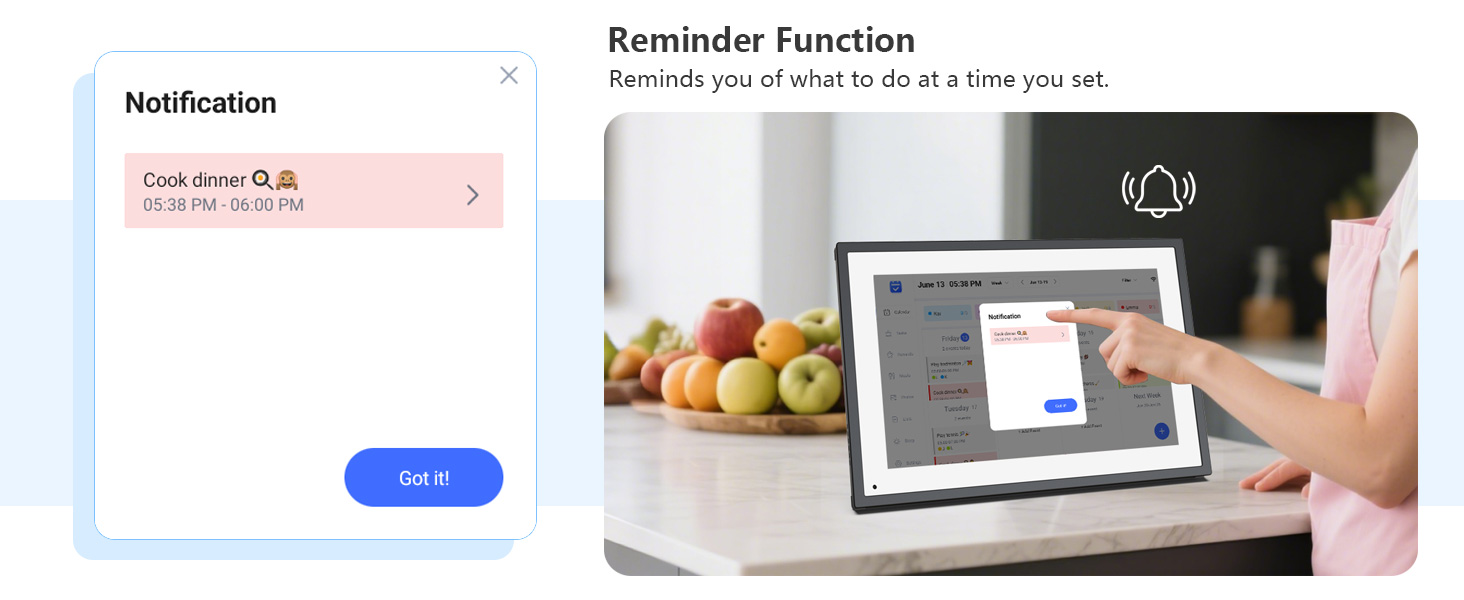
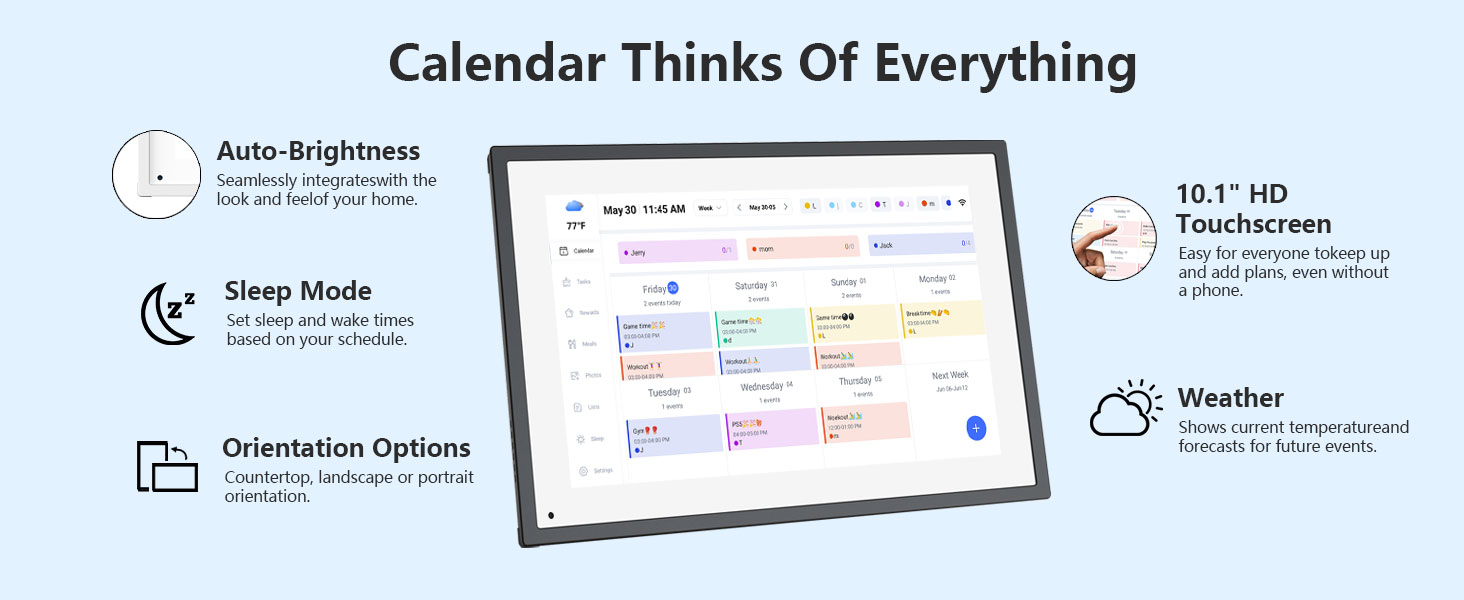
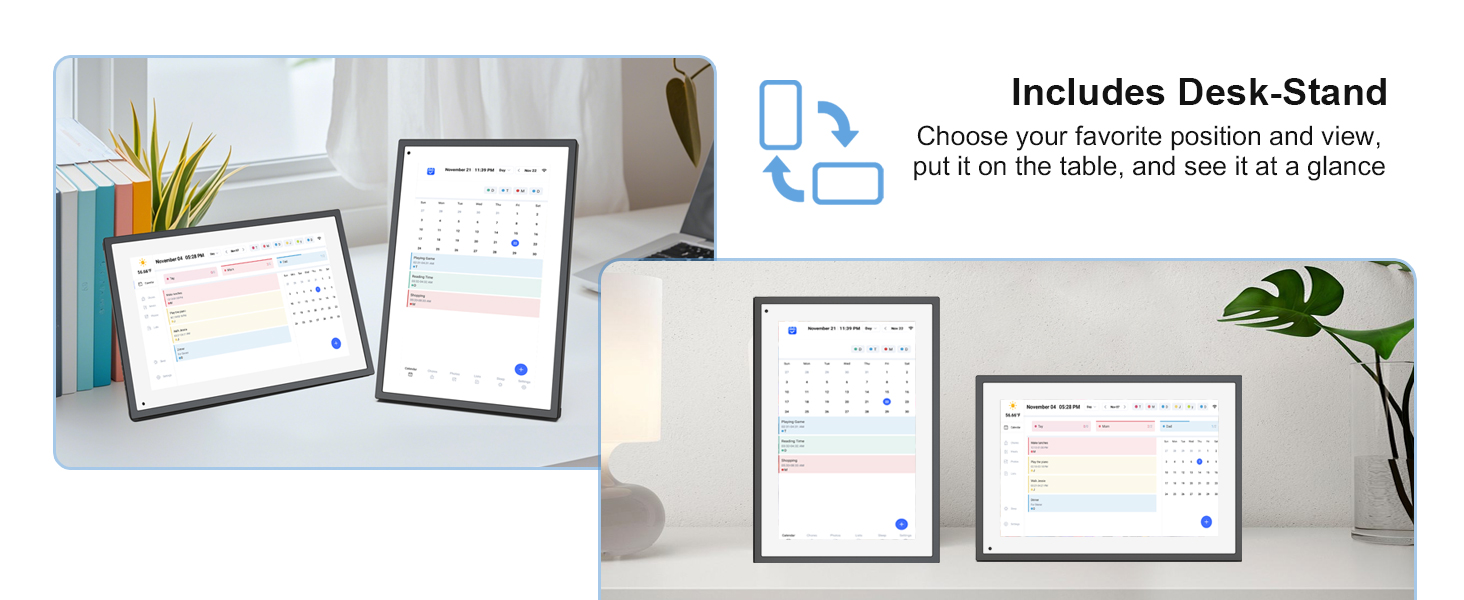
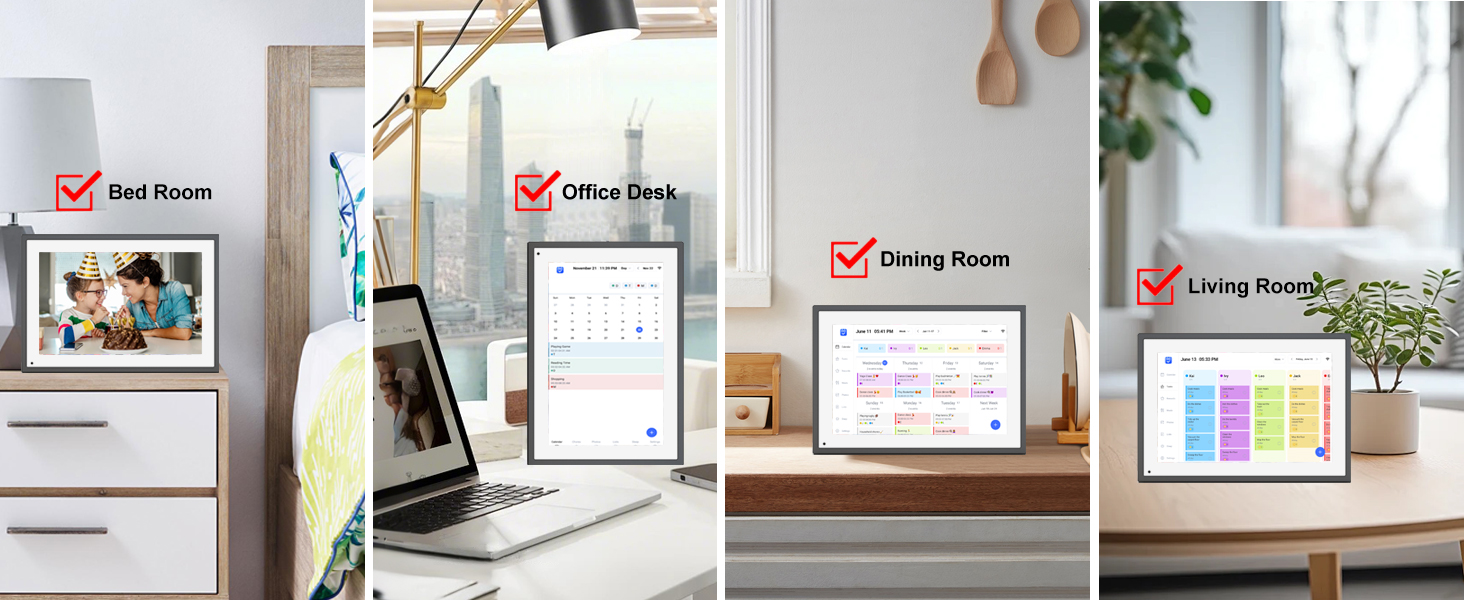
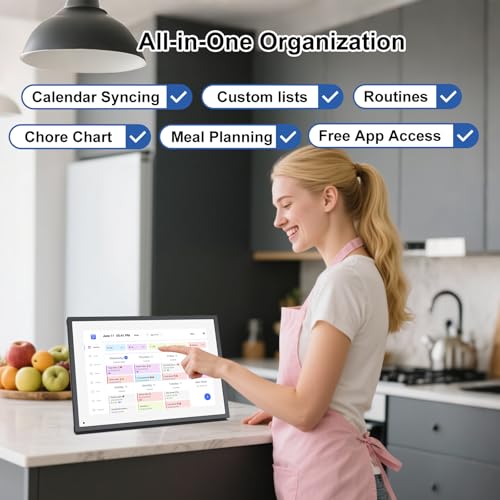
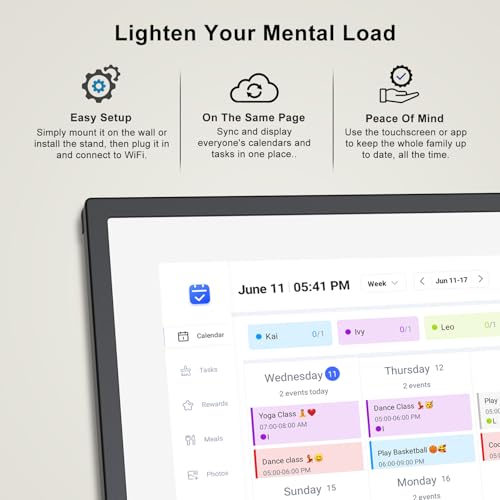
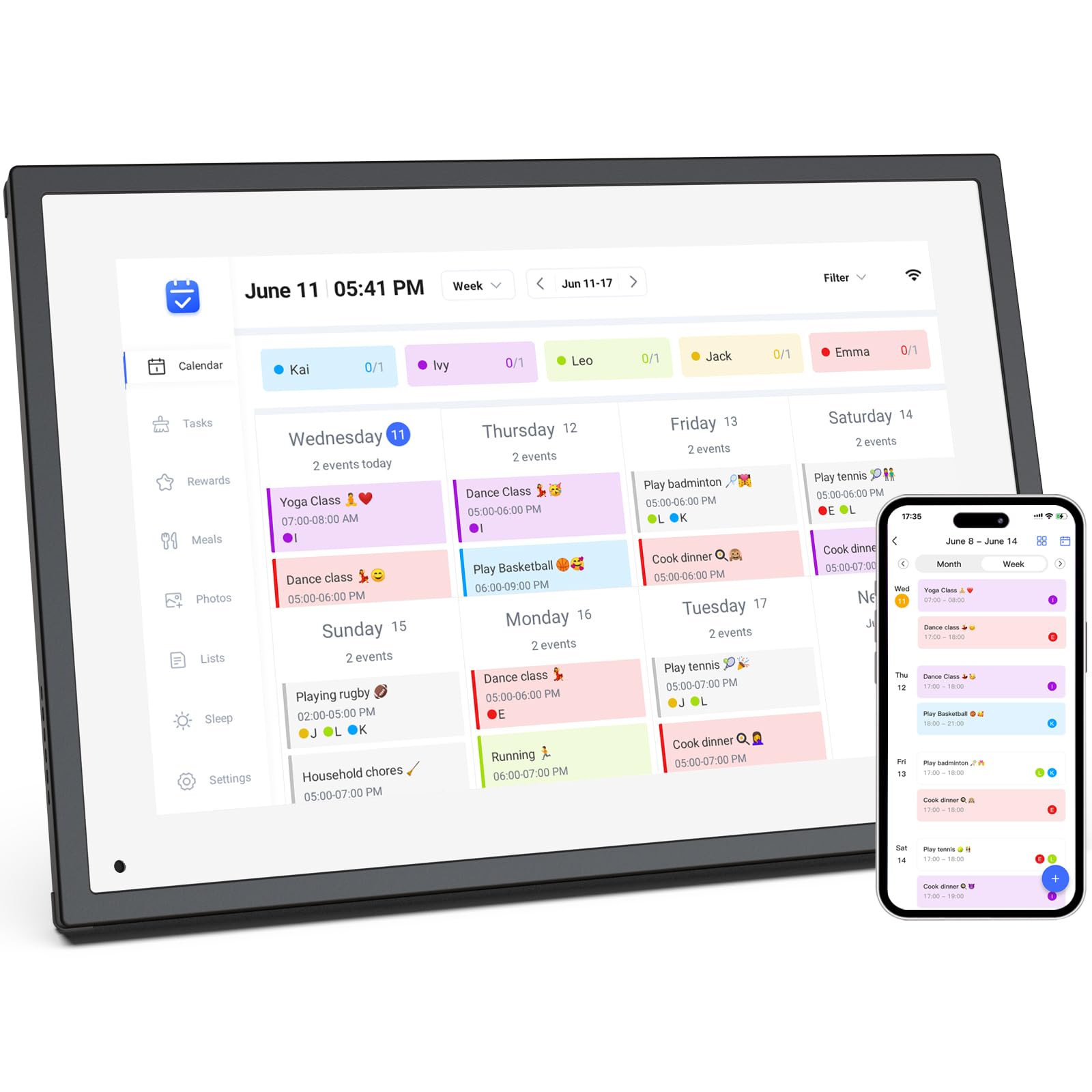
- 【All-In-One Digital Calendar】: WiFi digital calendar + planner touchscreen display + digital picture frame that will get the whole family organized and running smoothly. It’s never been easier to keep the whole family informed by assigning each member their own color and chores.
- 【Versatile Family Assistant】: This versatile digital calendar planner goes beyond a calendar; it helps you create meal plans, access recipes, and watch cooking tutorials. With touch screen, you can easily access smart home apps to control your existing devices. It also serves as a digital picture frame to showcase cherished family memories.
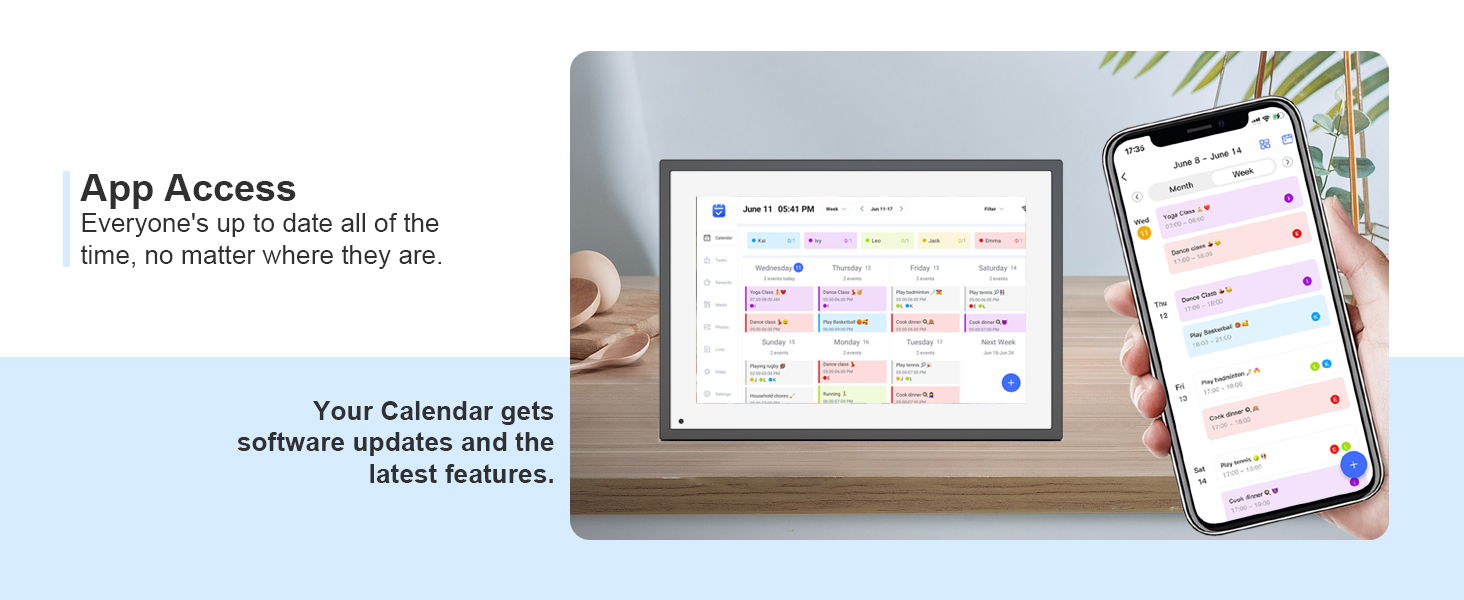
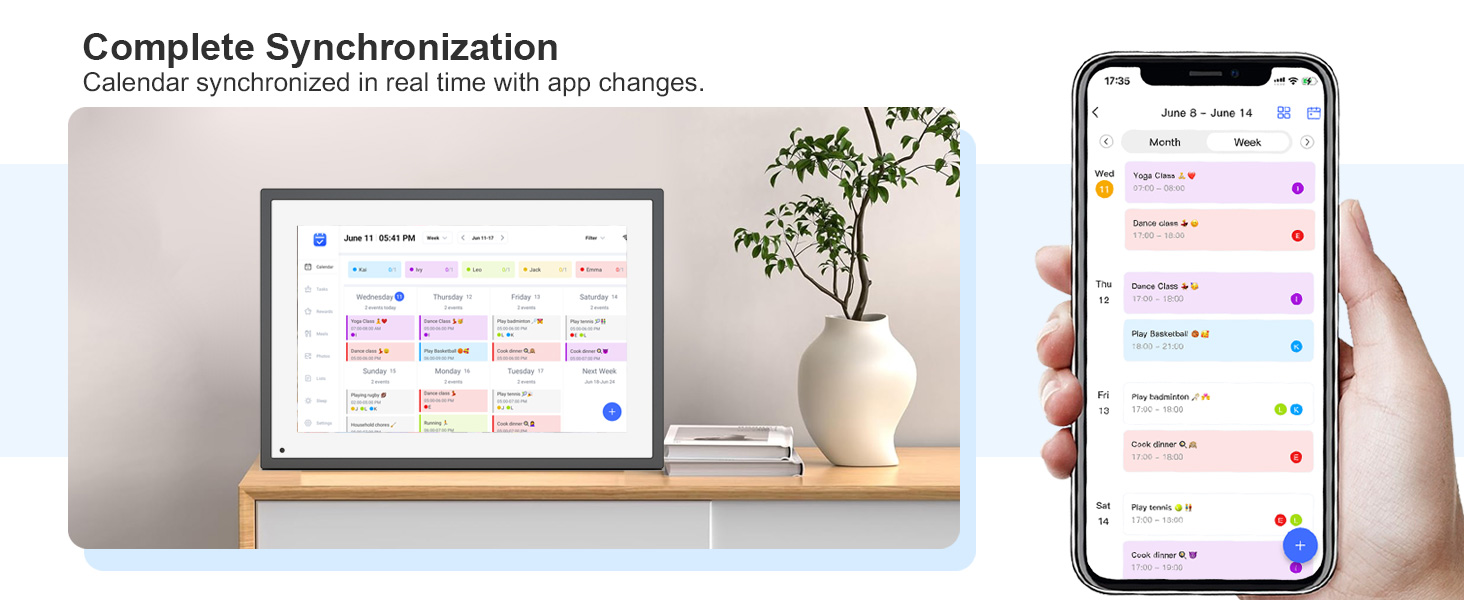
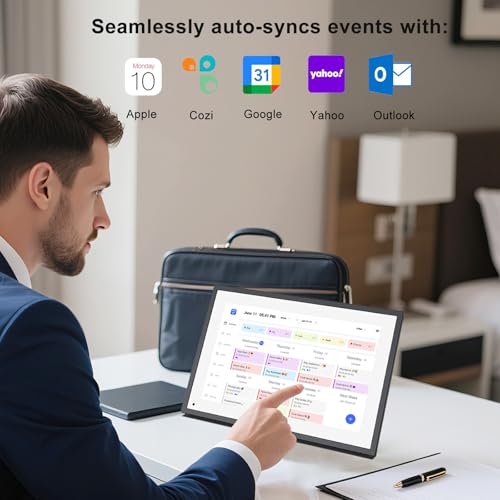
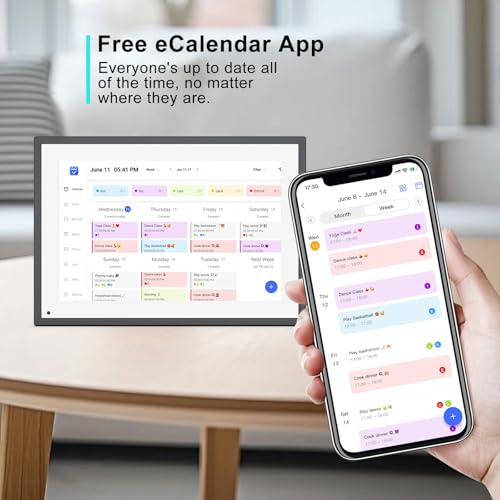
- 【Easy Setup & Use】: Simply plug it in, connect to Wi-Fi, and sync your calendars – all your events will automatically populate and sync. Synchronize with the internet time servers to ensure the utmost accuracy.Add events or chores directly on the device or use the free to download mobile app. Compatible with Google Calendar, iCloud Calendar, Outlook Calendar, Cozi, and Yahoo.
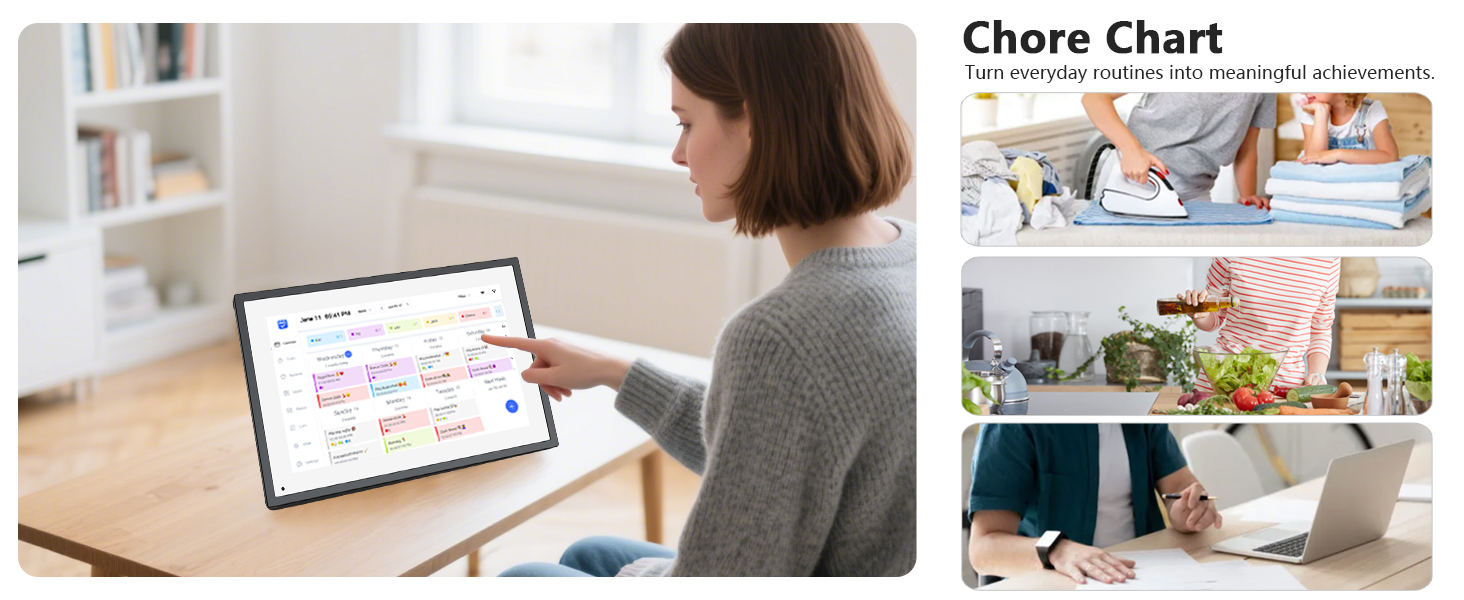
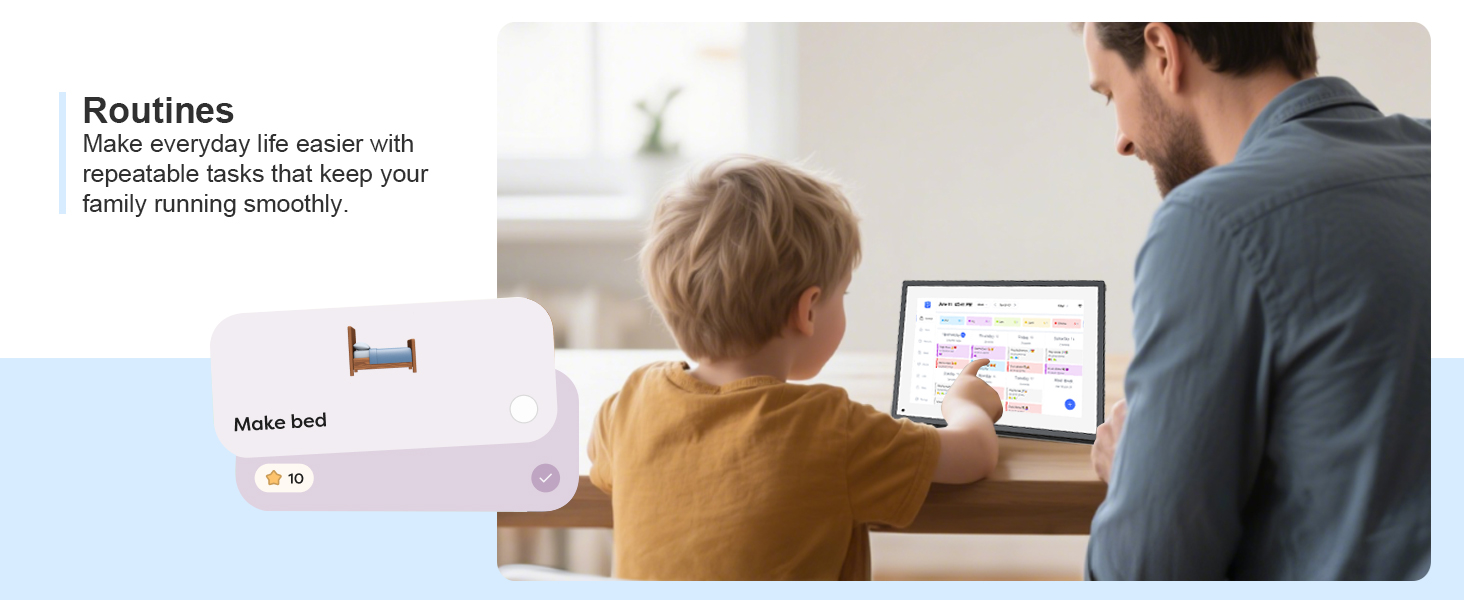
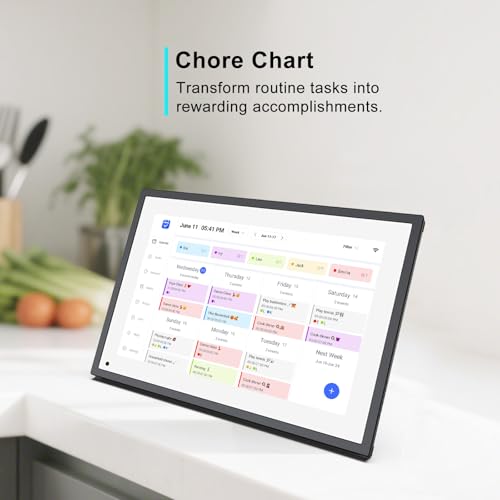
- 【Chores Chart & Dinner Planner】: Easily add, edit, and track chores to promote independence with an interactive Chore Chart. Especially children, to develop healthy habits with an interactive chore chart. Display your family dinner plans to keep everyone informed and eliminate the daily "What's for dinner?" question.
- 【Say Goodbye to Family Chaos】: Our smart calendar digital wall is your ideal solution to reduce stress and keep everyone organized effortlessly. Transform your home into a hub of harmony and productivity. While also serving as a beautiful digital photo frame to relive your most cherished moments. Perfect for organizing busy family lives or for gifting!
Sidekick
Introducing your family'smagical assistant.
Meal Planning
Get personalized meal plans andsee the whole week at a glance.
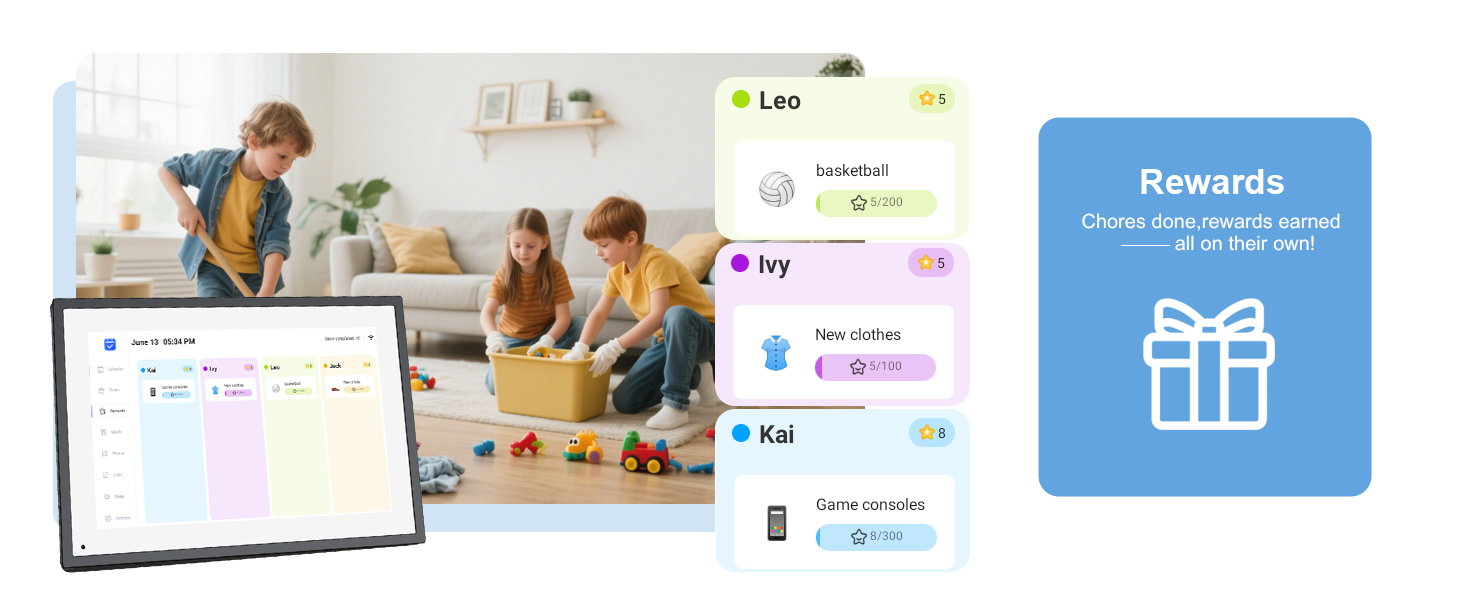
Rewards
Motivate your kids with stars andrewards for completing chores.
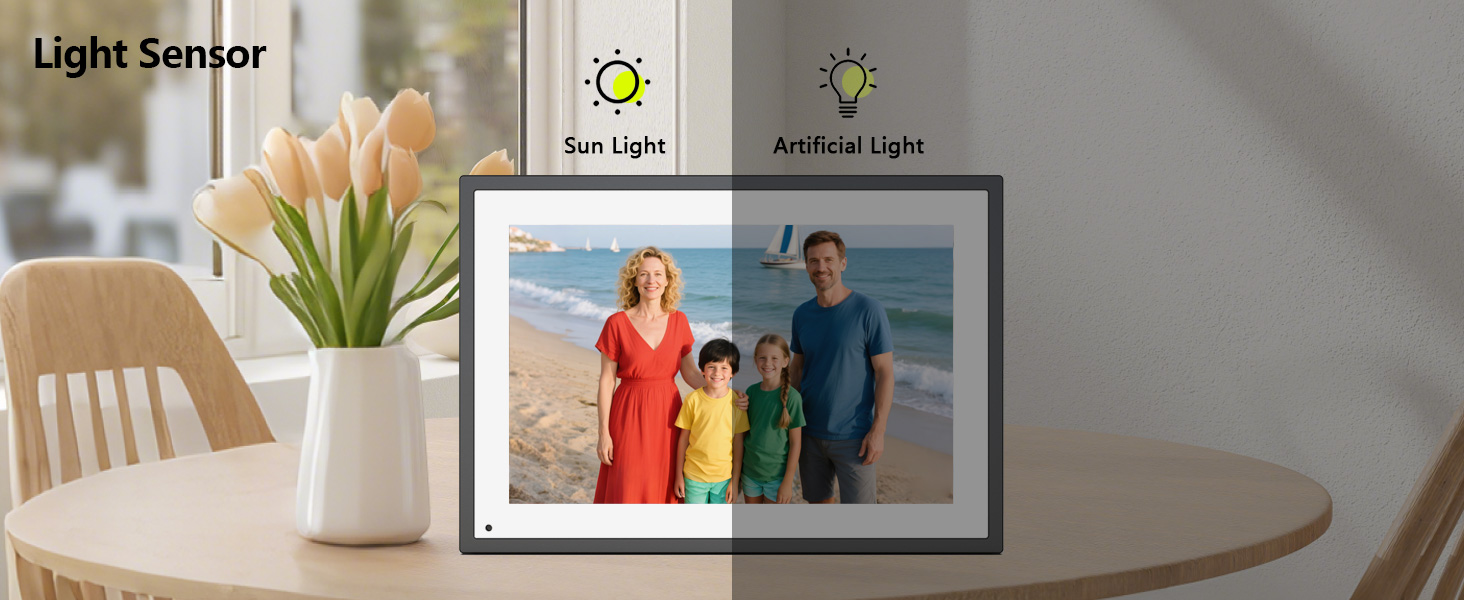
Photo Screensaver
Turn your Calendar into a photoframe when it's not in use.
Operation Video
How to set and bind your calendar
1.Set up Digital Calendar. 2.Scan the code to download the eCalendar App on your phone.
3.Set up your email address to generate a code. 4.Digital Calendar input code to bind your phone.
5.Start using your Digital Calendar
The video showcases the product in use.The video guides you through product setup.The video compares multiple products.The video shows the product being unpacked.10.1 inch Wall Planner Digital Calendar
Merchant VideoHow to Add Chores
Digital Calendar Add Chores
1.Click on the "+" to add Chores 2.Name chores, set date and time 3.Add members and assign chores, or assign chores to already added members
App add Chores to syn to Digital Calendar
1.Click Chores 2.Add new members 3.Click "+" to enter chores name, set the date and time 4.After saving, it can be syn to Digital Calendar
The video showcases the product in use.The video guides you through product setup.The video compares multiple products.The video shows the product being unpacked.10.1 inch Wall Planner Digital Calendar
Merchant VideoiCloud schedule sync to Digital Calendar
1.Click “Sync” 2.Select Email Account 3.Click “iCloud” 4.Copy email address
5.Open calendar 6.Click “Calendar” and select "Public Calendar"
7.Click “Share link” 8.Click "email” 9.Paste email address to the sender and send email
10.iCloud schedule Sync to Digital Calendar
The video showcases the product in use.The video guides you through product setup.The video compares multiple products.The video shows the product being unpacked.10.1 inch Wall Planner Digital Calendar
Merchant VideoGoogle schedule sync to Digital Calendar
1.Click “Sync” 2.Click “sync New Calender” 3.Click “Google”
4.Select “Two way sync” 5.Enter email number 6.Select language, click continue
7.Select email, click "sync calendar"
The video showcases the product in use.The video guides you through product setup.The video compares multiple products.The video shows the product being unpacked.10.1 inch Wall Planner Digital Calendar
Merchant VideoHow to add lists and events
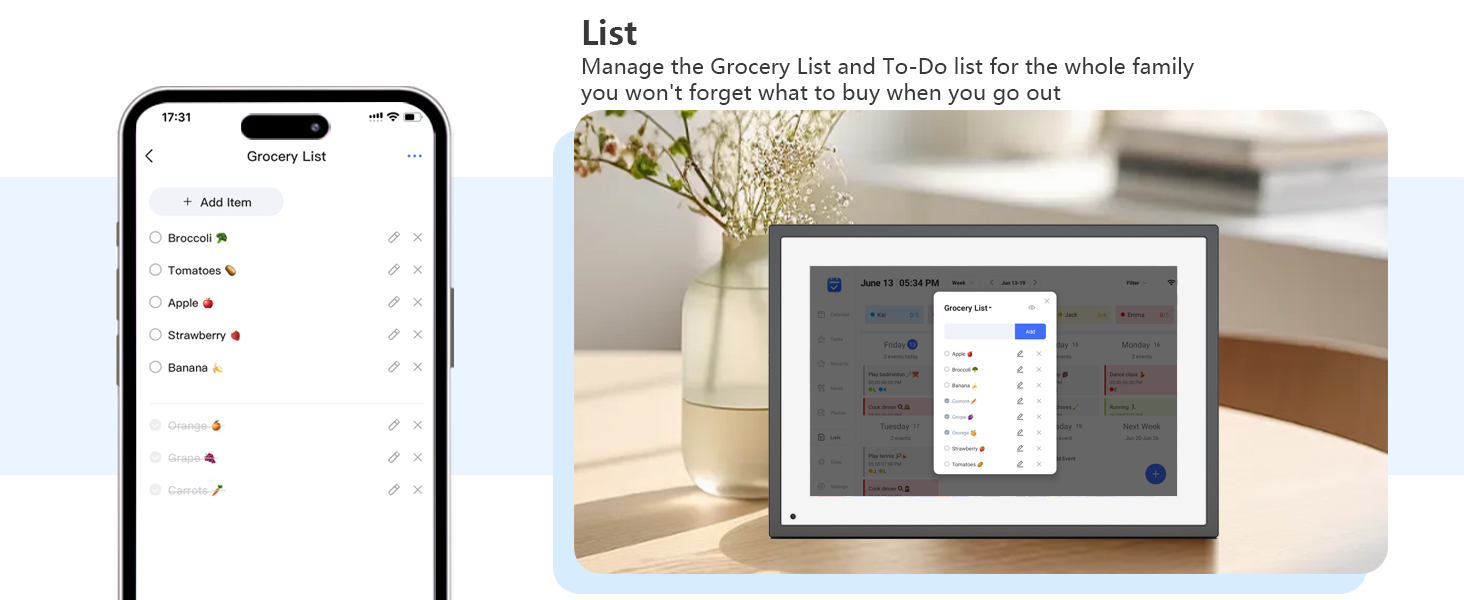
How to add lists
1.Click on the list 2.Add list 3.Name the list and add event 4.Click on it after completing the task
How to add events
1.Click "+" to enter the event 2.Set the start time and end time 3.Add members
The video showcases the product in use.The video guides you through product setup.The video compares multiple products.The video shows the product being unpacked.10.1 inch Wall Planner Digital Calendar
Merchant VideoHow to send photos
1.Click “Photos”
2.Click image icon
3.Select the connected Digital Calendar and click “Pick from Gallery”
4.Select image, confirm and send
The video showcases the product in use.The video guides you through product setup.The video compares multiple products.The video shows the product being unpacked.10.1 inch Wall Planner Digital Calendar
Merchant Video


| SKU: | B0FCF9GGV6 |
| Weight: | 2.59 pounds |
| Dimensions: | 13.5 x 8 x 1.76 inches |
| Manufacture: | akimart |
Product Description
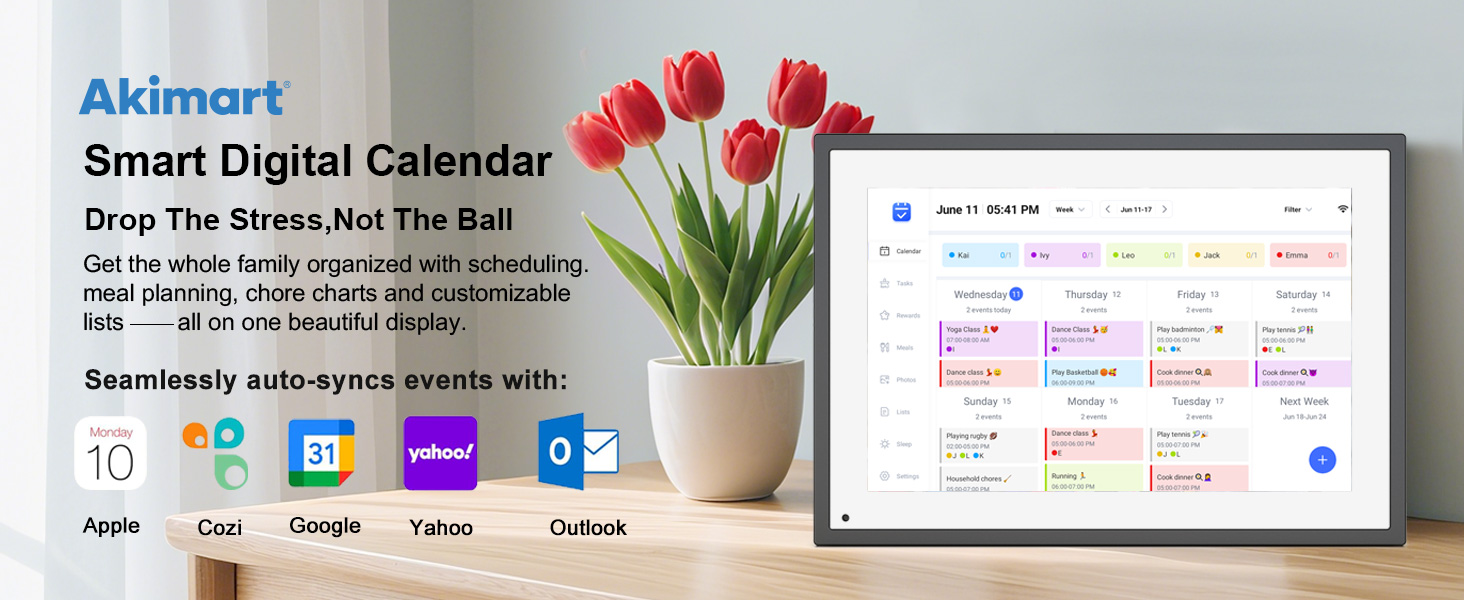
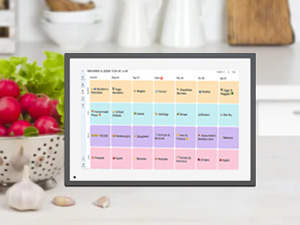

Photo Screensaver
Turn your Calendar into a photoframe when it's not in use.
Previous pageOperation Video
How to set and bind your calendar
1.Set up Digital Calendar. 2.Scan the code to download the eCalendar App on your phone.
3.Set up your email address to generate a code. 4.Digital Calendar input code to bind your phone.
5.Start using your Digital Calendar
The video showcases the product in use.The video guides you through product setup.The video compares multiple products.The video shows the product being unpacked.10.1 inch Wall Planner Digital Calendar
Merchant VideoHow to Add Chores
Digital Calendar Add Chores
1.Click on the “+” to add Chores 2.Name chores, set date and time 3.Add members and assign chores, or assign chores to already added members
App add Chores to syn to Digital Calendar
1.Click Chores 2.Add new members 3.Click “+” to enter chores name, set the date and time 4.After saving, it can be syn to Digital Calendar
The video showcases the product in use.The video guides you through product setup.The video compares multiple products.The video shows the product being unpacked.10.1 inch Wall Planner Digital Calendar
Merchant VideoiCloud schedule sync to Digital Calendar
1.Click “Sync” 2.Select Email Account 3.Click “iCloud” 4.Copy email address
5.Open calendar 6.Click “Calendar” and select “Public Calendar”
7.Click “Share link” 8.Click “email” 9.Paste email address to the sender and send email
10.iCloud schedule Sync to Digital Calendar
The video showcases the product in use.The video guides you through product setup.The video compares multiple products.The video shows the product being unpacked.10.1 inch Wall Planner Digital Calendar
Merchant VideoGoogle schedule sync to Digital Calendar
1.Click “Sync” 2.Click “sync New Calender” 3.Click “Google”
4.Select “Two way sync” 5.Enter email number 6.Select language, click continue
7.Select email, click “sync calendar”
The video showcases the product in use.The video guides you through product setup.The video compares multiple products.The video shows the product being unpacked.10.1 inch Wall Planner Digital Calendar
Merchant VideoHow to add lists and events
How to add lists
1.Click on the list 2.Add list 3.Name the list and add event 4.Click on it after completing the task
How to add events
1.Click “+” to enter the event 2.Set the start time and end time 3.Add members
The video showcases the product in use.The video guides you through product setup.The video compares multiple products.The video shows the product being unpacked.10.1 inch Wall Planner Digital Calendar
Merchant VideoHow to send photos
1.Click “Photos”
2.Click image icon
3.Select the connected Digital Calendar and click “Pick from Gallery”
4.Select image, confirm and send
The video showcases the product in use.The video guides you through product setup.The video compares multiple products.The video shows the product being unpacked.10.1 inch Wall Planner Digital Calendar
Merchant Video